



A molecular trajectory can produce several useful measurements, but reading them one at a time can hide how they relate. A distance may rise while energy falls; a structure may become more compact as its RMSD changes. The practical question is not only what each measurement does, but whether the two change together—and whether particular combinations point to distinct regions of the path.
In SAMSON’s Path Analyzer, Custom scatter lets you compare two saved scalar analyses directly. Each point represents one sampled pair of values. Instead of scanning two separate plots and trying to line them up mentally, you can inspect both observables in a shared view.
Start with a scientific question
A scatter plot is most useful when the pair of measurements has a reason to be compared. For example, you might ask whether a changing Distance is associated with a change in Energy, whether RMSD varies with the Radius of gyration, or how SASA relates to a distance of interest. These examples turn a general plotting task into a focused question about your system.
Before adding the plot, consider what different patterns might mean. A clear trend can suggest that the two observables vary together or in opposite directions. A broad cloud may indicate that one value does not map neatly to the other. Separate groups of points can prompt you to investigate whether the path visits distinct regions of observable space. These are clues for interpretation, not proof of a mechanism: a scatter plot shows the relationship between the selected measurements, and scientific context is still needed to explain it.
Build the comparison
- Open Path Analyzer.
- Create or reuse two saved scalar analyses in the Analysis Tray.
- Choose Custom scatter under Observable.
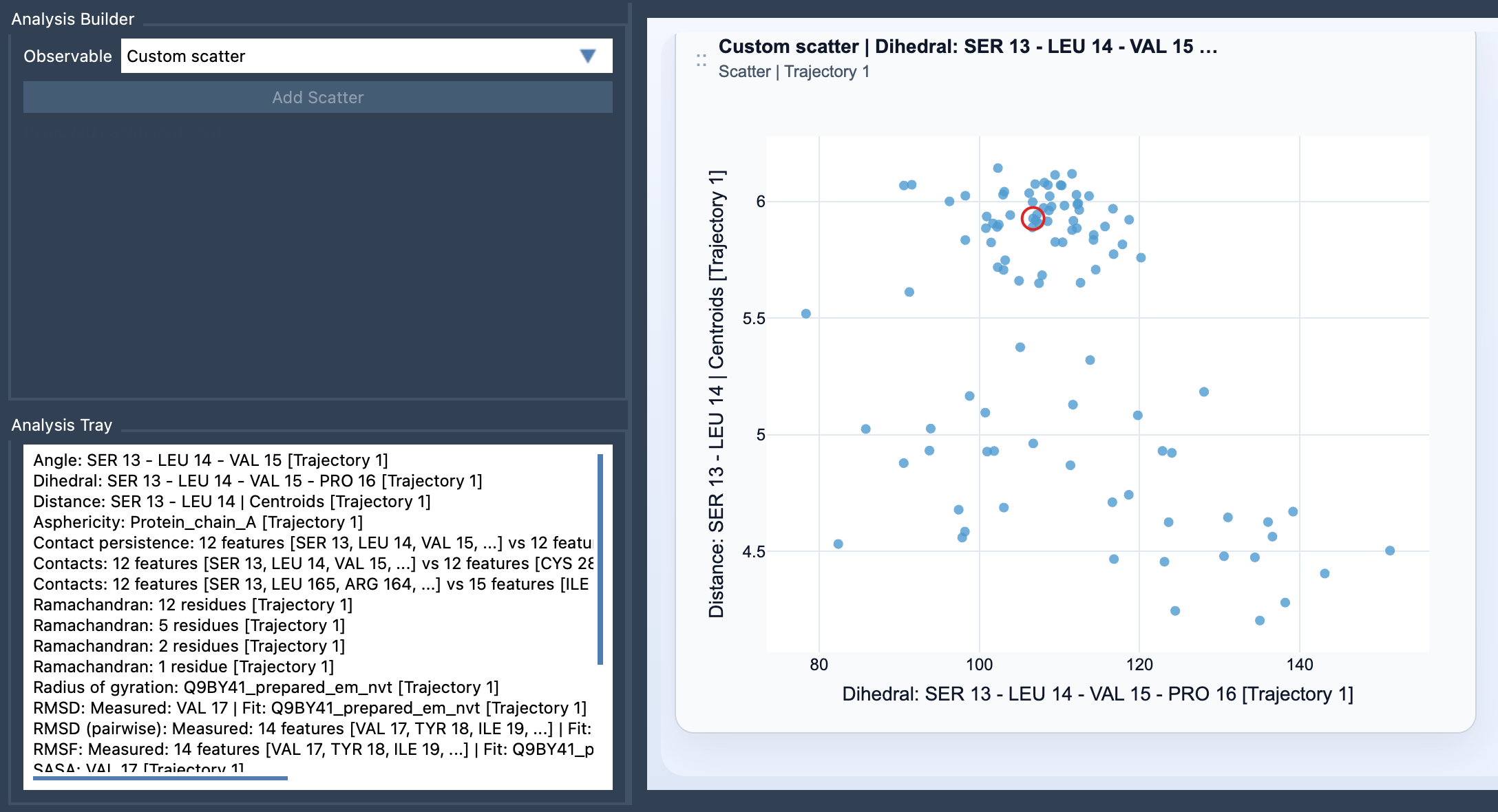
- Select exactly two saved scalar analyses in the tray, then click Add Scatter.
Custom scatter is a derived analysis, so it uses analyses already saved in the Analysis Tray rather than direct atom selections. Both source analyses must be scalar analyses. This makes preparation important: decide what each analysis represents, and check that the pair answers a meaningful question before comparing them.
Use the plot to guide your next question
Once the scatter is visible, look for the overall shape before settling on an interpretation. Is there an apparent association? Does the relationship look different across parts of the plot? Are there regions worth examining in the underlying path? A useful next step is to connect an interesting pattern back to the molecular trajectory rather than treating the plotted points as an isolated result.
If both source analyses come from the same path and remain frame-linked, the scatter plot can stay connected to the current frame. When the two analyses are frame-linked, clicking a point can move the path to its corresponding frame. This gives you a way to inspect the structural context of a point that catches your attention.
Custom scatter can also be a practical first look before choosing a more specialized view. If the point distribution suggests that regions of the observable space deserve closer examination, consider a 2D density map or an Energy landscape. The scatter plot helps you begin with a simple comparison; the next view should follow from the question and pattern you want to investigate.
For the full workflow and details, see the Custom Scatter documentation.
Note: SAMSON and all SAMSON Extensions are free for non-commercial use. Get SAMSON.