



A molecular trajectory can generate many measurements: distances, energies, RMSD, radius of gyration, solvent-accessible surface area, and more. Looking at each scalar analysis separately may leave an important question unanswered: how do two observables change together? A distance curve may show when atoms move apart, and an energy curve may show energetic changes, but neither plot alone reveals whether those changes coincide.
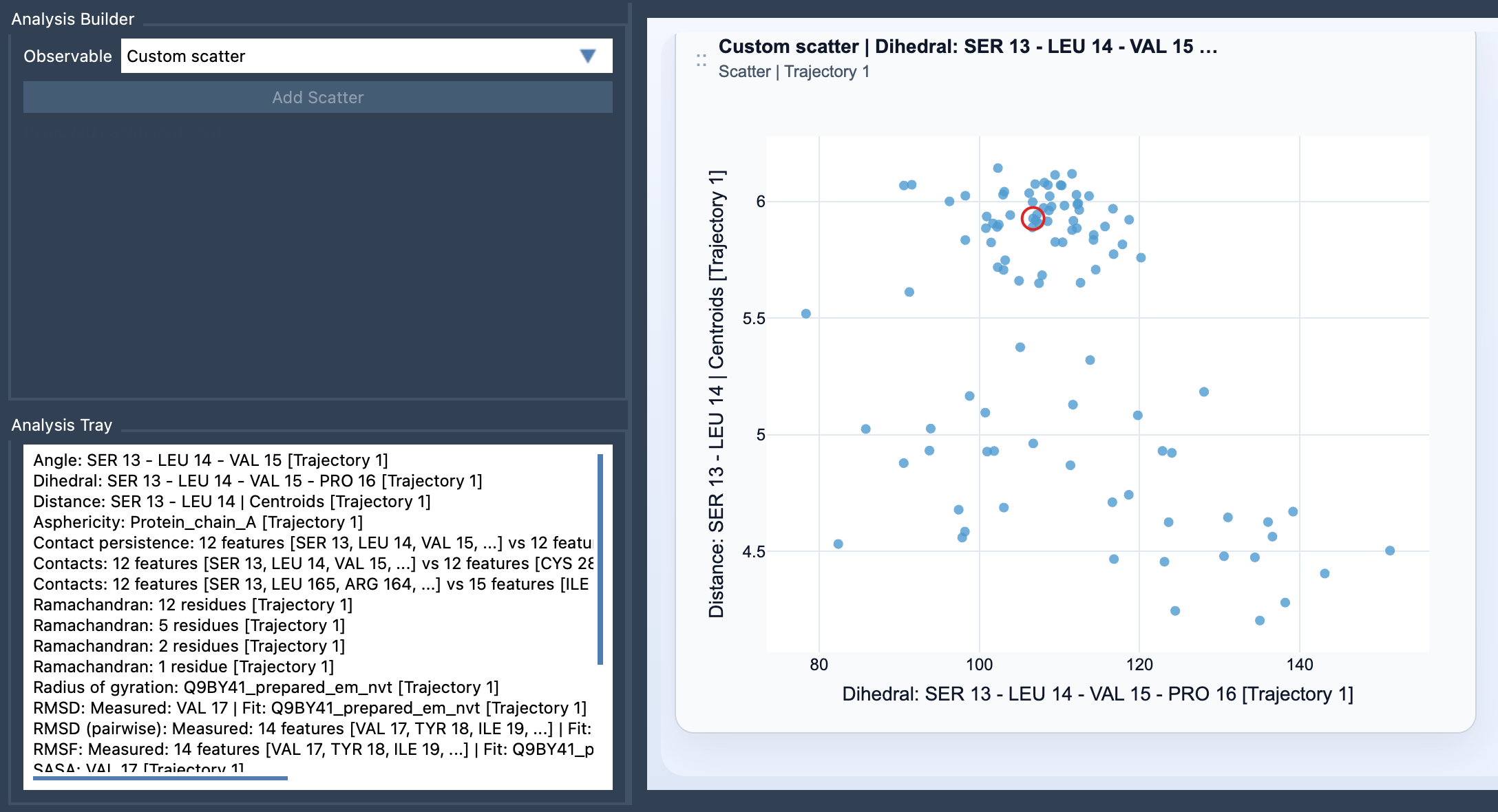
Custom Scatter in SAMSON’s Path Analyzer offers a direct way to compare two saved scalar analyses. Each point represents one sampled pair of values, letting you inspect two observables in a shared view. This can help you spot relationships, groups of samples, or possible transitions that are difficult to notice when reviewing separate plots.
Start with a question, not just two variables
A scatter plot is most useful when the pair of measurements is tied to a scientific question. For example, if you are investigating whether a structural change coincides with an energy change, compare Distance vs Energy. To explore overall structural compactness alongside conformational deviation, try RMSD vs Radius of gyration. To examine solvent exposure in relation to a structural separation, consider SASA vs Distance.
These pairs are examples, not conclusions. A plot can show how sampled values are distributed together, but it does not by itself establish that one observable causes the other to change. Treat a visible relationship as a clue to investigate, and interpret it in the context of your system, trajectory, and analysis choices.
Build the comparison
- Open Path Analyzer.
- Create or reuse two scalar analyses and make sure they are saved in the Analysis Tray.
- Choose Custom scatter under Observable.
- Select exactly two saved scalar analyses in the tray, then click Add Scatter.
Custom Scatter is a derived analysis: its inputs come from the Analysis Tray rather than from direct atom selections. That distinction is useful when you already have scalar analyses prepared and want to compare them without rebuilding the measurements as a new atom-selection analysis. Both selected sources need to be scalar analyses.
Read the shape carefully
Each plotted point corresponds to a sampled pair of scalar values. A concentrated region can indicate that many samples occupy a similar range for both observables. A spread of points may suggest that one value varies substantially across samples, while distinct groupings or branches can be worth checking against the underlying trajectory. These are prompts for interpretation, not automatic classifications: the plot displays the paired values, and the scientific meaning depends on what was measured and how the samples were generated.
When both source analyses come from the same path and remain frame-linked, the scatter plot can stay connected to the current frame. In that case, clicking a point can move the path to its corresponding frame. This makes it easier to inspect the molecular structure associated with an interesting region of the plot—for example, a point that appears separated from the main concentration of samples. Frame-linked interaction depends on the source analyses being linked as described; it should not be assumed for every pair of analyses.
Use the scatter as a starting point
Custom Scatter is a quick first look at relationships between two observables. If a pattern merits closer examination, the documentation also points to 2D density maps and energy landscapes as possible next steps. The key is to begin with a pair that addresses a concrete question, then use the plot to decide what is worth inspecting further—not to treat a visual pattern as a complete explanation.
For the exact setup steps and input requirements, see the Custom Scatter documentation.
Note: SAMSON and all SAMSON Extensions are free for non-commercial use. Get SAMSON.