



For molecular modelers working on simulations, getting started with the right force field can be a challenge, especially when precise parameterization is required. The Universal Force Field (UFF) in SAMSON simplifies this process, with tools designed for ease of use and adaptability. This post dives into how to set up UFF in SAMSON to streamline your simulations effectively.
Why Choose UFF for Molecular Simulations?
UFF is a highly versatile molecular interaction model, based on the work of Rappé et al. It covers all elements in the periodic table and is suitable for molecular mechanics and dynamics simulations. Built into SAMSON, UFF also features an automatic perception mechanism that computes bonds, bond orders, and atom types, letting you apply the force field directly to your system.
How to Set Up UFF in SAMSON
Follow these simple steps to begin your simulation with UFF:
- Open a document containing the molecular system you wish to simulate.
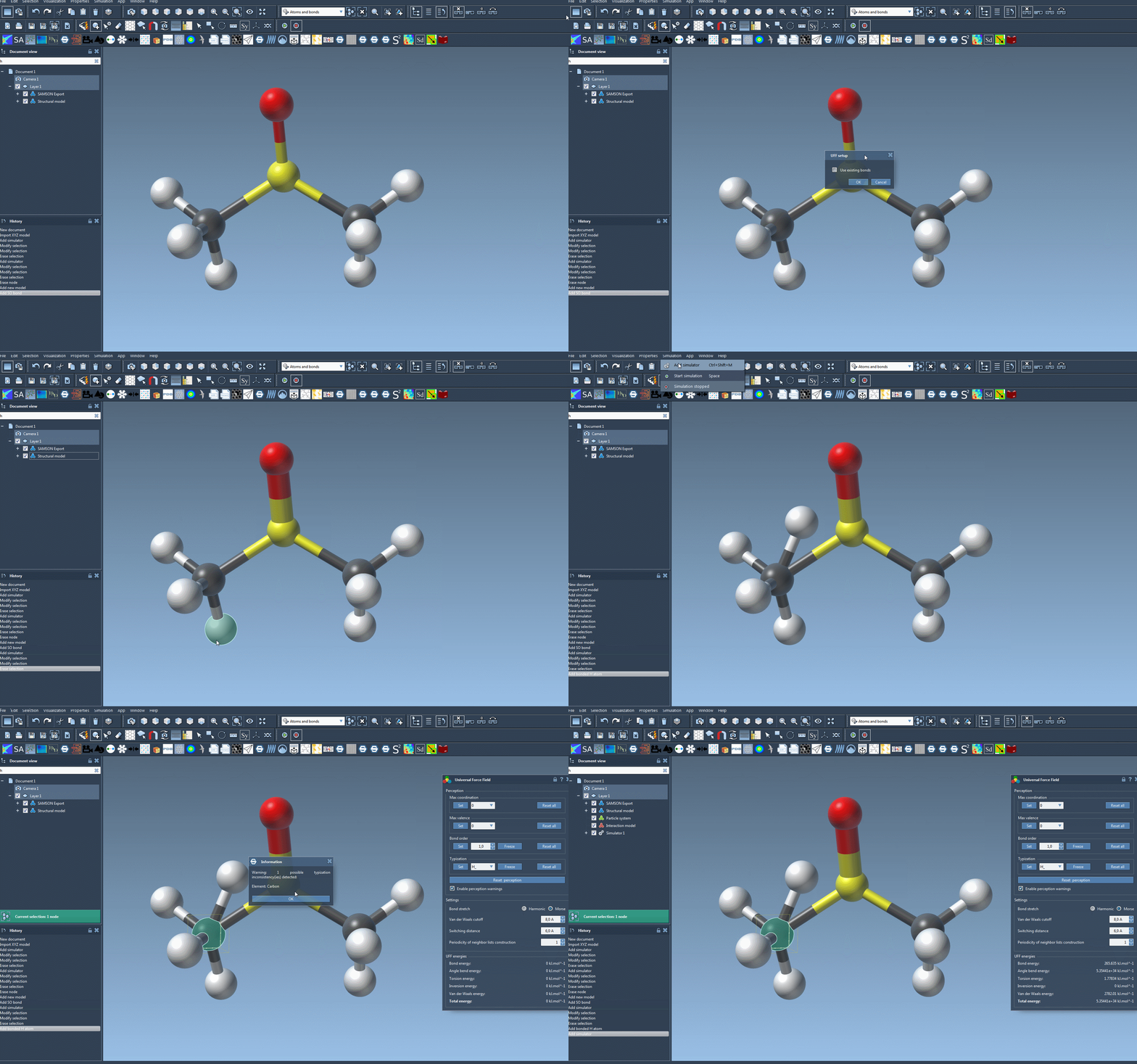
- Navigate to Edit > Simulate > Add simulator. Alternatively, you can use the convenient shortcut: Ctrl + Shift + M (or Cmd + Shift + M on macOS).
- In the simulator setup, select Universal Force Field from the list of available interaction models.
- Choose a state updater for the simulation, such as FIRE, depending on your project needs. Click OK.
The UFF setup window will now appear. Here are two critical options to configure:
- Use existing bonds: Choose this option if you want to use pre-defined bonds in your molecular model. If it’s left unchecked, UFF will compute bonds automatically.
- Once ready, click OK.
SAMSON now initializes the system for UFF by performing the following:
- Computing covalent bonds (if Use existing bonds wasn’t selected).
- Calculating bond orders.
- Determining atom types to suit the UFF method.
Keep in mind that if inconsistencies are detected in this process, SAMSON will relay warning messages to help you resolve these issues.
What’s Next? Running the Simulation
Once you’ve completed setting up, you’re ready to run your UFF simulation. Simply go to Edit > Simulate > Start, and the simulation begins.
During the run, the bottom of the UFF interface displays detailed energy readings, including terms specific to UFF as well as the total energy. Additionally, you can interactively move atoms to observe how the force field adjusts other atoms within the model dynamically.
Additional Customization and Troubleshooting
UFF in SAMSON also lets advanced users fine-tune simulations through customizable parameters, like bond stretch interaction types (Harmonic or Morse) and parameters for van der Waals interactions. This level of control ensures that your simulations meet exact specifications. Further, you’ll find support for adding or deleting atoms during the simulation, with automatic updates to typization.
To explore more about UFF, customization, and tips for success, visit the original documentation.
Note: SAMSON and all SAMSON Extensions are free for non-commercial use. You can get SAMSON here.