



Molecular modelers often face the challenge of dealing with vast and complex molecular structures. Whether it is identifying receptors, ligands, or specific atoms, manually selecting the desired elements can be time-consuming and error-prone. SAMSON’s Node Specification Language (NSL) offers an elegant solution to this pain point, allowing users to search and filter through molecular structures with precision and ease.
Why Use NSL for Filtering?
The Node Specification Language is a powerful tool for specifying and selecting nodes based on their attributes. In practical terms, this means that you can define criteria for finding anything from atoms and residues to structural groups and ligands—all within moments. By integrating NSL into your molecular modeling workflow, you can save significant amounts of time and focus on your scientific analysis.
Using NSL for Filtering in SAMSON’s Document View
One of the most interactive ways to use NSL is through the Document View in SAMSON. The Document View lets you visually filter nodes such as atoms, residues, and structural groups using precise NSL strings. Here’s how you can make the most of it:
- Locate the filter box: Open the Document View in SAMSON and find the node filter box.
- Enter NSL expressions: Use NSL expressions to filter nodes dynamically. SAMSON immediately updates the view to show only the nodes matching your criteria.
- Select filtered nodes: After applying your filter, press the Enter key to select the filtered nodes. This can be invaluable when you need to focus on specific areas of your molecular structure.
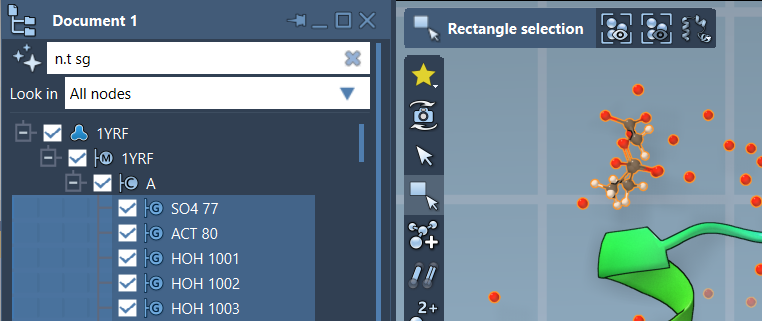
For example, a simple NSL expression such as n.t sg filters structural groups. Similarly, typing C w 5A of S allows you to filter carbon atoms within 5 angstroms of sulfur atoms.
Example: Filtering Nodes in Action
The following example demonstrates how you might filter a specific subset of nodes using NSL in Document View:
node.type residue b 5A of node.selected(short version:n.t r b 5A of n.s): filters for residue nodes beyond 5 angstroms of the currently selected structure.H in r.t ALA: filters for hydrogen atoms within alanine residues.
These expressions not only provide a filtered view but also make downstream processes like analysis or modification more accurate and streamlined.
Interactive AI Assistance
SAMSON takes your filtering a step further with its AI Assistant. Located conveniently in the Document View, the AI Assistant can help you generate NSL expressions tailored to your specific molecular document. The Assistant takes into account the document’s hierarchy, so you receive precise, context-sensitive suggestions for your queries. It’s as simple as clicking the  button and letting the AI Assistant do the heavy lifting of NSL crafting for you!
Streamlined Selections for Complex Systems
With SAMSON’s NSL, you no longer need to rely on manual or cumbersome methods to identify specific nodes in your molecular models. Whether you’re focusing on ligands, residues, or atoms, the straightforward syntax of NSL combined with Document View makes the entire process highly efficient. As a result, you can dedicate more time to meaningful scientific insights and less time wrangling with selections.
To delve deeper into more advanced filtering possibilities and examples, refer to the official NSL documentation page.
Note: SAMSON and all SAMSON Extensions are free for non-commercial use. Get SAMSON at https://www.samson-connect.net.