



For molecular modelers, generating analogue series can often feel like a tedious process. Whether you’re optimizing a lead compound, exploring chemical properties, or preparing molecules for docking studies, finding a seamless way to generate analogues can save substantial time and effort. Enter the SMILES Manager in SAMSON, which simplifies analogue series creation using positional analogue scanning. Here, let’s take a closer look at the step-by-step workflow to get you started.
Why Positional Analogue Scanning?
Positional analogue scanning is a powerful technique that allows molecular designers to explore modifications to a molecule by substituting or attaching specific atoms or groups to patterns of interest in its structure. This approach accelerates the exploration of molecules’ functional properties and structural effects, ultimately empowering you to optimize compounds with critical insights.
Setting Up: Start with Your Structure
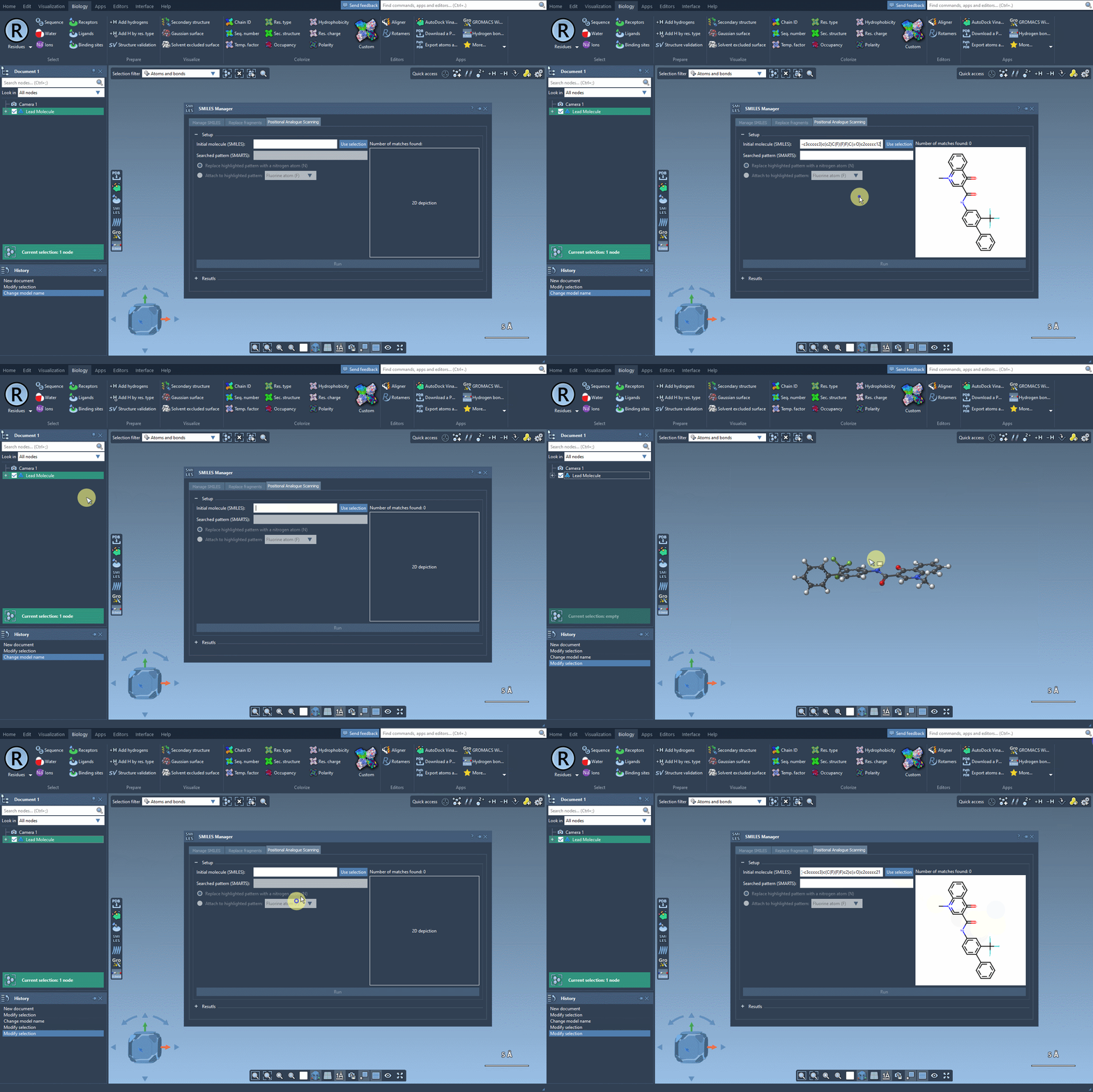
The journey begins by defining your starting molecule. SAMSON’s SMILES Manager provides two simple options:
- Manually enter the SMILES code for your molecule.
- Select the molecule from the SAMSON interface and press the Use selection button, as shown below:
Target Your Pattern of Interest
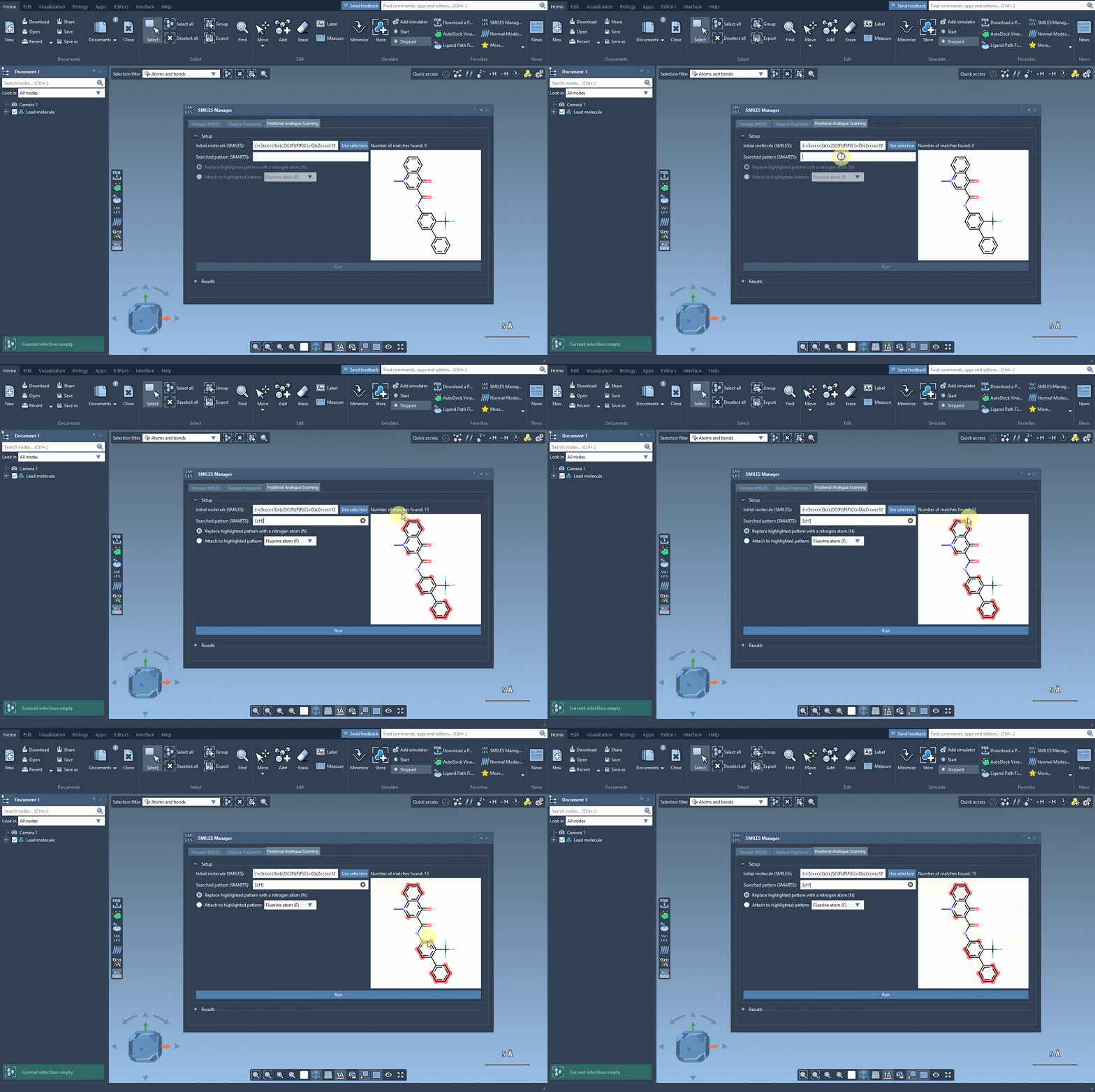
Once your structure is ready, you need to define a specific pattern to modify. For example, you might want to experiment with replacing aromatic carbons in the molecule. Simply input a SMARTS code such as [cH] to identify the pattern across the entire molecule. The system highlights all instances of the pattern, ensuring clear visualization, as shown below:
Modify and Generate Analogues
Now that the target pattern is identified, you can choose how to modify it:
- Replace the pattern with another atom (e.g., Nitrogen,
N). - Attach functional groups such as fluorine (
F) or methyl (CH3).
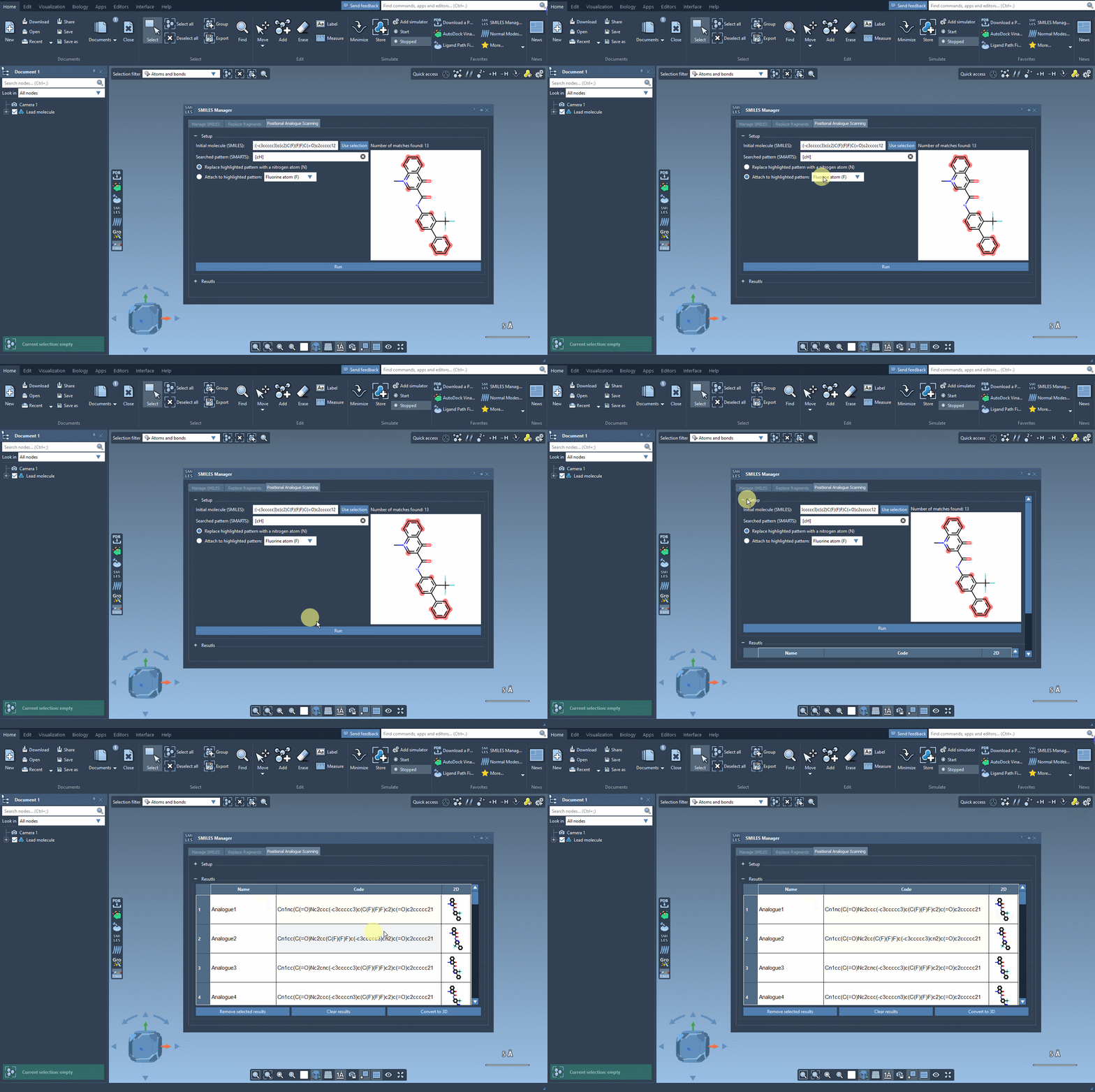
Once you’ve made your choices, simply click the Run button, and the SMILES Manager generates analogues with ease. The results appear promptly, including the corresponding SMILES codes and 2D depictions of the analogues:
Fine-Tuning and Exploring Your Results
The results table offers powerful features for enhancing your workflow:
- Update analogue names or SMILES codes by double-clicking the appropriate table cell.
- Open 2D depiction images in larger views with a simple double-click.
- Generate 3D structures for analogues directly from the table by right-clicking on the desired molecule’s depiction and selecting Generate 3D structure.
- Customize results by hiding, showing, or removing selected analogs or clearing the entire table.
These features allow you to easily organize, refine, and dive deeper into your analogues.
3D Structures and Beyond
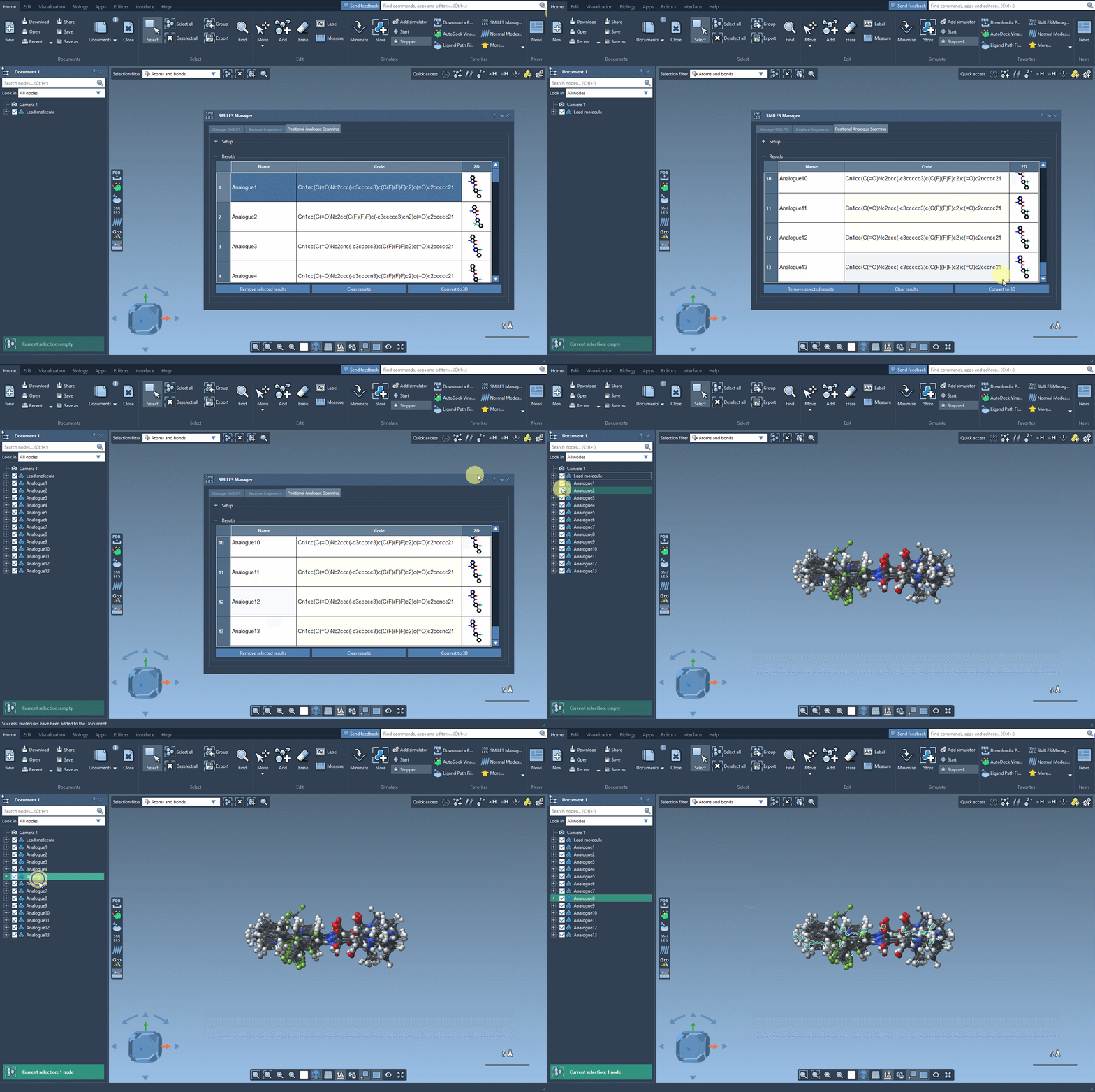
Generating 3D structures is just a click away with the Convert to 3D button. Once converted, you can analyze the analogues further—for instance, by performing docking studies to examine how functional changes impact molecular interactions. Tools like the AutoDock Vina Extended extension are invaluable here for exploring binding potential and interaction landscapes.
Wrap-Up
The SMILES Manager ensures your workflow is efficient, accurate, and tailored to molecular modeling needs. Whether you’re refining a lead compound or exploring novel substitutions, positional analogue scanning is a game-changer. To dive deeper into this tool and learn more about its capabilities, visit the official documentation.
SAMSON and all SAMSON Extensions are free for non-commercial use. To start designing molecules, get SAMSON today at https://www.samson-connect.net.