



Molecular modelers often face the challenge of creating realistic lipid environments around proteins for their simulations. Whether you’re preparing for molecular dynamics or want to understand interactions in membrane-like environments, constructing these systems can often be time-consuming and error-prone. The Molecular Box Builder extension in SAMSON offers a streamlined way to build lipid layers, saving time and enhancing accuracy.
In this post, we’ll guide you through the process of building a single lipid layer around a protein using the Molecular Box Builder. By following these steps, you can quickly set up a system ready for further simulation and analysis.
Why Build Lipid Layers?
Lipid layers are an essential feature in many biological systems. They mimic cellular membranes in simulations, allowing molecular modelers to study protein-membrane interactions, effects of mutations, or compound behavior under biologically realistic conditions. But manual creation of lipid layers can be daunting. This is where tools like the Molecular Box Builder come in.
Step-by-Step Guide
Step 1: Align the Protein
The first step is to properly orient the protein to ensure the lipid layer aligns around it appropriately.
- Locate your protein in the Document view.
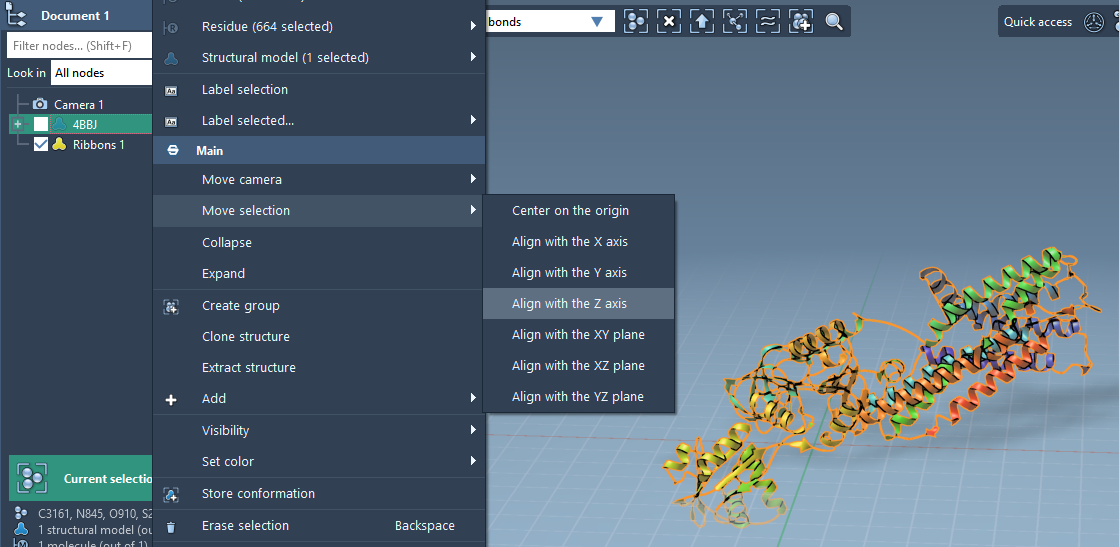
- Right-click the structure and use the context menu options: Move selection > Align with Z-axis to align the protein along the Z-plane.
- Follow this step by selecting Move selection > Center on the origin to position the protein at the box center.
Step 2: Set the Lipid Molecule
Now that the protein is ready, you’ll define the lipid molecule to use for the layer.
- Load a lipid molecule into SAMSON.
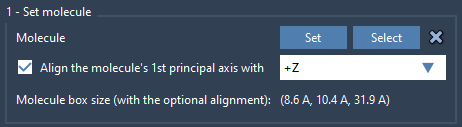
- Select the lipid molecule and click the Set button in the Molecular Box Builder interface.
- To ensure proper alignment in the lipid layer, align its principal axis to the
+Zaxis. The app provides an option to make this process straightforward.
Step 3: Define the Box
At this stage, you’ll define the spatial dimensions of the box that will contain your lipid layer.
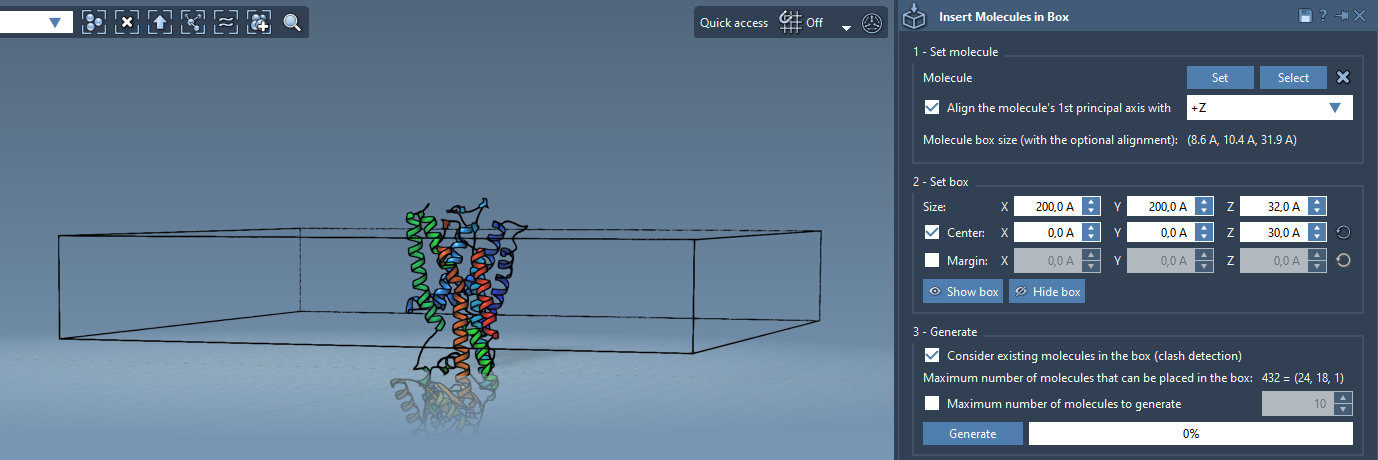
- Center the box around the protein to ensure proper placement of lipid molecules.
- Adjust the box dimensions so that the box contains a single layer of lipids around the protein. You can set the dimensions directly in the Molecular Box Builder interface.
- If needed, customize the margin between inserted molecules to optimize density.
Step 4: Generate the Lipid Layer
Now it’s time to generate the lipid layer:
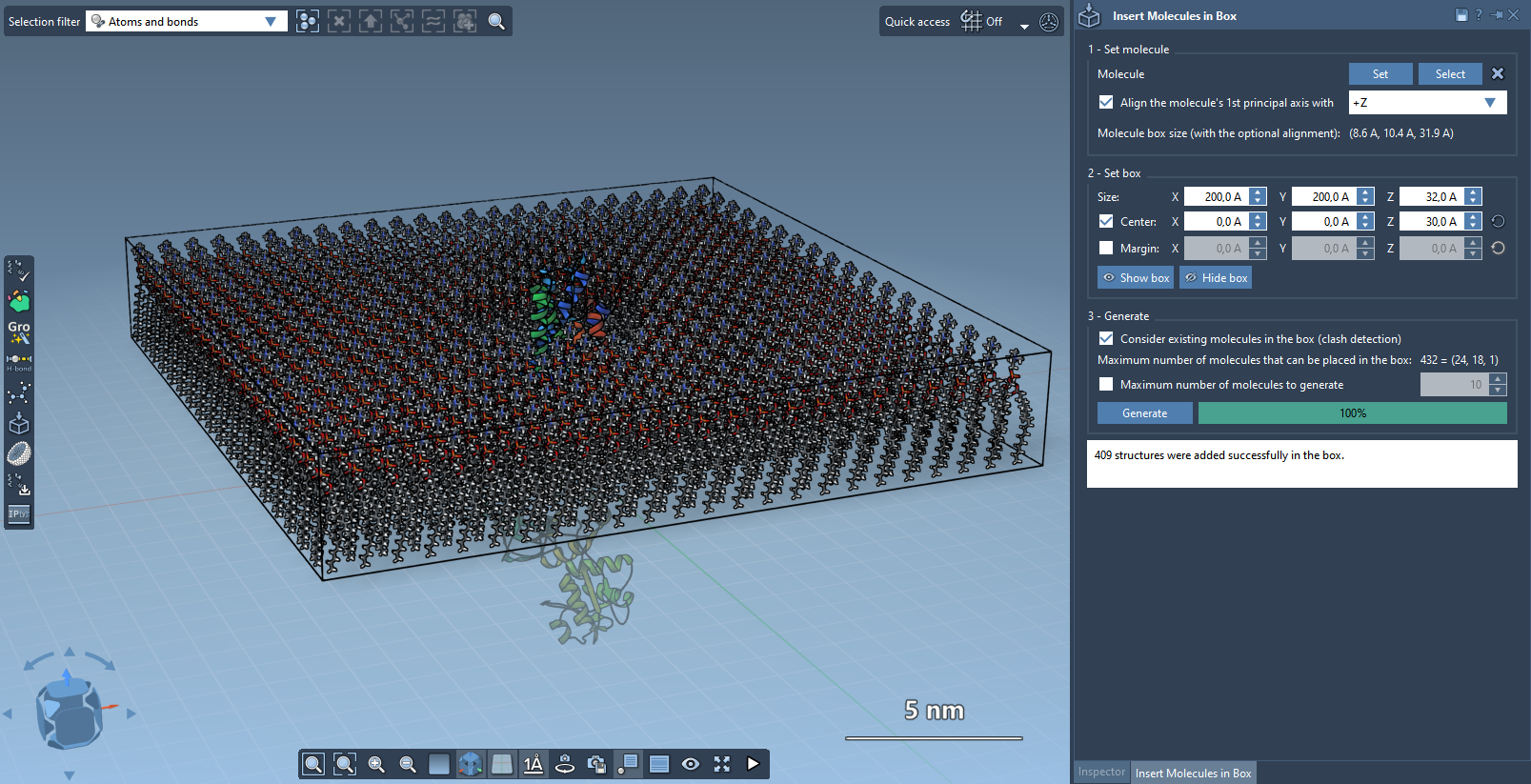
- Enable the Consider existing molecules in the box option. This ensures lipids will be placed only in available spaces, respecting the protein structure.
- Click Generate. The app will fill the box with lipid molecules, creating a layer around the protein.
The result is a single lipid layer surrounding the protein model, perfectly aligned and ready for further refinement.
Optional: Create a Full Lipid Bilayer
If needed, you can go a step further and construct a full lipid bilayer. To do this, add the first layer aligned to +Z, shift the box center along the Z-axis, and add a second layer aligned to -Z. This configuration will create a biologically accurate bilayer.
Next Steps
Once your lipid layer (or bilayer) is complete, you can proceed with minimization, equilibration, and simulation. The GROMACS Wizard extension, for example, is an excellent tool to prepare your system for these steps.
To learn more, visit the full tutorial at Molecular Box Builder documentation.
Note: SAMSON and all SAMSON Extensions are free for non-commercial use. You can download SAMSON today to start modeling with ease!