



Node management is an essential part of working with complex molecular models. Whether you’re selecting ligands, identifying specific residues, or pruning your dataset to refine your analysis, knowing how to filter nodes efficiently can save you valuable time and effort. This is where SAMSON’s Node Specification Language (NSL) comes to the rescue. Let’s dive into how NSL can streamline filtering nodes in SAMSON and help molecular modelers tackle this common challenge.
Why Filtering Nodes is Critical
Handling large molecular datasets can be overwhelming. Imagine you need to isolate all sulfur atoms in a molecule or focus on residues beyond a specific distance from a particular functional group. Manually locating these nodes would be tedious and prone to error. NSL provides a powerful and precise way to filter nodes based on their properties, enabling you to focus on what matters most without sifting through extraneous data.
How to Apply NSL in the Document View
One effective way to filter and select nodes is by using NSL expressions in the Document view of SAMSON. This technique allows you to interactively filter nodes and refine selections within your active molecular document.
Getting Started
- Open the Document view in SAMSON using Ctrl + 1 (or Cmd + 1 on macOS).
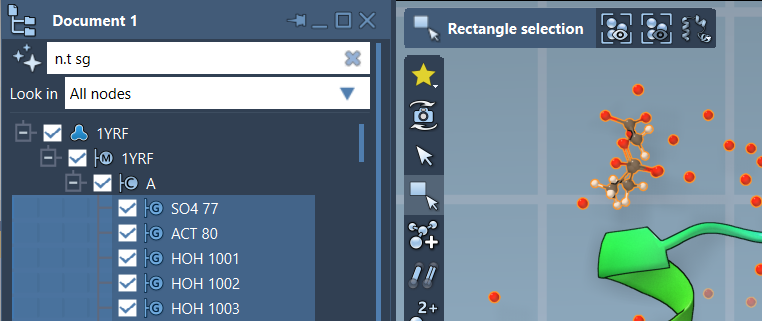
- Locate the filter input box and enter an NSL expression that matches the nodes you’re interested in.
- Press Enter to apply the filter. The matching nodes will appear in the document view, as shown below:
Examples of Effective NSL Filters
To see the power of NSL in action, consider these examples:
C w 5A of "GLN 2": Selects carbon atoms within 5 angstroms of “GLN 2”.n.t r and not r.t ALA: Selects all residues except alanine.n.t sc h S: Filters side chain nodes containing sulfur atoms.H linking O: Identifies hydrogen atoms bonded directly to oxygen atoms.
These simple queries illustrate how NSL allows you to make specific, logical, topology, or proximity-based selections without cluttering your workspace with unrelated nodes.
Tips for Advanced Filtering
Here are some expert tips to maximize your node-filtering capabilities:
- Use wildcards like
*and?for name patterns. For example,"*Backbone"filters all nodes ending in “Backbone”. - Combine multiple conditions with logical operators like
and,or, andnot. For instance,r.t CYS or r.t PROmatches cysteine or proline residues. - Take advantage of units (e.g.,
A,nm) in proximity searches to ensure appropriate scaling for your query.
Learn More
Filtering nodes with NSL is a game-changer for molecular modelers looking to efficiently work with datasets of any size. To learn more about NSL filtering, access the full documentation at SAMSON’s NSL Documentation.
SAMSON and all SAMSON Extensions are free for non-commercial use. You can download SAMSON at https://www.samson-connect.net.