



For molecular modelers, filtering and selecting specific structures within vast molecular datasets can often feel daunting and time-consuming. SAMSON’s Node Specification Language (NSL) provides a powerful, streamlined way to tackle this challenge, offering quick and precise methods for searching and filtering nodes such as atoms, residues, and ligands based on their properties.
In this blog post, we’ll explore how to filter nodes directly in SAMSON’s interface using NSL expressions and demonstrate practical ways to harness this efficiency in molecular design workflows.
Using NSL for Filtering Nodes
SAMSON’s Document View acts as a hub where you can manage and explore your molecular structures. By employing NSL expressions in the Document View’s filter box, you can interactively refine the displayed nodes based on specific attributes or conditions. This makes it easier to zoom in on precisely what matters in your current modeling task.
For example, you can filter nodes by type, category, proximity to other nodes, or even logical expressions combining multiple criteria. Let’s dive into how it works:
Step-by-Step Example
Consider a scenario where you want to focus on all side chain nodes containing sulfur atoms. You can input the following NSL query into the filter box:
|
1 |
node.type sideChain having S |
This query (short version: n.t sc h S) will immediately filter out the side chain nodes with sulfur, helping you quickly identify key features of interest without manual inspections.
Top Features of NSL Node Filtering
- Proximity Filtering: Find nodes near or beyond a specific distance from other structures. For instance, to identify carbon atoms within 5 angstroms of “GLN 2”, you can use:
- Logical Expressions: Combine conditions like “and”, “or”, and “not” to refine results further. For example:
1node.type residue and not residue.type ALA
matches all residues except alanine.
- Customization with Attribute Spaces: Attribute spaces like
node,residue, andatomallow specific handling of nodes by type. For example, finding atoms with chain ID larger than 2 is as simple as:1atom.chainID > 2
|
1 |
C within 5A of "GLN 2" |
Hints to Get Started Faster
Here are some NSL tips to boost your productivity:
- Autocompletion: When using the Find box or creating filters, press Tab for context-sensitive suggestions that guide your query-building process.
- Ask AI: For beginners, SAMSON’s AI Assistant can generate NSL expressions for you based on the active document hierarchy. Simply click the
 Ask AI button to obtain tailored queries for your tasks.
Visualization Example
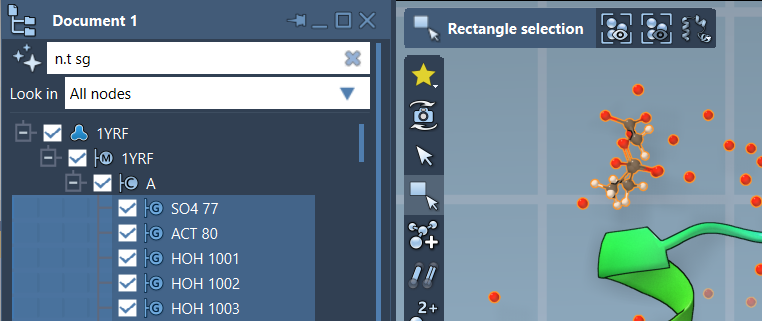
The filtered results can help target specific node structures visually. For instance, the example below shows how filtering nodes by NSL can help highlight molecular components of interest in a crystal structure or molecular model:
Who Can Benefit?
If you frequently work with complex molecular datasets or large structures, NSL in SAMSON simplifies the process of identifying and isolating components for detailed analysis. Whether you’re a biochemist focusing on ligand-receptor interactions or a computational scientist evaluating molecular networks, filtering with NSL saves time and provides precision at your fingertips.
Get Started Now
There’s much more to explore with NSL, from advanced patterns to proximity queries and logical operators. SAMSON’s documentation offers in-depth guidance and examples to help you maximize your molecular modeling efficiency. Learn more here.
Note: SAMSON and all SAMSON Extensions are free for non-commercial use. You can download SAMSON at https://www.samson-connect.net.