



A molecular pathway is easy to inspect visually, but analysis often needs something more concrete: atomic coordinates at successive points along the motion. If you are preparing a reaction-coordinate study, examining a ligand’s route out of a binding site, or saving intermediate structures for comparison, manually collecting coordinates frame by frame can quickly become tedious—and it is easy to export more atoms than you actually need.
SAMSON’s Export Along Paths extension turns a selected path into PDB output. The useful decision is not only which path to export, but also which atoms and how to organize the frames. Thinking through those choices first can make the resulting files much easier to use in a downstream workflow.
Start with the path, then decide what to measure
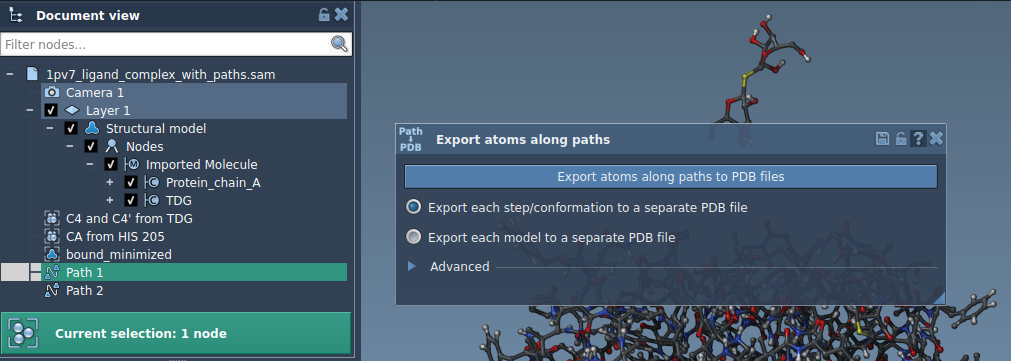
In SAMSON, a path is a node that stores atomic trajectories for a group of atoms. You can select one or more paths in the Document view and export all atoms along them. This is a straightforward choice when you need the complete system represented by the path.
But many analyses focus on a smaller set: perhaps a ligand moving through a protein, or a group of atoms whose movement defines the coordinate you want to inspect. In that case, define an atom subset in the app’s Advanced panel. The extension lets you add selected atoms as a named model, and you can add more than one model. This separates two decisions that are easy to confuse: selecting a path chooses the motion, while adding a model specifies the atoms to include in the export.
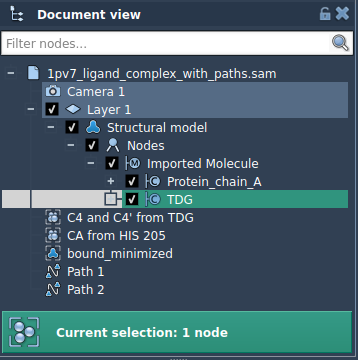
For example, the tutorial sample contains lactose permease (1PV7), the ligand thiodigalactoside (TDG), and two ligand unbinding paths. Selecting TDG as a model lets you focus the export on the ligand rather than treating the entire structure as the object of interest.
Choose an output layout that fits the next step
The app offers two ways to write the frames:
- All frames in a single PDB file keeps the path’s frames together in one output file.
- Each frame as a separate PDB file creates individual files for the successive frames.
There is no single best choice for every workflow. If you want a compact set of files to browse or process together, one file may be convenient. If your next step treats intermediate structures individually, separate files may be easier to handle. The app prompts you to choose a destination folder and file prefix when you export, so decide on a recognizable prefix before starting—especially when exporting multiple paths or models.
A practical export sequence
- Open Home > Apps > All > Export Along Paths. You can also find the app through Find everything… using Shift+E.
- For an all-atom export, select the path or paths in the Document view, choose the single-file or separate-file option, and click Export atoms along paths to PDB files.
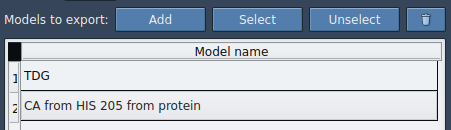
- For a subset export, expand Advanced, select the atoms in the Document view, and click Add to create a model in the export list.
- Give each model a useful name. Double-click a model’s name to rename it; add additional atom sets in the same way if needed.
- Choose the output layout, select the relevant path or paths, and export. If the sampling density needs adjustment, inspect the Advanced option for the frame export interval.
Check the selection before exporting
A quick check can prevent an unhelpful export: confirm that the intended path is selected, that the model list contains the atoms you mean to analyze, and that the chosen output layout suits the next tool or person who will use the files. The Select and Unselect controls can highlight the atoms included in a model; the context menu offers corresponding actions. If a model needs to be redefined, use Reset and make the selection again.
Exporting only the atoms relevant to a question can make later inspection more focused—for instance, tracking a ligand’s movement without including every atom in the surrounding system. The same workflow can also provide intermediate coordinates for visualization or simulation preparation. The key is to treat path selection, atom selection, and frame organization as separate choices, then verify each before writing the files.
For the complete step-by-step instructions, see the Export atom trajectories along paths tutorial.
Note: SAMSON and all SAMSON Extensions are free for non-commercial use. Get SAMSON at samson-connect.net.