



A common molecular-modeling task sounds simple: find the atoms near a residue, ligand, or other structural feature. But a broad search can return more than you intended. In SAMSON, a proximity query may match a larger node—such as a document or group—because it contains atoms that satisfy the distance condition. The result can be a selection that feels much less precise than the question you asked.
Node Specification Language (NSL) helps you express both parts of the task: what kind of nodes you want, and where they should be. That distinction is useful when inspecting contacts, narrowing a structure for visualization, or building a focused selection for your next step.
Start with the node type
Consider this query from the SAMSON documentation:
n.t a within 5A of "GLN 2"
It asks for atom nodes within 5 angstroms of the node named “GLN 2.” The n.t a part restricts the results to atoms; within 5A of applies the distance condition. You can write the type in full as node.type atom. The short form is convenient once you recognize it.
Why include the type? NSL expressions can match different kinds of nodes, including groups that contain atoms. If you only want atoms, specifying atoms makes the intent explicit and avoids accidentally selecting a parent node just because something inside it is nearby.
Decide whether to include the reference group
The atom-only query can include atoms that belong to “GLN 2” itself. That may be exactly what you want—for example, when you need every atom in the local region, including the reference residue. If you want nearby atoms outside that residue, use the documented exclusion pattern:
n.t a within 5A of "GLN 2" out of "GLN 2"
In plain language: first find atoms within the distance, then remove nodes belonging to the named reference. This small addition is important when your goal is to inspect neighboring atoms rather than select the reference atoms again.

Run the query where it fits your workflow
Use Select > Find when you want to enter a search expression and select matching nodes in the active document. In the Find search box, press Tab for context-sensitive completion. For example, starting a quoted name with "GLN and pressing Tab can show matching node names, helping you use the exact name present in your structure.
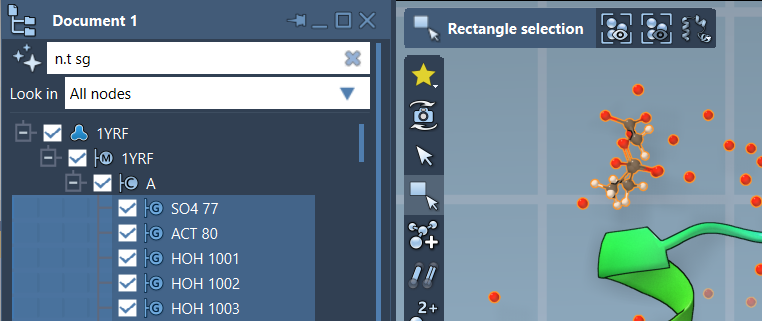
If you prefer to explore the document hierarchy as you filter, enter an NSL expression in the Document view’s filter box. The documentation’s example n.t sg (full form: node.type structuralGroup) filters for structural groups; press Enter to select the displayed matches.
Make searches easier to read
NSL supports full attribute names and shorter forms. For instance, node.type atom and n.t a express the same type restriction. You can combine conditions with logical operators such as and and not; just remember that not alone can match nodes of other types too. To return non-alanine residues, for example, the documentation uses n.t r and not r.t ALA—the first condition keeps the results to residues.
For names, quotes matter when a node name contains spaces: "GLN 2" identifies the full name. Quoted names can also use simple wildcards, such as "ALA*", while regular expressions are available for more complex patterns. If you are unsure of a node’s exact name, use Tab completion in Find before refining the query.
A quick checklist
- Choose the result type: add a type condition such as
n.t awhen you want atoms specifically. - Set the distance and unit: for example,
5Ameans 5 angstroms. - Check whether the reference is included: add
out ofwhen you want nearby atoms outside the named node. - Verify the target name: use quotes for names with spaces and Tab completion to inspect matches.
These habits turn a vague “show me what’s near this” search into a more controlled selection—and make it easier to understand why a query returned what it did. For the full NSL syntax and additional examples, see the Node Specification Language documentation.
Note: SAMSON and all SAMSON Extensions are free for non-commercial use. Get SAMSON.