



When you inspect a molecular trajectory, a common question is not just what changed? but which combinations of changes appeared most often? Looking at two observables separately can hide that relationship. A distance may span a broad range, for example, while a second measure such as RMSD changes alongside it. A 2D density map brings the two measurements together, helping you see where the sampled path is concentrated—and where it visits less often.
First, be clear about the question
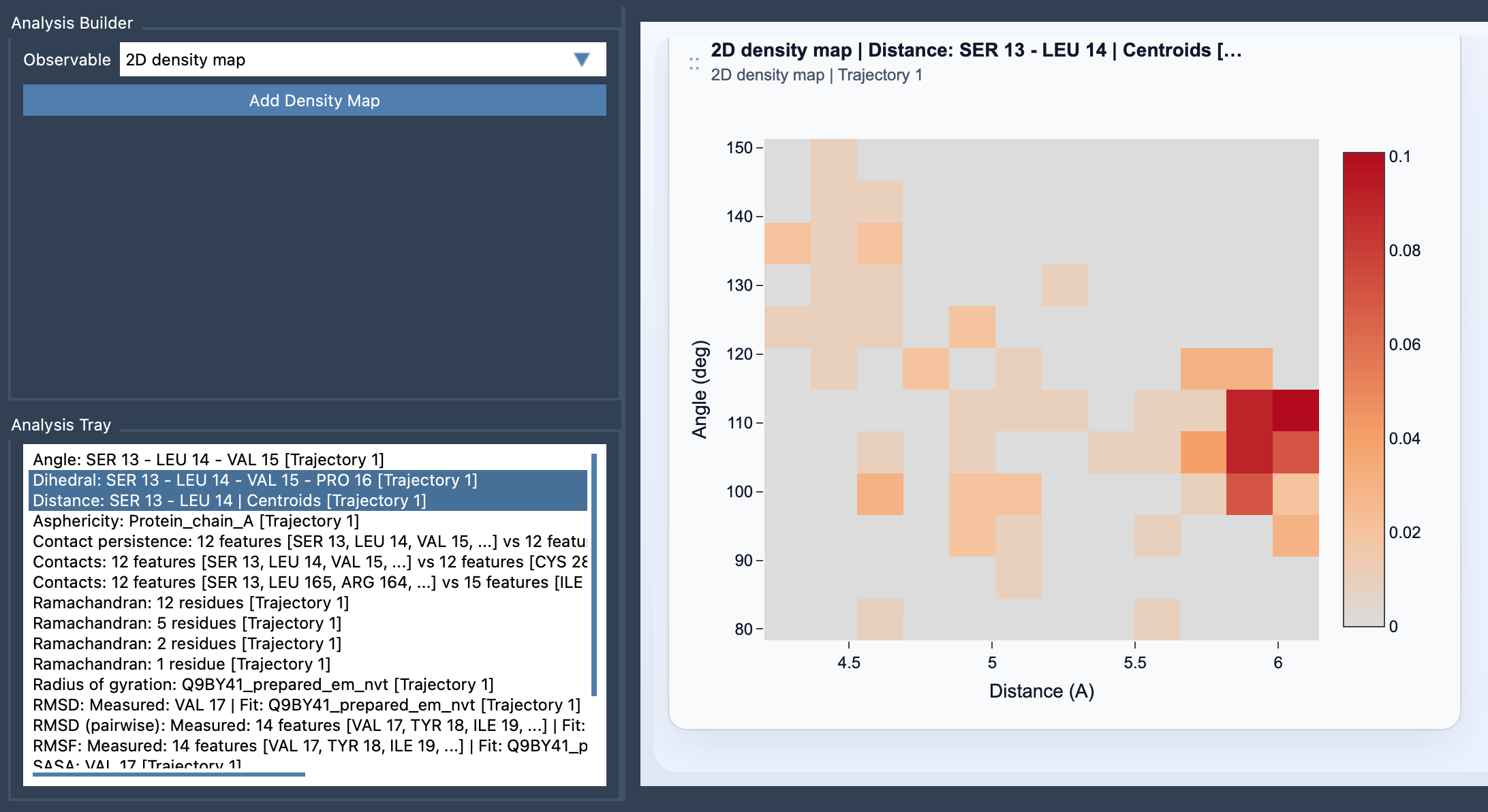
A density map answers a specific question: where did the path spend most of its time in the space defined by these two observables? Each frame-wise point contributes to a bin in that two-dimensional space. Regions with more sampled points appear denser in the heatmap.
This is useful when a one-dimensional plot feels incomplete. Two regions might have similar values for one observable but very different values for the other. Plotting them together can reveal distinct clusters or frequently visited combinations that are difficult to spot when each measurement is viewed alone.
There is an important distinction to keep in mind: sampling density is not energy. A high-density region means the path has more sampled points there; it does not, by itself, mean that the region has lower energy. If your question is about energy across the same two-observable projection, use Path Analyzer’s Energy landscape instead.
Choose two observables that tell a useful story
The map is only as informative as the pair of measurements you choose. Prefer observables that capture different, complementary aspects of the motion. The documentation suggests examples such as Distance vs RMSD or Radius of gyration vs Energy. The aim is to see how two meaningful quantities vary together, rather than to plot two measurements that tell nearly the same story.
Before creating the plot, write down the question you want it to answer. Are you looking for frequently sampled distance–RMSD combinations? Do you want to see how compactness varies alongside energy? A clear question makes it easier to choose observables and to describe what the resulting map does—and does not—show.
Build the map in Path Analyzer
- Open Path Analyzer.
- Create or reuse two saved scalar analyses in the Analysis Tray.
- Choose 2D density map under Observable.
- Select exactly two saved scalar analyses from the tray.
- Click Add Density Map.
Because this is a derived analysis, you select its inputs from the Analysis Tray rather than making direct atom selections for the map itself. Both source analyses must be frame-wise scalar analyses computed on the same path. If the inputs do not meet those requirements, they are not the appropriate pair for this plot.
What the equation tells you
For a bin indexed by (m, n), the displayed normalized density is ρmn = nmn / (N Δx Δy). Here, nmn is the number of sampled points in that bin, N is the total number of sampled frame-wise points, and Δx and Δy are the bin widths along the two observable axes.
In plain language, the map accounts for both how many points fall into a bin and the area of that bin. This is why the result is described as a density, rather than simply a raw count. It also reinforces the right interpretation: the heatmap summarizes how sampling is distributed over the chosen two-observable space.
A practical reading checklist
- Read the axes first. Make sure you know which observable is assigned to each dimension.
- Look for regions, not just peaks. Notice where points cluster and how those regions relate across both observables.
- Keep the projection in perspective. The map summarizes the path using two measurements; it is not a complete description of every molecular coordinate.
- Do not interpret density as energy. Use an energy landscape when energy is the quantity you want represented.
A 2D density map is a focused way to turn two saved scalar analyses into a view of where a path is most frequently sampled. Used with a deliberate choice of observables, it can make a relationship easier to see without confusing visitation frequency with energetic preference.
For the complete procedure and equation, learn more in the 2D Density Map documentation.
Note: SAMSON and all SAMSON Extensions are free for non-commercial use. Get SAMSON.