



A molecular path can make a movement easy to inspect, but analysis often requires something more practical: coordinates that another tool or workflow can use. The challenge is deciding what to export. Saving every atom may create unnecessary data when the question is specifically about a ligand, binding site, or backbone. Exporting too little, on the other hand, can leave you without the context you need.
SAMSON’s Export Along Paths extension lets you export atomic coordinates from selected paths as PDB files. You can export all atoms or define one or more atom groups, and choose whether frames go into a single file or into separate files. That gives you a useful way to turn a path into coordinate data for downstream analysis, visualization, or simulation.
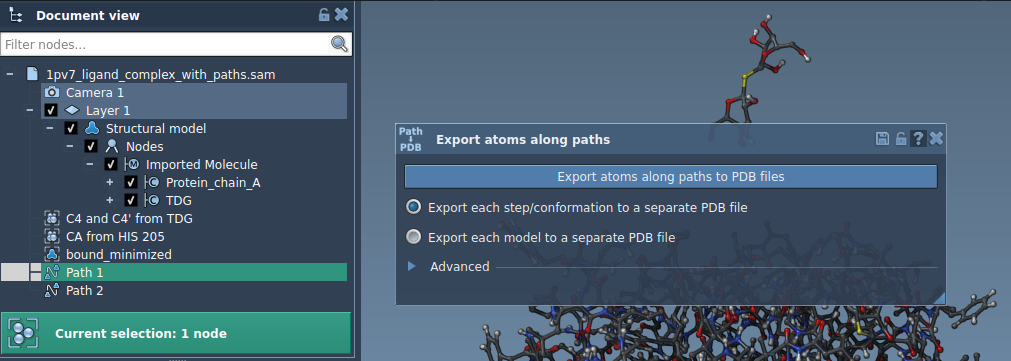
First, decide what the export should represent
Before exporting, consider the question you want the coordinates to answer. If you need the full structural context, export all atoms. If you are studying ligand movement or preparing a reaction coordinate from a ligand pathway, exporting a subset may be more appropriate. The extension supports both approaches, so you can match the exported data to the analysis rather than treating every task as a whole-system export.
A path in SAMSON stores atomic trajectories for a group of atoms. In the Document view, selecting one or more paths identifies which trajectories to export. If you are working with a ligand extraction or entry pathway, the path may have been generated with Ligand Path Finder and could also have been refined using a method such as parallel nudged elastic band. The export step takes the path coordinates you have and writes them to PDB files; it does not itself generate or optimize the path.
Exporting all atoms
- Select one or more paths in the Document view.
- Choose whether to put all frames in a single PDB file or save each frame as a separate PDB file.
- Click Export atoms along paths to PDB files, then choose a destination folder and file prefix when prompted.
The two file options are useful for different handoffs: a single file keeps the frames together, while separate files make each frame an individual output. If you need fewer frames, expand Advanced and adjust the frame export interval.
Exporting only a subset
For a focused export, expand the Advanced panel and select the atoms you want in the Document view—for example, the ligand TDG in the tutorial sample. Click Add to add that selection as a model in the export list.
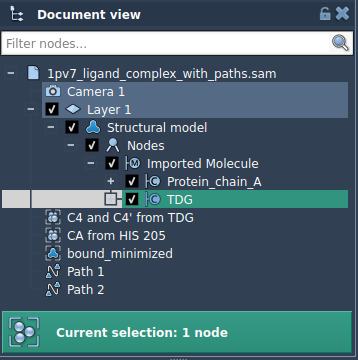
The export list lets you organize the atom groups you intend to save. You can rename a model by double-clicking its name, add additional selections as separate models, and use Select or Unselect to highlight the atoms included in a model. If a selection needs to be redefined, use Reset for that entry. These controls make it easier to keep track of what each exported group represents, especially when comparing a ligand with other selected atoms.
When your models are ready, choose the single-file or separate-file option, select the relevant path or paths, and run the export. As with an all-atom export, you will be asked for a destination folder and file prefix.
A small checklist before you export
- Are the intended path or paths selected in the Document view?
- Do you need the complete system, or only a defined atom group?
- Would your next workflow be easier with all frames together or saved separately?
- Should you change the frame export interval in the Advanced section?
- For subset exports, have you checked the model names and atom selections?
These choices are worth checking before writing files: they determine what data you hand to the next stage of your workflow. For reaction-coordinate preparation, free-energy calculations, ligand pathway analysis, or visualization, exporting the relevant coordinates is a practical bridge between inspecting a molecular path and using its frames elsewhere.
For the complete walkthrough, see the Export atom trajectories along paths tutorial.
Note: SAMSON and all SAMSON Extensions are free for non-commercial use. Get SAMSON at samson-connect.net.