



A protein–ligand complex can contain many nearby atoms, but a long list of contacts is difficult to scan. Which residues are near the ligand? Where are the contacts concentrated? And how can you show the important geometry without losing track of the structure in 3D?
An interaction diagram can help answer these questions by putting detected contacts into a 2D view that remains connected to the 3D molecular scene. The key is to treat the diagram as a visual guide to the structure—not as a verdict on whether a ligand binds well.
Start with the structure you want to inspect
In SAMSON, load or prepare the molecular structure, then select the atoms or structures you want represented. Choose Home > Diagram to create an interaction diagram from that selection. If nothing is selected, the command uses the whole document.
Starting with a focused selection can make the first view easier to interpret, especially in a large system. You can then use the diagram’s connection to the 3D viewport to inspect the corresponding atoms and structures: click an atom or structure to select it, or double-click to zoom to it.

Make the diagram easier to read
Automatic detection is a useful starting point, but the initial layout may not be the clearest one for a figure or a discussion. The diagram is editable: move labels and interaction symbols to reduce overlap, and reposition the caption or legend so it does not obscure the contacts. This is a presentation step, not a change to the molecular structure.
You can also control which interaction categories are visible. Click a category name or icon in the legend to hide or show those interactions. If the default colors are hard to distinguish, double-click a category in the legend to change its color. The settings available from the Interaction Designer’s window title bar let you restore the colors.
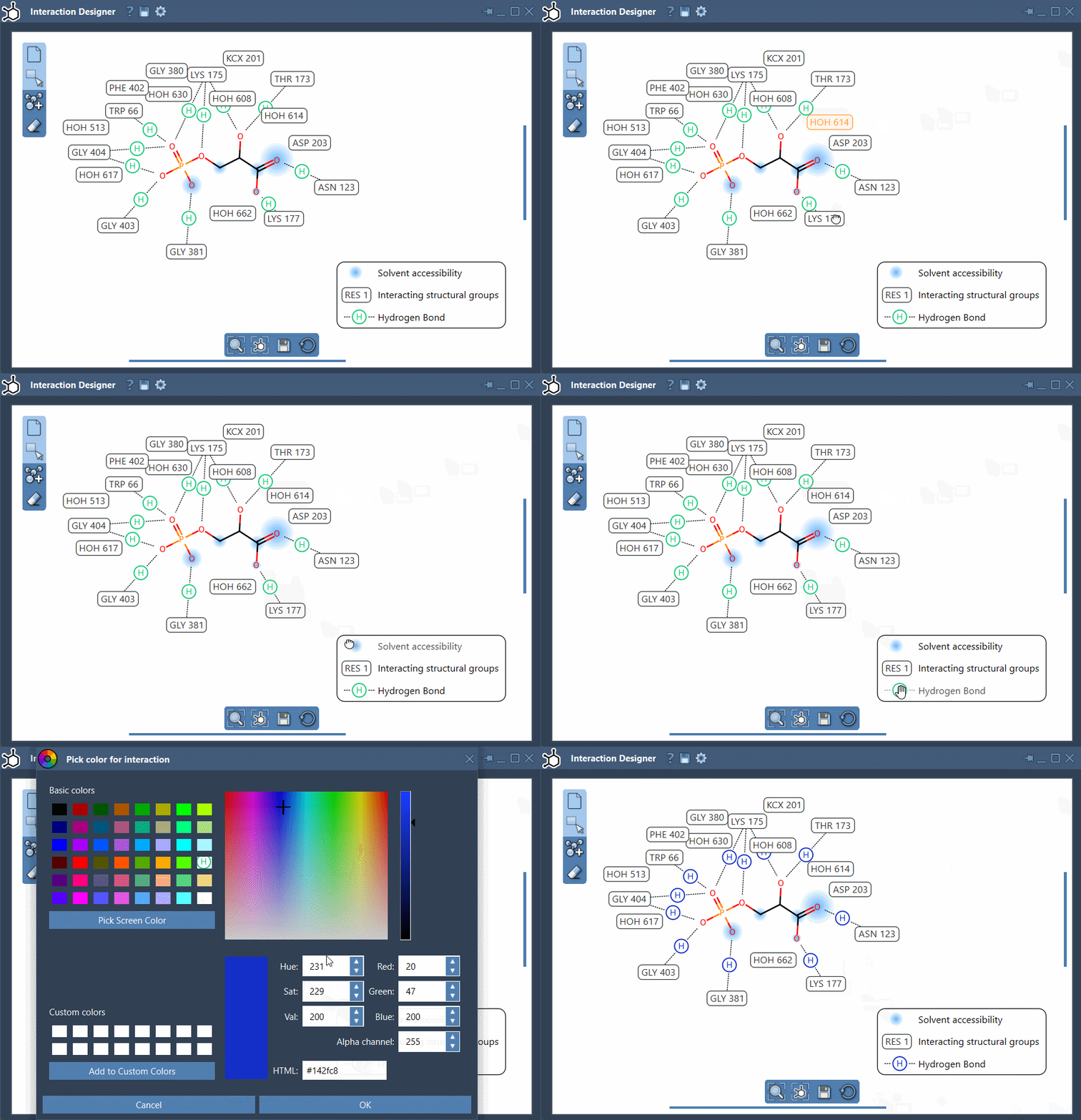
For orientation, use the bottom menu to update the view and align the 2D and 3D views. Zoom with Ctrl or Cmd plus the mouse scroll wheel. To translate the diagram, hold the middle or right mouse button while moving the mouse.
Read contacts as geometric observations
The Interaction Designer detects several kinds of contacts, including hydrogen bonds, ionic interactions, metal coordination, aromatic contacts, and steric clashes. It also represents certain atom-to-plane and group-to-group relationships, such as cation–π, π–π, and amide–π interactions.
These labels help organize what is near what, but they need careful interpretation. Detection is based on atom categories and geometric criteria—such as distances, ring centroids, and angles. A detected contact means the geometry meets the implemented criteria; it does not prove that the contact stabilizes the complex or provide an interaction energy. A steric-clash label, for example, is a prompt to inspect the geometry, not a complete assessment of the model.
That distinction matters when sharing a diagram. Use it to communicate spatial relationships and guide inspection, while keeping conclusions about binding or energetic importance grounded in additional analysis.
Save a figure or keep designing
When the view is ready, use Save in the Interaction Designer’s bottom panel to export the diagram as PNG, JPG, JPEG, BMP, or SVG. If your goal is to propose a new structure rather than inspect contacts, Edit > Design opens 2D molecule-building mode. Edits to atoms and fragments stay synchronized with the 3D viewport, so the sketch and structure remain connected.
For the full workflow and details on supported interactions, visit the Interaction Designer documentation.
Note: SAMSON and all SAMSON Extensions are free for non-commercial use. Get SAMSON.