



A familiar challenge in molecular modeling is exploring alternatives to one part of a molecule without rebuilding the whole structure each time. A fragment-replacement workflow can make that exploration more organized: define the starting molecule, identify the fragment to replace, supply candidate replacements, and review the resulting molecules together.
SAMSON’s RDKit-based SMILES Manager provides this workflow in its Replace fragments tab. It can generate a set of SMILES results from one or more starting molecules and replacement fragments. The key is to describe the replaceable region clearly and use matching attachment-point labels so the fragments can be connected as intended.
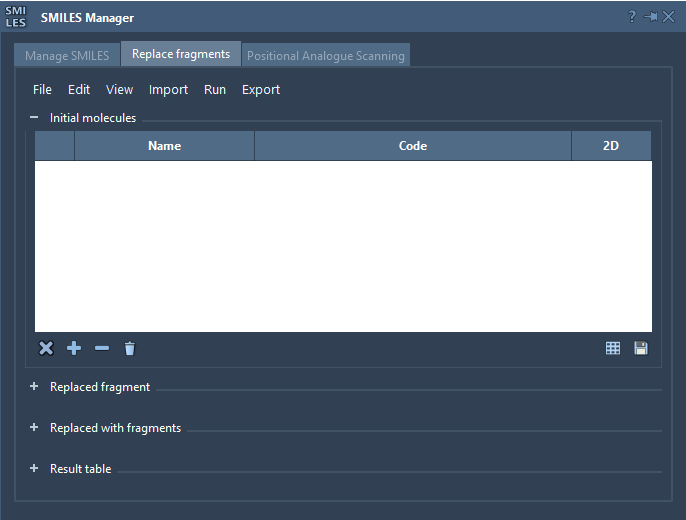
Set up a replacement experiment
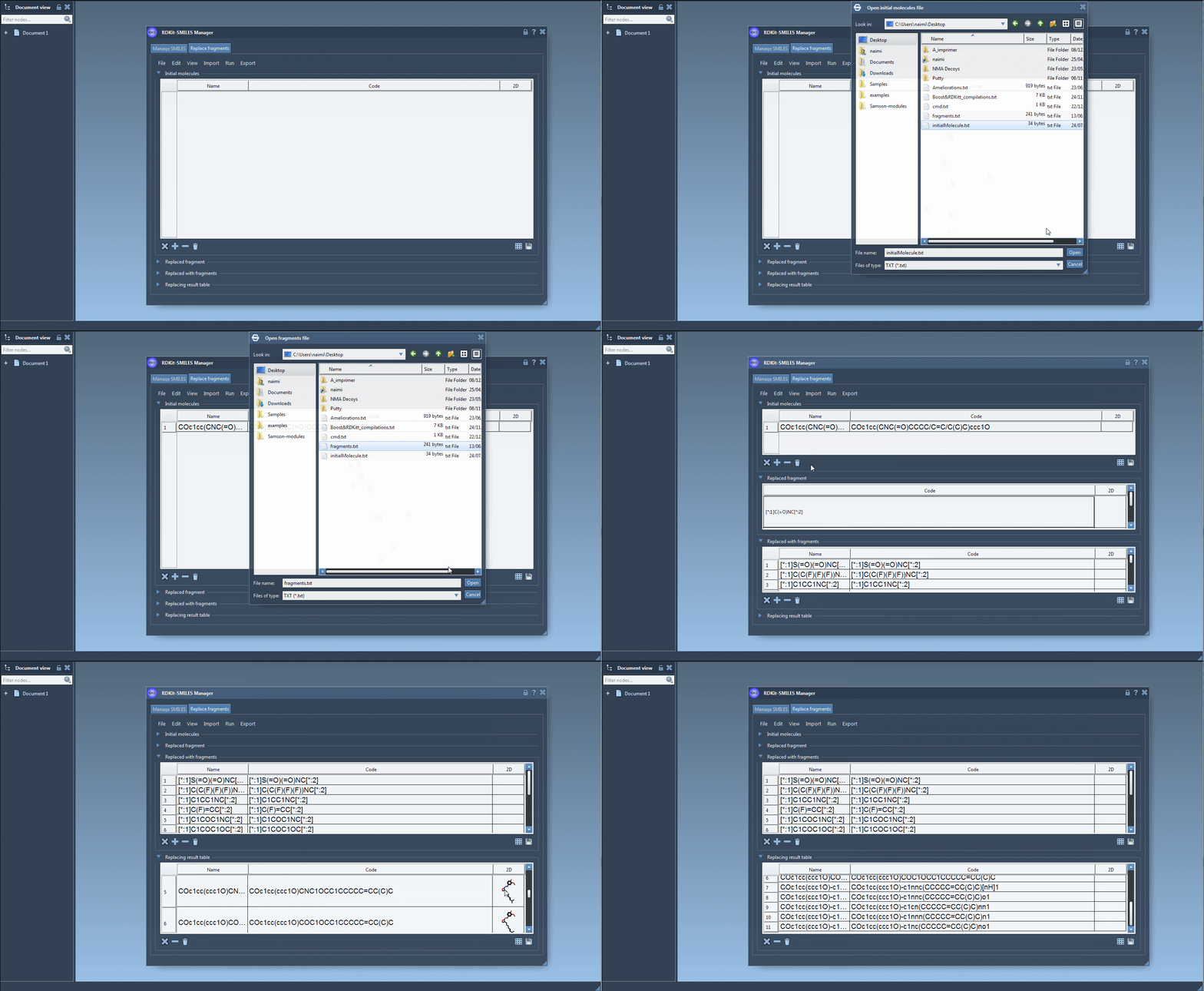
Start with an initial molecule containing the region you want to change. You can import it from a file, add it manually, or use a selection from the active SAMSON document. For example, the tutorial starts with:
COc1cc(CNC(=O)CCCC/C=C/C(C)C)ccc1O
Next, specify the fragment to replace. In the example, the target is written as [*:1]C(=O)NC[*:2]. The two labels, [*:1] and [*:2], mark the ends of the pattern where it connects to the rest of the molecule. Replacement fragments need corresponding attachment labels at their extremities. This detail matters: the labels communicate how the replacement is joined to the retained parts of the starting molecule.
Then provide one or more replacement fragments. They can be imported from a file or entered manually. The tutorial’s examples include alternatives such as [*:1]S(=O)(=O)NC[*:2] and [*:1]C1CC1NC[*:2]. Once the starting molecule, target fragment, and replacement set are ready, choose Run → Replace fragments. The generated molecules appear in the Results table.
Make the results easier to assess
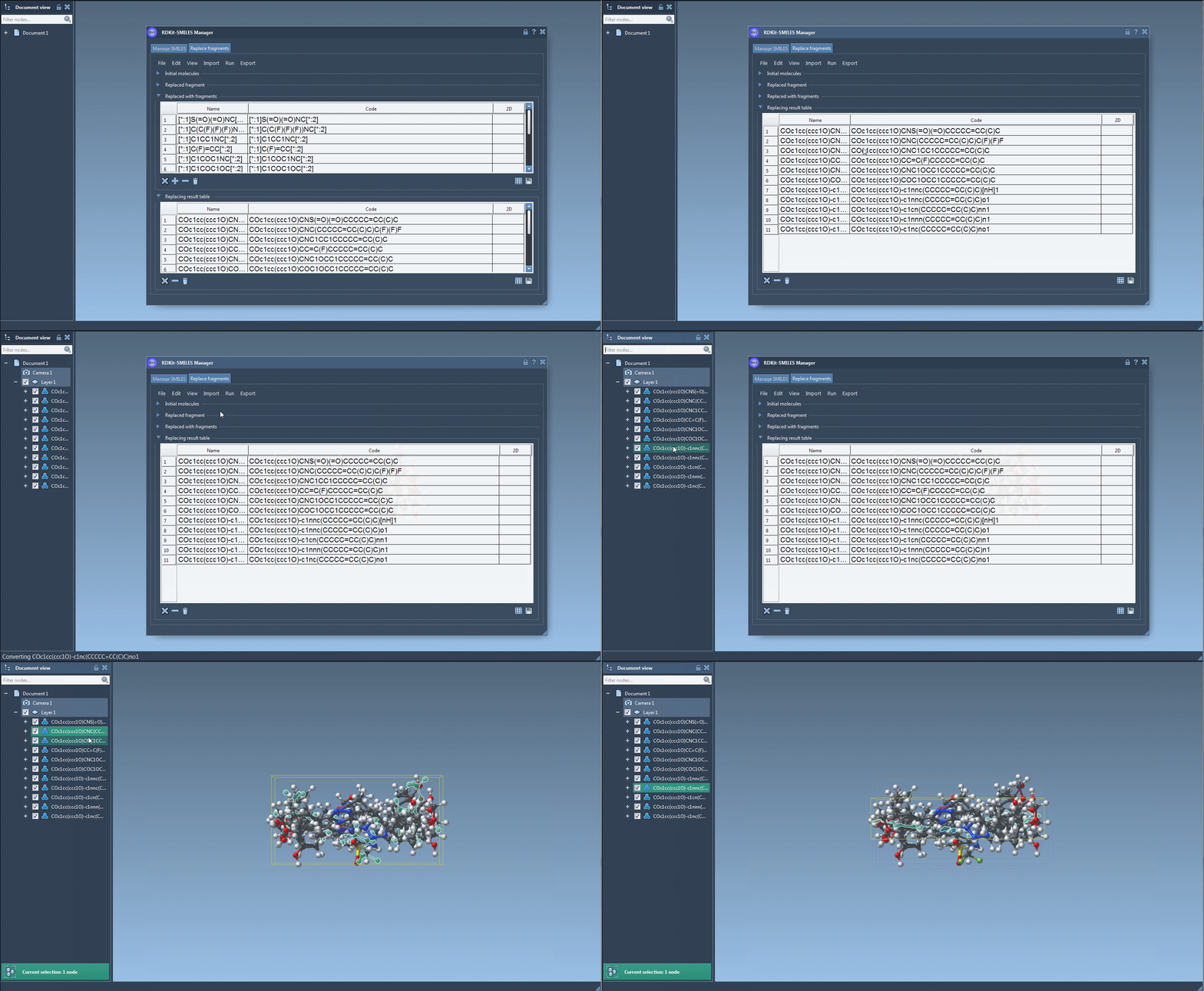
It helps to treat the results as a collection to inspect, rather than as a finished answer. The SMILES Manager displays names, SMILES codes, and generated 2D depictions in its tables. Use those views to compare the output structures and check that the intended region changed while the rest of the molecule remains as expected. If a SMILES string is invalid, the manager highlights its row and shows an error image instead of a normal 2D depiction.
For a more focused review, save selected depictions as a grid image. A grid makes it easier to compare a set of candidates at a glance; you can choose the number of columns, panel size, and whether molecule names are displayed. You can also open individual depictions in a larger view. These options are useful when a long list of SMILES strings is difficult to scan line by line.
When you are ready to work with structures in the active document, export selected results as 3D structures. The manager also supports generating a 3D structure for an individual SMILES entry. Review the structures in context before using them in later modeling steps: generating a set of replacements is a way to prepare candidates for further investigation, not a substitute for evaluating whether they suit your modeling question.
A small checklist before running
- Confirm that the target fragment matches the region you intend to replace.
- Check that the target and replacement fragments use the required
[*:1]and[*:2]attachment points. - Start with a manageable set of replacements, then inspect the resulting SMILES and 2D depictions.
- Export only the candidates you want to carry into the active document for 3D work.
This approach turns a repetitive editing task into a defined, reviewable workflow: specify the change once, compare alternatives, and carry selected structures forward. For the complete walkthrough and additional SMILES Manager features, see the original documentation.
Note: SAMSON and all SAMSON Extensions are free for non-commercial use. Get SAMSON.