



A protein model can look reasonable in 3D and still contain local backbone conformations that deserve a closer look. These are easy to miss when inspecting the structure residue by residue: a view of the whole protein can hide a small but important deviation, while a list of coordinates is difficult to interpret visually.
A Ramachandran plot offers a focused way to inspect this issue. It places each residue according to its backbone dihedral angles, φ (phi) and ψ (psi), and shows regions associated with energetically favored or unfavorable conformations. In SAMSON, the Interactive Ramachandran Plot connects those points to the 3D structure, so you can move from a possible outlier to the corresponding residue and examine it directly.
Start with the pattern, not just one point
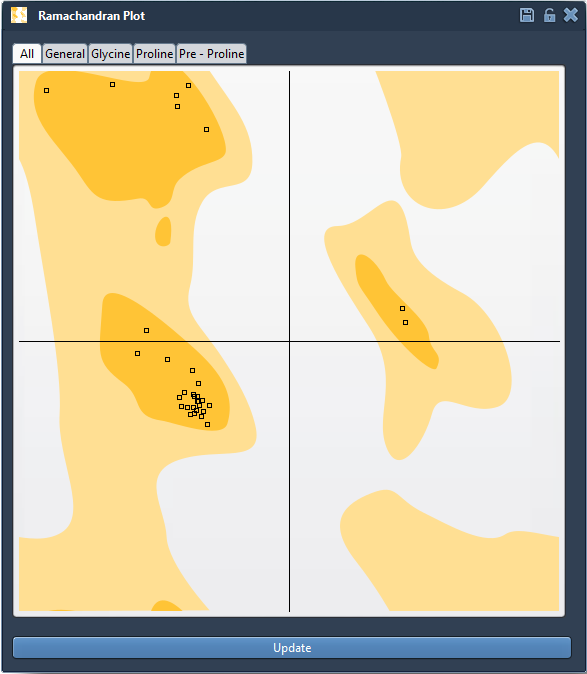
After opening a protein structure, launch the Ramachandran plot from Home > Apps > Biology > Ramachandran plot, then click Update. The plot uses yellow for energetically favorable regions and white for unfavorable conformations. Tabs let you view all residues or filter by category: General, Glycine, Proline, and Pre-proline.
Those categories matter when interpreting the plot. Amino acid types do not all have the same backbone constraints, so a point is most useful when considered in the context of its residue category. Filtering can make a crowded plot easier to inspect and helps you focus on the residues you want to assess.
Go from a suspicious point to the structure
Click a point to select its residue in the 3D viewport. The status bar reports the φ and ψ values, giving you a direct connection between the plotted position and the structure. This makes it easier to ask the practical question: where is this residue, and what does its local conformation look like?
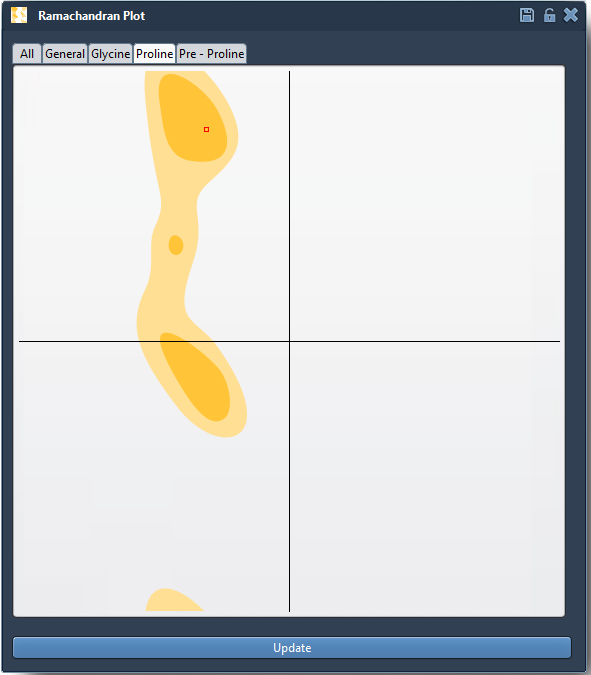
A point in an unfavorable region is a useful signal to investigate, not by itself a complete verdict on a model. Check the selected residue in its structural context and consider whether editing it is appropriate for your modeling goal. A plot helps reveal and locate unusual backbone angles; it does not replace broader structure validation.
Make a controlled adjustment
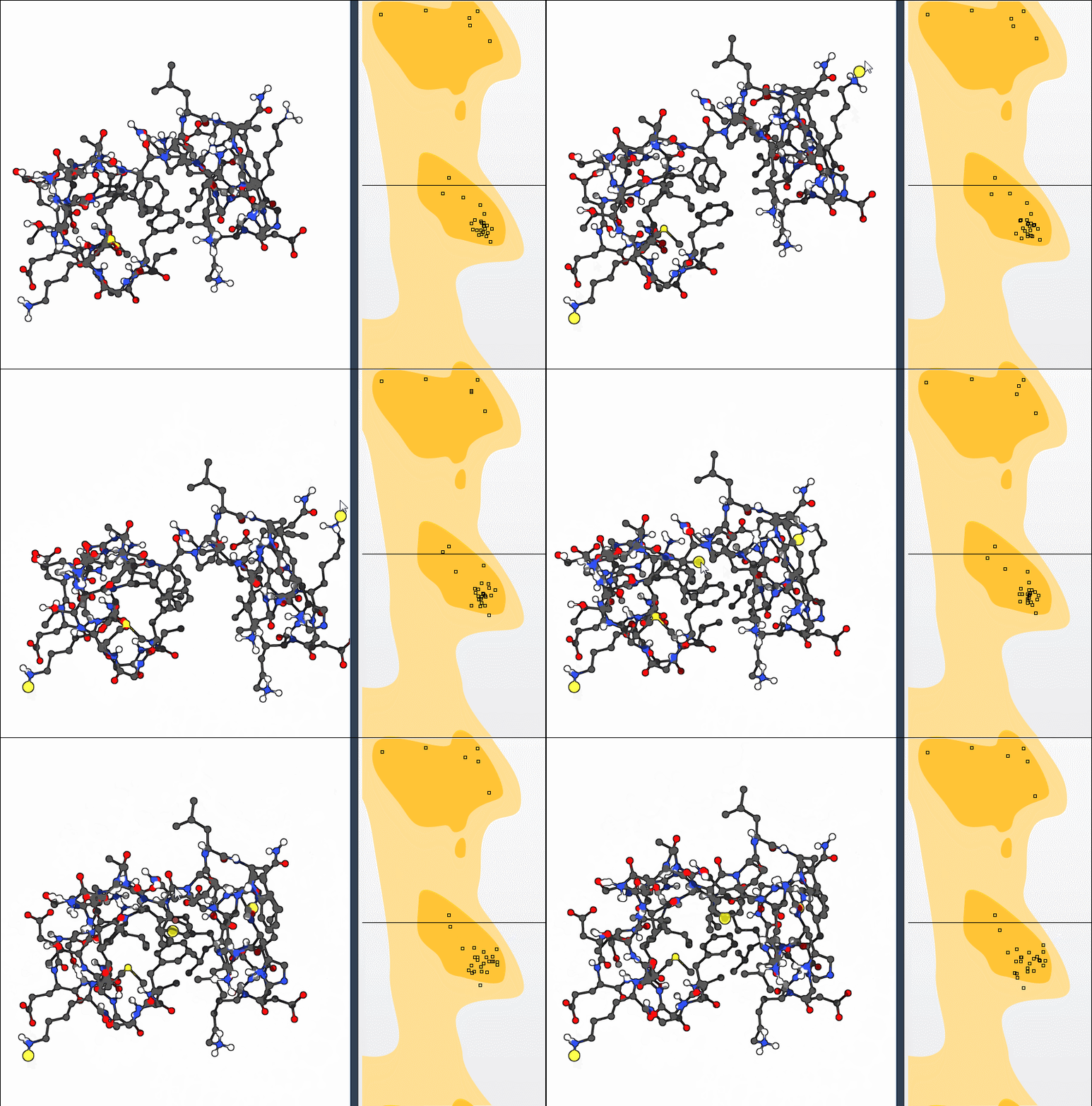
To explore a correction, drag a point on the plot. The dihedral angles change as you move it, and the 3D structure updates in real time. You can therefore compare the plotted position with the resulting conformation rather than making an adjustment without visual feedback. If you are not satisfied with a change, use Ctrl+Z on Windows or Linux, or Cmd+Z on macOS, to undo.
Alternatively, select the Twister editor from the left-hand menu in the viewport and twist the protein in 3D. The plot updates live, letting you see how a spatial edit relates to the residue’s φ and ψ angles. This can be useful when you prefer to manipulate the structure directly and use the plot as a guide.
A practical place in a modeling workflow
Use this approach when checking a protein before simulation, reviewing a homology model, or examining flexibility around an active or binding site. A simple workflow is to generate the plot, scan the relevant residue categories, select points that merit attention, inspect their 3D context, and make only the edits that are justified for your model. Then review the plot and structure again. For a hands-on starting point, the tutorial uses PDB ID 1YRF.
For the full walkthrough, see the Interactive Ramachandran Plot tutorial.
Note: SAMSON and all SAMSON Extensions are free for non-commercial use. Get SAMSON at samson-connect.net.