



A candidate molecular transition path can be useful for visualizing how a ligand moves or how a structure changes—but its intermediate snapshots may be unevenly spaced or energetically implausible. That makes the path difficult to interpret and less useful as a starting point for further analysis. The Parallel Nudged Elastic Band (P-NEB) app in SAMSON addresses this specific problem: it refines an existing path rather than generating the initial route from scratch.
NEB optimizes the intermediate images along a path. Energy-based forces help relax those structures, while spring forces between neighboring images help distribute them along the route. P-NEB also implements the climbing-image NEB method, which can be used to seek the saddle point. The key practical distinction is simple: first obtain a candidate path, then use P-NEB to improve it.
Start with a route, not just two endpoints
To use P-NEB, prepare either a path or a sequence of conformations representing the same selected atoms in different positions. If you have only two relaxed endpoint structures, you still need intermediate states. These can be created by linear interpolation or generated with another SAMSON extension, such as Ligand Path Finder. P-NEB refines the supplied sequence; it is not a replacement for a pathway-generation step.
For a quick test, the SAMSON documentation provides sample documents: a smaller Zinc ligand unbinding trajectory and a protein–ligand example involving lactose permease (1PV7) and thiodigalactoside (TDG). The latter includes unbinding paths generated with Ligand Path Finder.
Choose the most convenient input
If you already have a path, use it directly. For the same system and number of steps, applying P-NEB to a set of separate conformations takes longer than applying it to a path. When your data is stored as conformations, you can select them in the Document view and use Conformation > Create path from conformations to combine them before running the app.
This small preparation step can make the workflow more efficient and gives you a single path node to inspect and animate afterward.
Set up a first refinement run
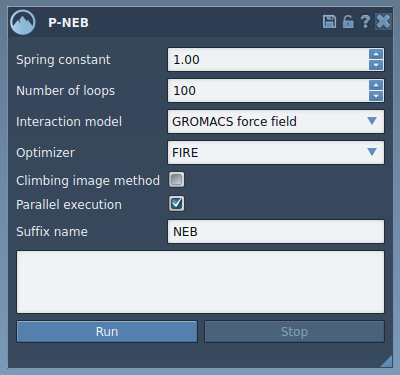
Open P-NEB from Home > Apps > All > P-NEB, or search for it using Find everything…. The tutorial’s starting settings are:
- Spring constant: 1.00
- Number of loops: 100
- Interaction model: Universal Force Field (UFF)
- Optimizer: FIRE
- Climbing image method: leave unchecked for the first run; you can try a separate run with it enabled
- Parallel execution: check this option
- Suffix name: NEB
These are tutorial settings, not a guarantee that every molecular system is best handled identically. They give you a reproducible starting point for following the example. Before launching the calculation, select the path or the set of conformations in the Document view.
Pay attention to the force-field prompt
When you click Run, the Universal Force Field setup asks whether to use existing bonds. For the documented workflow, choose to use existing bonds and confirm. P-NEB then initializes and computes the optimization. You can follow progress in SAMSON’s status bar.

Inspect the result before moving on
When optimization finishes, SAMSON adds a new path or a new set of conformations to the Document view. With a path, select the result and inspect it in the Inspector. Double-clicking the path starts or stops its animation, which can help you review how the intermediate structures change along the route. Path options are also available from the right-click menu under Path > ….
Keep the original candidate path available while reviewing the new one. Comparing the two makes it easier to see what the refinement changed and to decide whether the result is suitable for the next stage of your work. If you need a closer look at the highest-energy region, you can try another run with the climbing image option enabled; the tutorial leaves it off for the initial calculation.
The practical takeaway: use pathway-generation tools to propose a route, convert separate conformations into a path when appropriate, and use P-NEB to relax the intermediate images. Afterward, inspect the result before exporting it or continuing to a simulation or free-energy workflow.
Learn more in the original P-NEB tutorial.
Note: SAMSON and all SAMSON Extensions are free for non-commercial use. Get SAMSON.