



Two protein structures can show different conformations, but getting from one to the other is not as simple as placing them side by side. A modeler may need intermediate structures to inspect a conformational change, prepare a reaction coordinate, or set up a simulation workflow. Yet those intermediates must be built from consistently matched atoms, and missing residues or leftover molecules can interrupt the process.
SAMSON’s ARAP Interpolator provides a way to generate a smooth geometric path between two conformations. This walkthrough uses diphtheria toxin structures 1DDT and 1MDT to show the key choices—and why preparing the inputs carefully matters as much as clicking Run.
Start with comparable structures
Fetch 1DDT and 1MDT in SAMSON using Home > Fetch. The example focuses on chain A. In the Document view, inspect 1MDT and delete chain B so the structures being compared correspond to the intended chain. Then run Home > Prepare on both structures to remove alternate locations, water, ligands, and ions.
This cleanup is not just cosmetic. The interpolation expects a usable, connected structure. Extra molecules can leave the system as multiple disconnected components, causing the computation to stop with the error “Cannot proceed because the structure does not make one connected component.” If that happens, check both inputs and prepare them again.
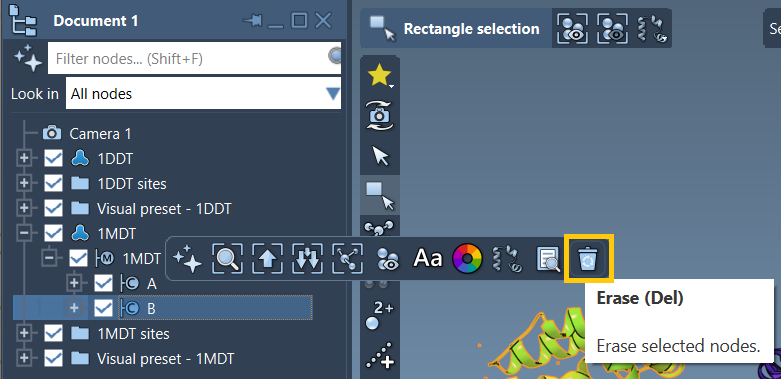
Save the endpoints as conformations
Select each cleaned structure in the Document view and choose Edit > Conformation. Name the conformations 1DDT A and 1MDT A. These named conformations become the start and goal of the path. Creating them explicitly helps keep the interpolation inputs clear when the app offers several structures or conformations to choose from.
Choose matching and connectivity deliberately
Open Home > Apps > Biology > ARAP Path Interpolation, retrieve conformations from the active document, and select 1DDT A as Start and 1MDT A as Goal.
For this example, choose All except hydrogens under atom matching. This matches non-hydrogen atoms between the endpoints and uses matched atoms in the start conformation as ARAP vertices. Other options—such as only α-carbons or only backbone atoms—change which atoms participate in matching, so the choice should reflect the structural detail you need to represent.
For edge construction, select from bonds in the Start structure and Try connecting α-carbons before and after missing residue segments. The first uses covalent bonds in the start structure to define edges. The second adds a connection across each missing-residue segment where the flanking α-carbons are present. These settings help the model retain local connectivity and bridge gaps in the starting structure. If several edge-building options are enabled, SAMSON applies them from top to bottom.
Enable Perform alignment before interpolation so the start conformation is aligned with the goal before the path is computed. Set Number of path conformations to 20; this count includes both endpoints, not just intermediate structures. Then run the interpolation.
Inspect the path before using it
Use the app’s slider to move through the resulting conformations. Scrubbing is a useful first check: look for whether the structural change progresses continuously and whether the intermediates are useful for your intended analysis. The path is an interpolated geometric route, so it should not automatically be interpreted as a measured or dynamically sampled molecular trajectory. For simulation work, treat it as a starting point for further setup or refinement, such as umbrella sampling or P-NEB.
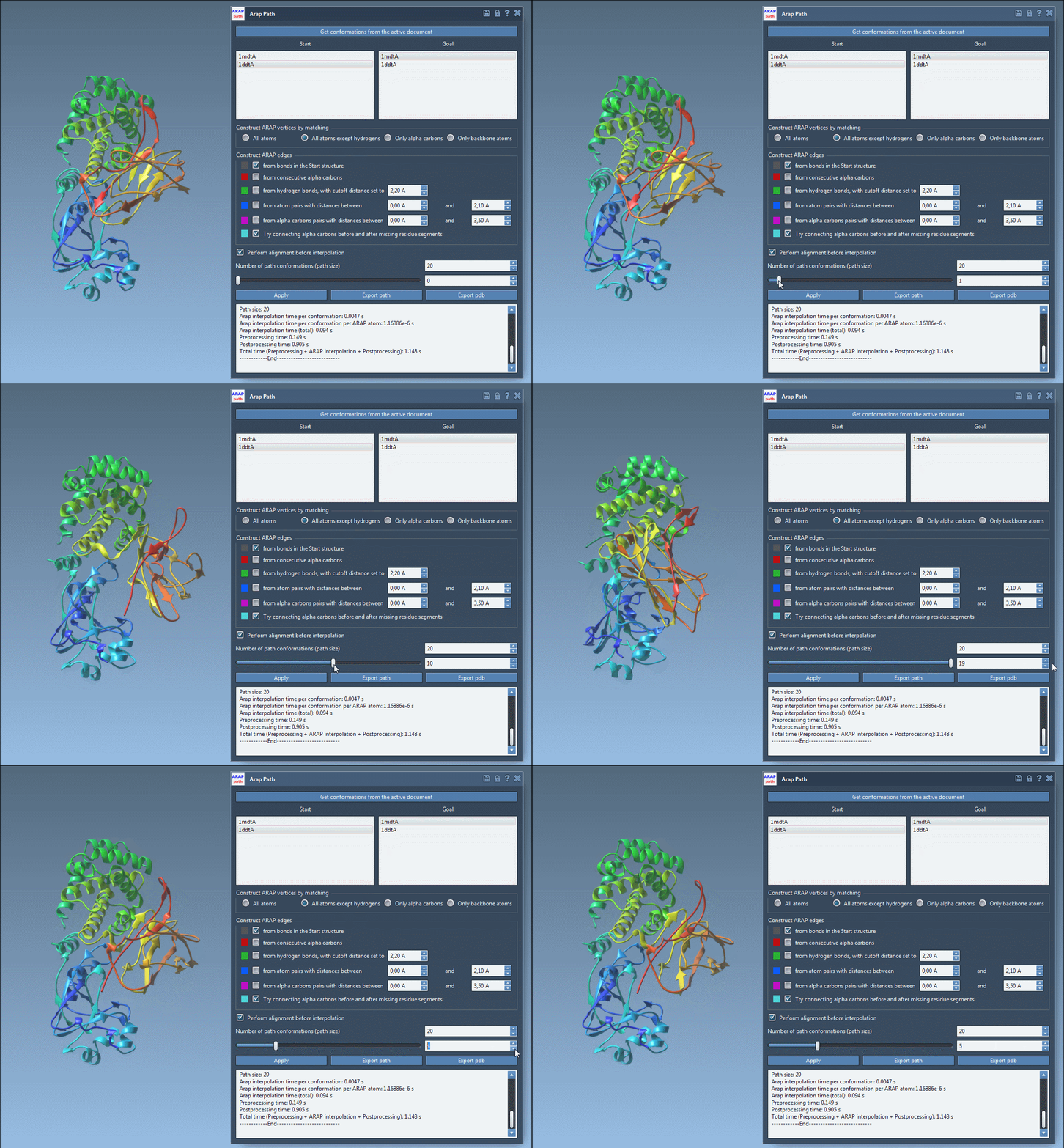
You can also show or hide the ARAP edges visual model in the Document view to inspect how connectivity was constructed. When the path looks suitable, choose Export path to save a path object in the current SAMSON document, or Export PDB to write the path and its conformations as PDB files.
The practical lesson is simple: clean and compare the intended chains first, make matching and edge choices explicit, and inspect the intermediates before carrying them into another workflow. For the full step-by-step instructions and related options, see the ARAP interpolation tutorial.
Note: SAMSON and all SAMSON Extensions are free for non-commercial use. Get SAMSON.