



A common bottleneck in molecular design is not coming up with a candidate change—it is making that change consistently across a set of molecules. Editing SMILES by hand can be slow, and small mistakes in a string can lead to an invalid structure or an unintended transformation. When you want to explore a defined set of replacements around one scaffold, SAMSON’s SMILES Manager provides a table-based workflow for generating and reviewing the resulting molecules.
The Replace fragments tab in the SMILES Manager uses RDKit to replace a specified fragment in one or more initial molecules with a list of alternative fragments. This is useful for preparing a small, organized set of structural variants to inspect or take into later modeling steps. It generates structures from the supplied patterns; it does not, by itself, predict which replacement will have better properties.
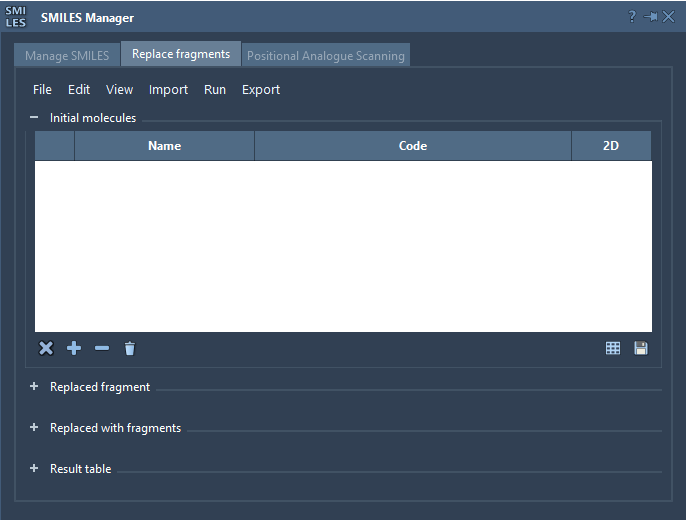
Set up the transformation before you run it
The workflow has three inputs: the initial molecule or molecules, the fragment to remove, and the fragments to insert. Thinking of these as a small, explicit transformation specification helps make the run easier to check and repeat.
- Choose the starting molecule. Import initial molecules from a file, add them manually, or use a selection from the active SAMSON Document. The tutorial’s example starting SMILES is
COc1cc(CNC(=O)CCCC/C=C/C(C)C)ccc1O. - Define the fragment to replace. Enter the target pattern or import it from a SAMSON selection. In the example, the fragment is
[*:1]C(=O)NC[*:2]. - Provide replacement fragments. Load a fragment list from a file or add entries manually. Each replacement pattern should use the two labeled attachment points,
[*:1]and[*:2], at its extremities. These labels specify how the replacement connects to the rest of the molecule. - Run the replacement. Choose Replace fragments from the Run menu. The generated molecules appear in the Results table.
For example, the tutorial includes replacements such as [*:1]S(=O)(=O)NC[*:2], [*:1]C1CC1NC[*:2], and [*:1]C1COC1NC[*:2]. The set mixes different connecting groups and ring-containing patterns, making it possible to inspect a collection of alternatives without rewriting the full starting SMILES for each one.
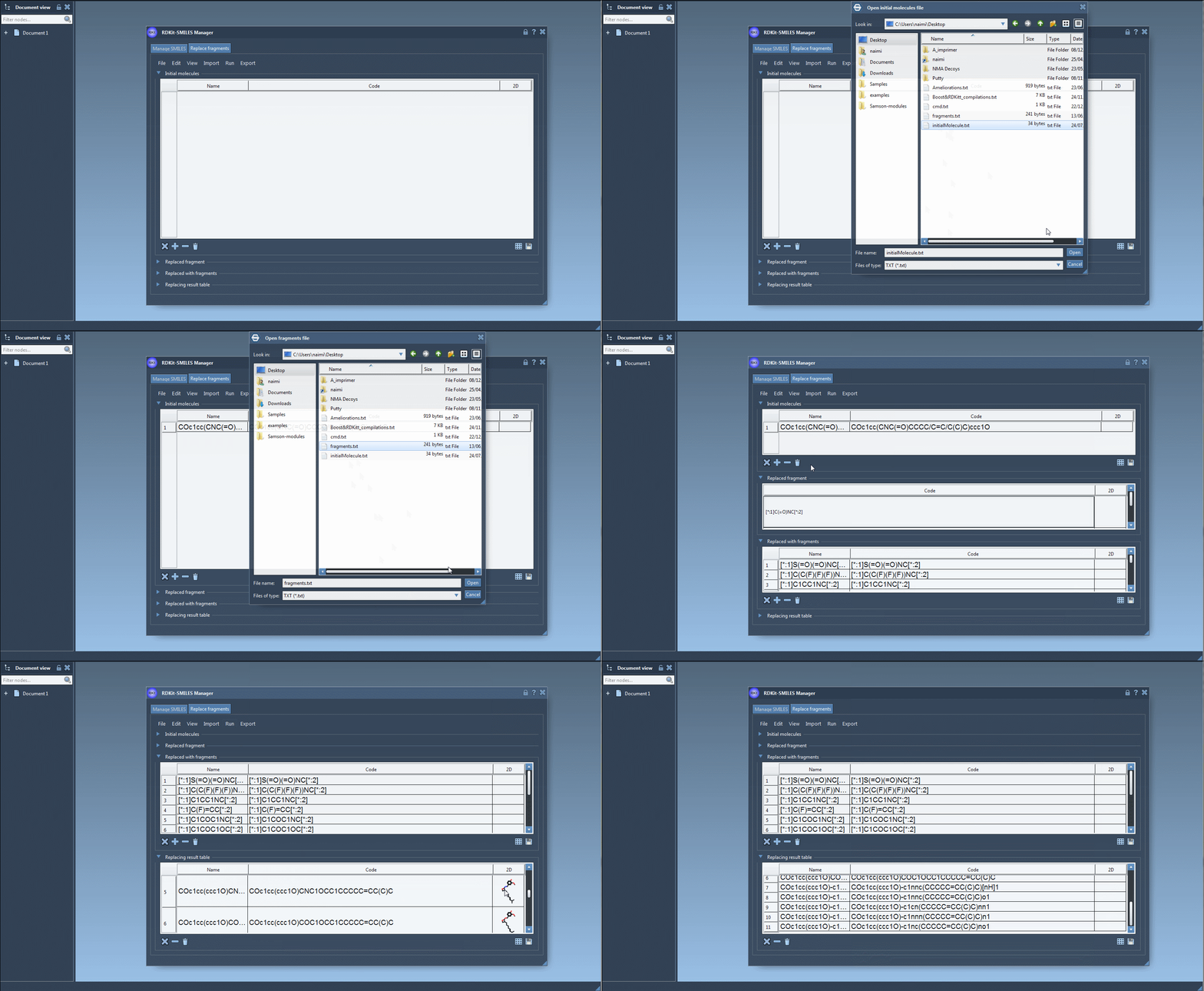
Make the results easier to trust and use
Before interpreting a generated set, check that the input patterns express the transformation you intended. In particular, confirm that both attachment labels are present in each replacement fragment and that they correspond to the desired connection points. A replacement list is only as meaningful as its input patterns.
Then review the results in the table. SMILES Manager displays entries with names and generated 2D depictions, so the structures can be compared visually as well as by their strings. If a SMILES string is invalid, its row is highlighted and an error image appears instead of a molecular depiction. That visual feedback is a reason to inspect the output before moving on, rather than treating a completed run as chemical validation.
Once reviewed, the resulting molecules can be converted into 3D structures, modified, or saved to a file or grid image. The table also supports exporting results to the active SAMSON Document, which can be a convenient next step when you want to work with the generated structures in the molecular modeling environment.
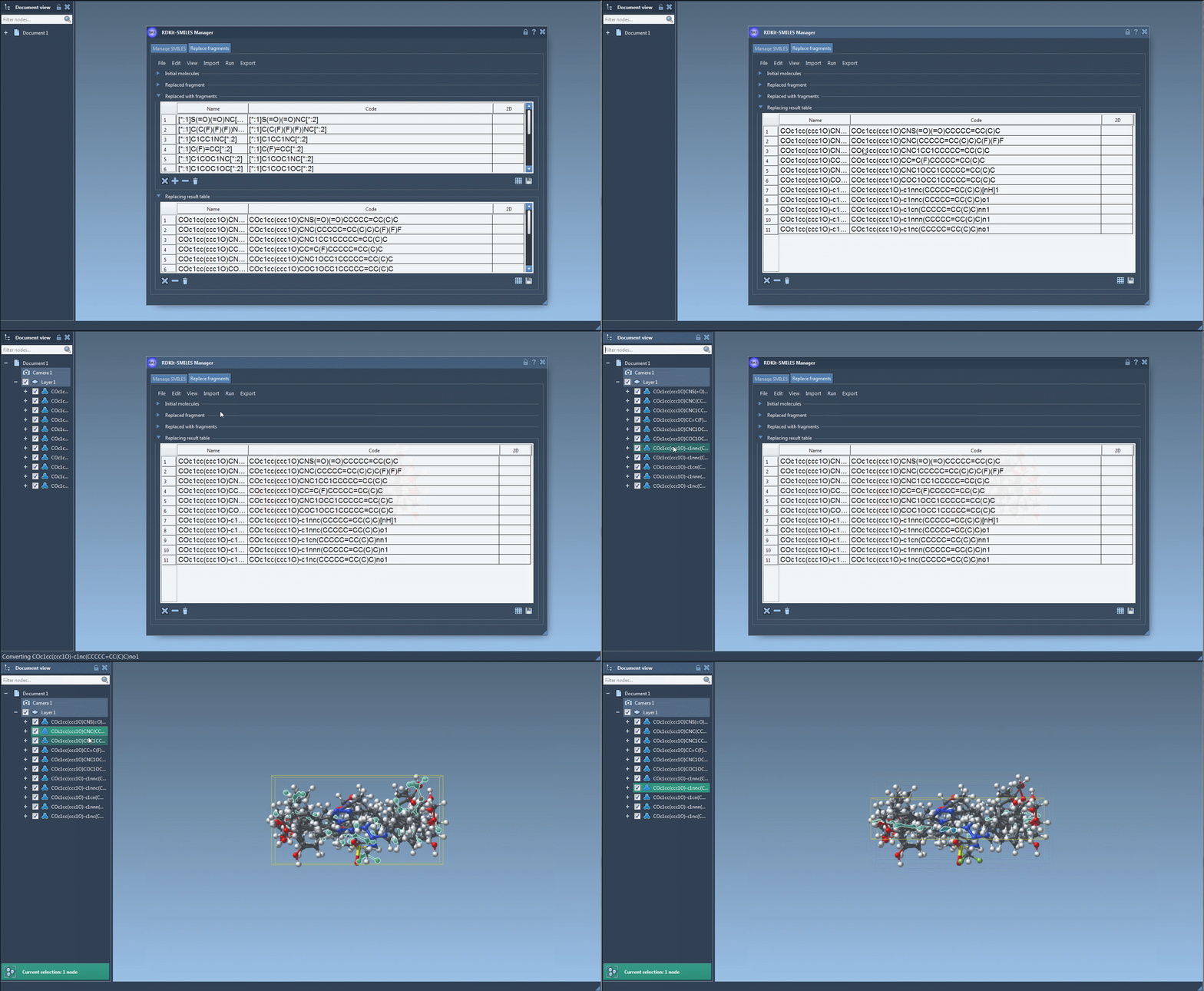
This approach is especially helpful when you already have a specific scaffold and want to organize a defined set of alternative fragments for comparison. It keeps the starting molecule, target fragment, and candidate replacements visible in one workflow—and leaves the scientific decision about which candidates to prioritize to your subsequent analysis.
For the full tutorial, including SMILES import, editing, 2D depictions, and additional examples, see Manage and transform SMILES data with the SMILES Manager.
Note: SAMSON and all SAMSON Extensions are free for non-commercial use. Get SAMSON.