



A crystal model can be difficult to build for a surprisingly simple reason: the coordinates are easy to enter, but easy to interpret incorrectly. Are they fractions of the unit-cell vectors or distances in ångströms? Does the atom list describe the pattern you intend to repeat? A small mismatch at this stage can make the resulting structure confusing to inspect.
Crystal Creator in SAMSON lets you define a unit cell, specify its atoms, and generate a crystal from those settings. This guide focuses on a practical workflow for creating a periodic model—and on the details worth checking before you generate it.
Start with the cell and coordinate convention
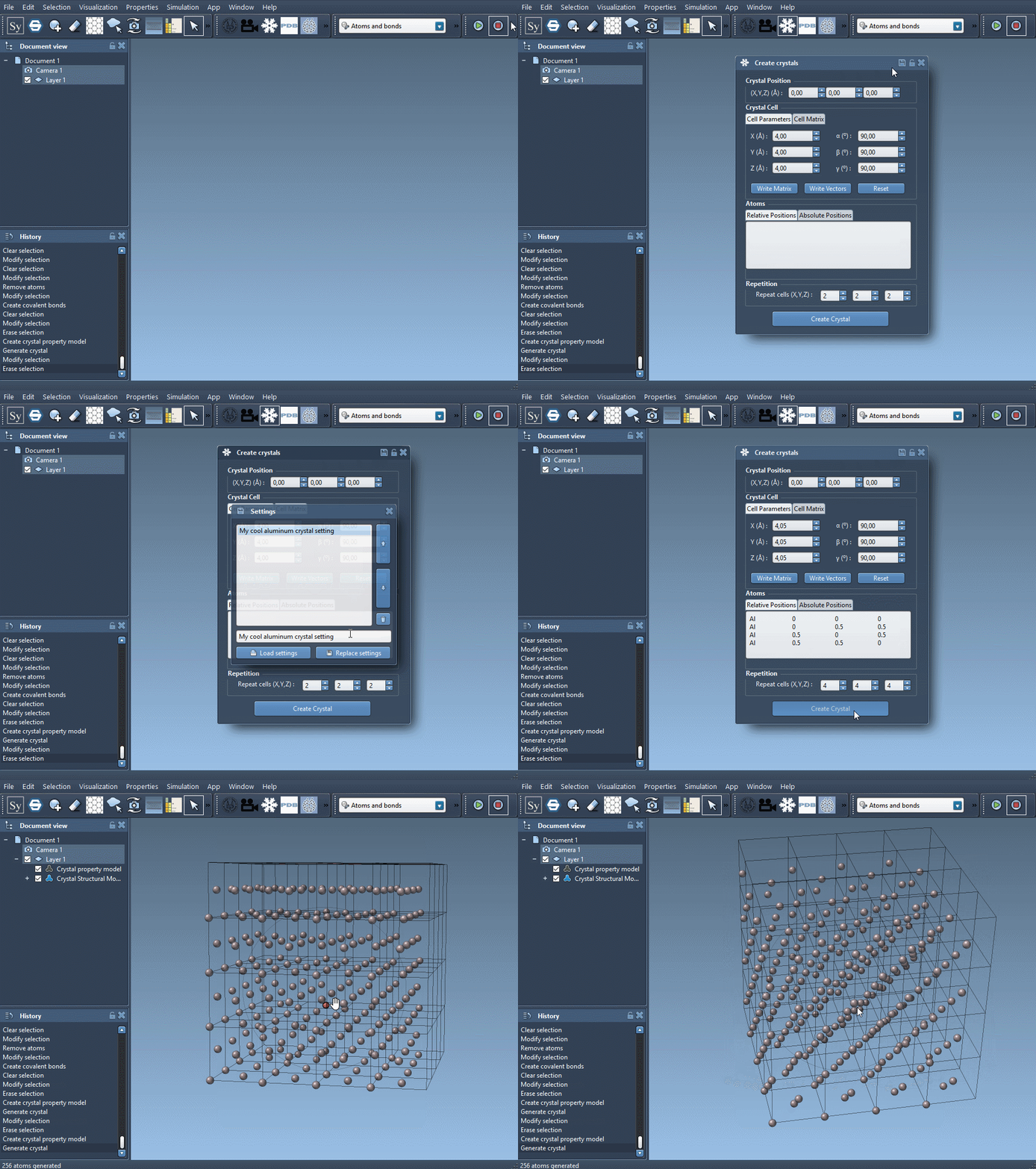
Open Crystal Creator from Home > Apps > Materials > Crystal Creator, or find it with the top search box using Shift+E. You can describe the unit cell using cell parameters or unit-cell vectors, and use Write Matrix/Write Vectors to switch between those notations.
Next, choose how to enter atomic positions. In the relative-position tab, coordinates are proportions of the unit-cell vectors X, Y, and Z. For example, 0.5 0 0.5 means halfway along X, not a displacement of 0.5 Å. In the absolute-position tab, coordinates are distances in ångströms. Keeping this distinction in mind is one of the simplest ways to avoid a unit-cell definition that does not match your intention.
Use a known structure as a check
Before entering a less familiar material, it can help to test the workflow with a documented example. For face-centered cubic aluminum, use a cubic unit cell with a lattice parameter of 4.05 Å and enter these positions in the relative-position tab:
|
1 2 3 4 |
Al 0 0 0 Al 0 0.5 0.5 Al 0.5 0 0.5 Al 0.5 0.5 0 |
The four entries are the atom positions specified for this unit cell. The numbers after the element symbol are fractional coordinates; the cell parameter supplies the cell’s size. That separation is useful: the coordinates describe where atoms sit within the cell, while the cell definition describes the cell itself.
A diamond example makes the atom-label convention visible as well. The symbol must begin with a chemical element symbol, but it may have additional characters without spaces. Labels such as C0 and C1 therefore identify carbon atoms while distinguishing their entries:
|
1 2 3 4 5 6 7 8 |
C0 0 0 0 C1 0.25 0.25 0.25 C2 0 0.5 0.5 C3 0.5 0 0.5 C4 0.5 0.5 0 C5 0.25 0.75 0.75 C6 0.75 0.25 0.75 C7 0.75 0.75 0.25 |
For this example, choose a cubic unit cell with a lattice parameter of 3.60 Å. As with any custom structure, check that the selected coordinate tab matches the positions you are entering.
Choose how much crystal to generate
Once the cell and atom list are set, choose the number of unit cells to generate. This controls the extent of the repeated model, so decide how much of the crystal you need for the task at hand. The app also lets you choose a position 0 for the crystal. If you expect to revisit or modify the model, save its settings using the save icon in the property window.
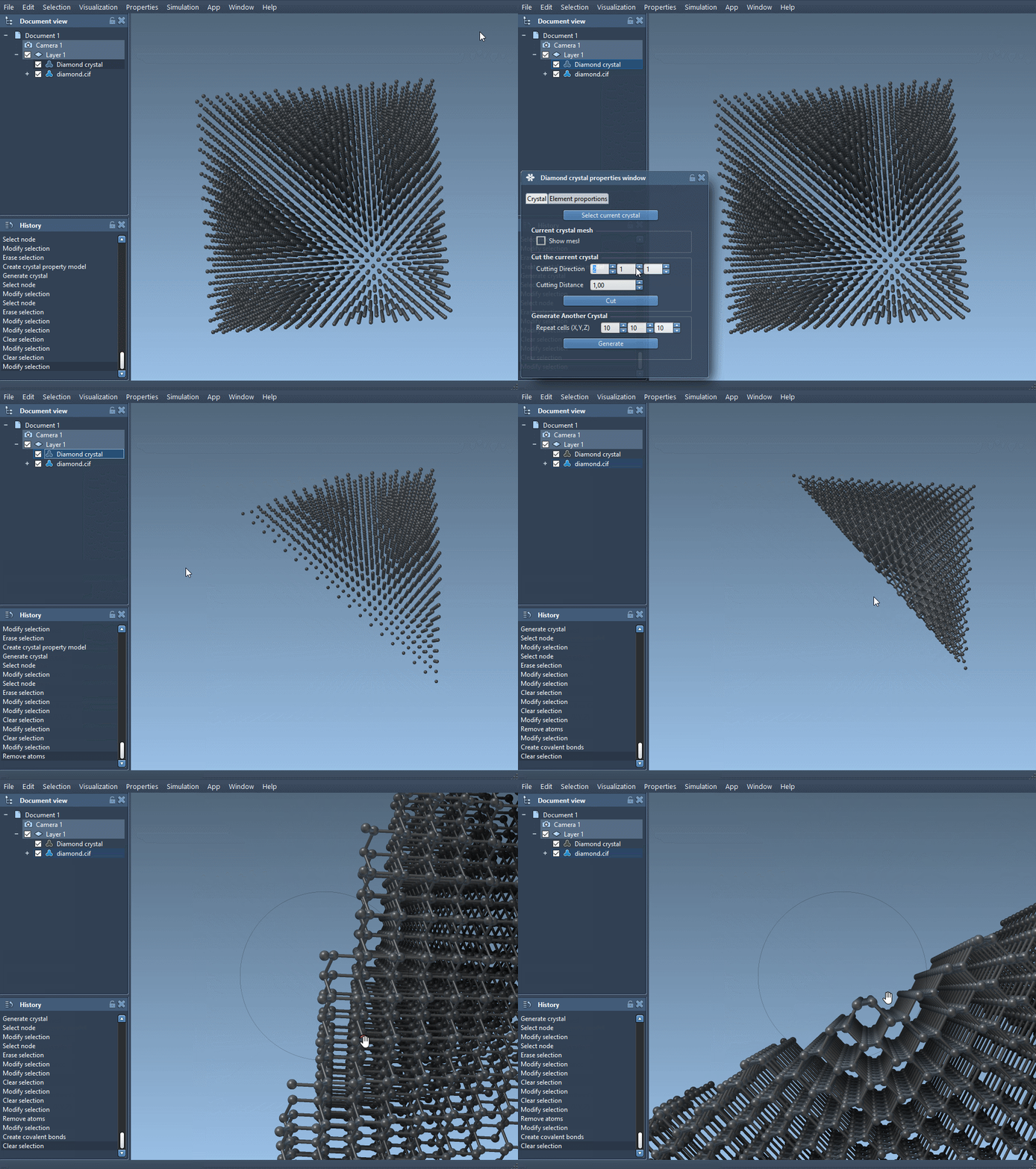
After generation, the model and its property model appear in the data graph. The property window provides a way to find the crystal, show its mesh, cut it using Miller indices and a distance from position 0, or generate another crystal. For instance, the tutorial suggests cutting a diamond crystal along [111] to inspect its compact hexagonal structure.
When the structure includes defects
A CIF file can describe defects or substitutions, and Crystal Creator uses that information when generating the crystal. The property window’s second tab includes a check atoms ratio tool to check whether the generated crystal respects the specified presence or absence ratios for atom sites. This is useful when a model is not expected to be a perfectly occupied, repeating arrangement.
The main habit to take away is simple: define the cell, confirm whether positions are relative or absolute, and then generate a model of the size you need. For importing an existing structure, the tutorial also describes loading CIF files and inspecting their properties.
For the complete workflow and additional examples, see the Crystal Creator documentation.
Note: SAMSON and all SAMSON Extensions are free for non-commercial use. Get SAMSON.