



A protein–ligand pose can look clear in 3D and still be difficult to explain. Important contacts may be hidden among atoms, labels, and nearby residues, while a screenshot rarely tells a reader which features deserve attention. A useful interaction diagram can make the contact pattern easier to inspect—but only if it remains connected to the structure and is interpreted carefully.
SAMSON’s Interaction Designer addresses this by creating a 2D interaction diagram from molecular structures while keeping the 2D document synchronized with the 3D viewport. That connection helps solve a common modeling task: moving from “these atoms are near each other” to a view that makes it easier to identify and discuss the observed contacts.

Start with the structure you want to explain
Use Home > Diagram to create a diagram from the current selection. If nothing is selected, the command uses the whole document. For a focused protein–ligand view, selecting the relevant structure or ligand first can help keep the result centered on the question you are investigating.
The diagram can show the binding pocket, solvent accessibility of ligand atoms, and interacting residues or structural groups. It also remains linked to the 3D viewport: clicking an atom or structure selects it, and double-clicking zooms in on it. This is useful when a 2D contact catches your eye and you want to locate the corresponding part of the 3D model before drawing conclusions.
Make the diagram answer one question
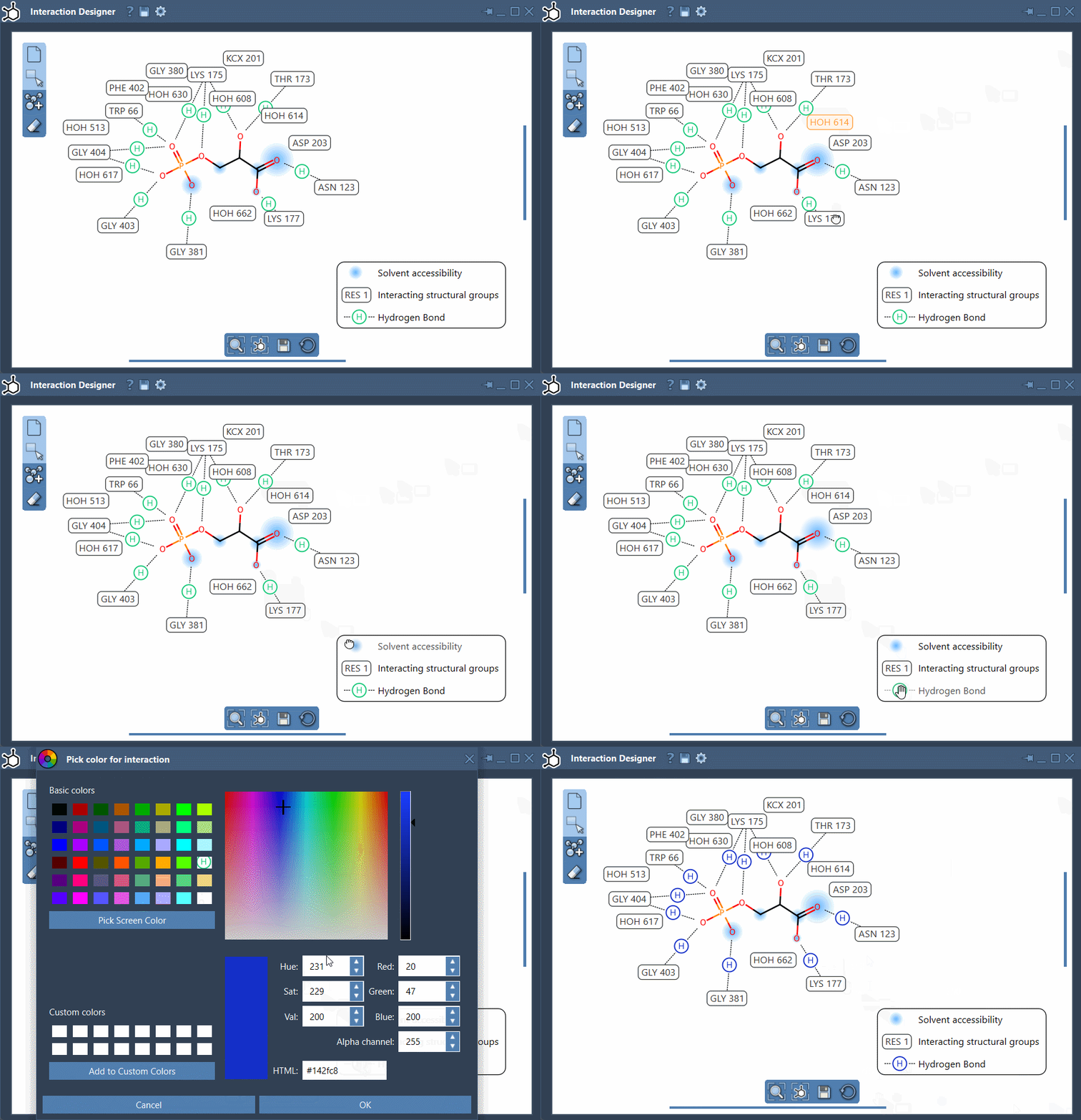
An automatically generated diagram is a starting point, not necessarily a finished figure. You can move labels and interaction symbols, adjust the caption or legend, and hide contact categories that are not relevant to the point you want to communicate. Double-clicking an interaction name or icon in the legend changes its color; the Interaction Designer settings provide a way to restore colors.
These edits are more than cosmetic. A diagram showing every available category may be harder to read than one focused on a particular question—for example, where hydrogen-bond contacts occur, or which residues surround a ligand. Keep the full contact information available for inspection, but consider simplifying the displayed view when preparing an explanation or image.
Read contacts as geometric observations
The Interaction Designer detects several families of contacts, including hydrogen bonds, ionic interactions, metal coordination, aromatic contacts, and steric clashes. It also includes atom–plane and group-based categories such as cation–π, π–π, and amide–π interactions. The categories are inspired by contact families used by Arpeggio, but the documented descriptions refer to the current Interaction Designer implementation.
One distinction matters especially when interpreting a diagram: a detected contact means that the atoms or groups meet the implemented geometric criteria. Depending on the category, those criteria can involve atom types, distances, angles, or ring centroids. A detected contact does not prove that it stabilizes the complex or provide an interaction energy. Treat the diagram as a way to inspect and communicate geometric relationships, not as an energy calculation or a substitute for broader structural analysis.
Water can appear as participant metadata when it is involved in a contact, but the current implementation does not create a separate water-specific interaction type. Keeping these details in mind helps avoid reading more into the picture than the detection method supports.
Keep the final figure useful
Use the Interaction Designer’s bottom menu to update the view and align the 2D and 3D views. You can zoom with Ctrl or Cmd plus the mouse scroll wheel, and translate the diagram by holding the middle or right mouse button while moving the mouse. When the layout is ready, use Save in the bottom panel to export the interaction diagram as PNG, JPG, JPEG, BMP, or SVG.
A practical sequence is: select the molecular context, generate the diagram, inspect important contacts in 3D, simplify the legend and layout for your intended question, then export. The result is easier to share when the labels are readable and the contact categories are presented as evidence to inspect—not as a verdict about binding strength.
Learn more in the Interaction Designer documentation.
Note: SAMSON and all SAMSON Extensions are free for non-commercial use. Get SAMSON.