



A molecular trajectory can look continuous and still be a poor description of a transition. Its intermediate structures may be unevenly spaced or physically implausible, making the route hard to interpret. If you already have a candidate path—or a sequence of conformations—P-NEB in SAMSON can help relax it into a more physically meaningful transition path.
The key distinction is that P-NEB refines a proposed route; it does not generate the initial route for you. You need starting structures first. These might come from a path-finding workflow, interpolation between states, or conformations you have prepared. This makes it useful when you have a plausible answer to “where might the system go?” but want to improve the structures along the way.
What the method changes
Nudged Elastic Band (NEB) optimizes intermediate images along a path. Spring forces between neighboring images help keep the states distributed along the route, while the interaction model supplies energies and forces. The P-NEB app implements the climbing-image NEB method, which can be used to search for a saddle point. In the workflow below, the climbing-image option is initially left off; you can try it in a later run.
This is a refinement step, not a guarantee that the result is the only pathway or a complete account of the system’s dynamics. The quality of the result depends in part on the input path and the interaction model you choose. It is therefore worth inspecting the output rather than treating optimization as automatic validation.
Start with the right input
P-NEB accepts either a path or a set of conformations. A path stores a trajectory for selected atoms. A conformation stores the positions of a selected group of atoms at one state. If you have several conformations, SAMSON can combine them into a path: select them in the Document view, then choose Conformation > Create path from conformations in the context menu.
For the same system and number of steps, applying P-NEB directly to a path is faster than applying it to a set of conformations, so prefer a path when one is available. If you are starting with two relaxed states but have no intermediate structures, first create a sequence between them—for example, by linear interpolation or with a path-generating extension such as Ligand Path Finder.
A practical setup in SAMSON
- Load a system and bring in a candidate path or a set of conformations.
- Open P-NEB from Home > Apps > All > P-NEB, or find it using the Find everything… search box.
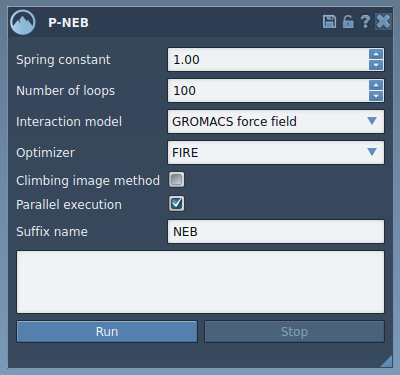
- For the tutorial’s example setup, enter a spring constant of
1.00and100loops, choose Universal Force Field as the interaction model and FIRE as the optimizer, and enable parallel execution. Leave the climbing-image option unchecked for the first run. Set the suffix name toNEB. - Select the input path in the Document view and click Run. If the Universal Force Field setup asks whether to use existing bonds, choose to use them and click OK.
- Follow progress in the status bar. When computation finishes, look for the newly produced path in the Document view.
Inspect before you interpret
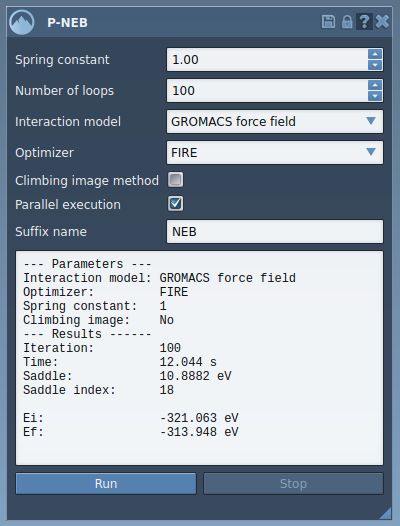
The result is a new path, so keep the original available for comparison. Select the optimized path and examine it with the Inspector; double-clicking it starts or stops its animation. This is a useful first check for whether the structures and motion are understandable for your selected atoms. The app also provides a computation summary. If you want to investigate the saddle-point search, try another run with the climbing-image option enabled and inspect that output as well.
One practical takeaway: spend time preparing a sensible initial route, then use P-NEB to refine it. If your inputs are conformations, combining them into a path first can also make the workflow more efficient. For further details and the complete tutorial, learn more about optimizing transition paths with P-NEB.
Note: SAMSON and all SAMSON Extensions are free for non-commercial use. Get SAMSON.