



A molecular path can be easy to inspect on screen: in SAMSON, double-clicking a path in the Document view starts or stops the atoms moving along it. But an animation is not yet a convenient input for analysis. If you need coordinate snapshots for a reaction-coordinate study, a free-energy workflow, or a visualization, the practical challenge is exporting the right atoms in a form your next step can use.
The key choice is often not simply which path? but which atoms? Exporting every atom may be useful when you need the complete structural context. For a ligand-focused analysis, exporting only the ligand can keep the resulting data centered on the motion you want to study. The Export Along Paths app supports both approaches.
Start with a path-containing document
For a hands-on example, the tutorial sample contains lactose permease (1PV7), the ligand thiodigalactosid (TDG), and two unbinding paths. You can load it in SAMSON from Home > Download using the sample document link below. In the Document view, identify the protein, ligand, and paths before exporting; this makes it easier to select the intended path and, when needed, the intended atom group.

A path is a SAMSON node that stores atomic trajectories for a group of atoms. Selecting the path determines which trajectory to export; selecting a subset of atoms in the advanced panel lets you define a more focused export model.
Choose an output layout that fits the next task
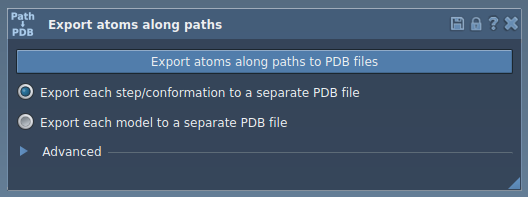
Open Home > Apps > All > Export Along Paths. Select one or more paths in the Document view, then choose between two PDB export layouts:
- All frames in a single PDB file: use this when you want the frames grouped in one output file.
- Each frame as a separate PDB file: use this when separate snapshots are more convenient for the next step.
After choosing the layout, click Export atoms along paths to PDB files. SAMSON prompts you for a destination folder and file prefix. The Advanced section also lets you change the frame export interval, which is useful when you want to adjust how frequently frames are written.
Export only the atoms relevant to your question
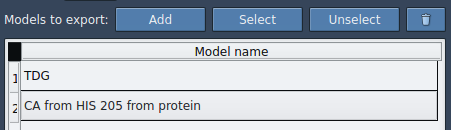
For a ligand-only trajectory, expand the Advanced panel and select the ligand—for example, TDG—in the Document view. Click Add to define the selection as a named model in the export list. You can rename that model by double-clicking its name, add other atom groups using the same process, and use Select or Unselect to highlight the atoms included in a model. The Reset button can be used to redefine it.
This selection step is a useful place to pause and check your intent: are you exporting the whole system for context, or only a particular group such as a ligand, binding site, or backbone? The documentation’s examples include tracking specific atom groups, but the group you define should match the question you plan to investigate.
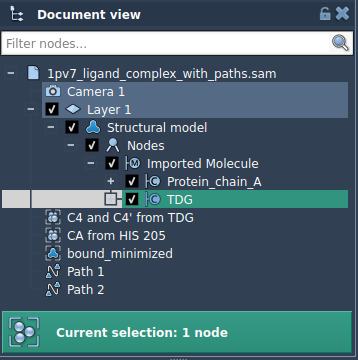
When the model list is ready, choose the PDB layout, select the relevant path or paths, and export. You will again choose a destination folder and file prefix. If you are comparing multiple atom groups, clear model names can help you keep track of what each entry represents.
Keep the export tied to its purpose
The exported coordinates can be used in downstream analysis, visualization, or simulation workflows. For example, a ligand extraction path may provide coordinates for a reaction-coordinate or free-energy calculation; a set of intermediate states may be useful for visualization. The export itself supplies coordinate data—it does not determine which analysis is appropriate, so keep a record of the selected path, atom group, output layout, and frame interval alongside your workflow notes.
For the complete step-by-step procedure, see the Export atom trajectories along paths tutorial.
Note: SAMSON and all SAMSON Extensions are free for non-commercial use. Get SAMSON.