



For molecular modelers, designing molecular libraries for testing or analysis often involves significant time and effort. The Fragment Replacement feature in the SMILES Manager module of SAMSON offers a direct and efficient method to address this challenge. By allowing users to replace specific fragments of molecules with alternatives, the module accelerates library generation for chemical analysis, property testing, and isosteric replacement studies.
What is Fragment Replacement?
The Fragment Replacement feature focuses on modifying molecules by swapping out one part of a structure with different fragments. This is useful for tasks such as exploring isosteres, testing molecular properties across variations, or generating diverse libraries for computational screening.
How to Quickly Replace Molecular Fragments
Here is how to use the Fragment Replacement feature of the SMILES Manager in SAMSON to simplify molecular library creation:
- Define Your Initial Molecule:
Start by specifying the molecule you want to use as a base structure. You can either:
- Import the initial molecule from a file by selecting Open initial molecules from the File menu.
- Add the molecule manually in the interface.
- Import a molecule from your active SAMSON document using SAMSON Selection as initial molecule from the Import menu.
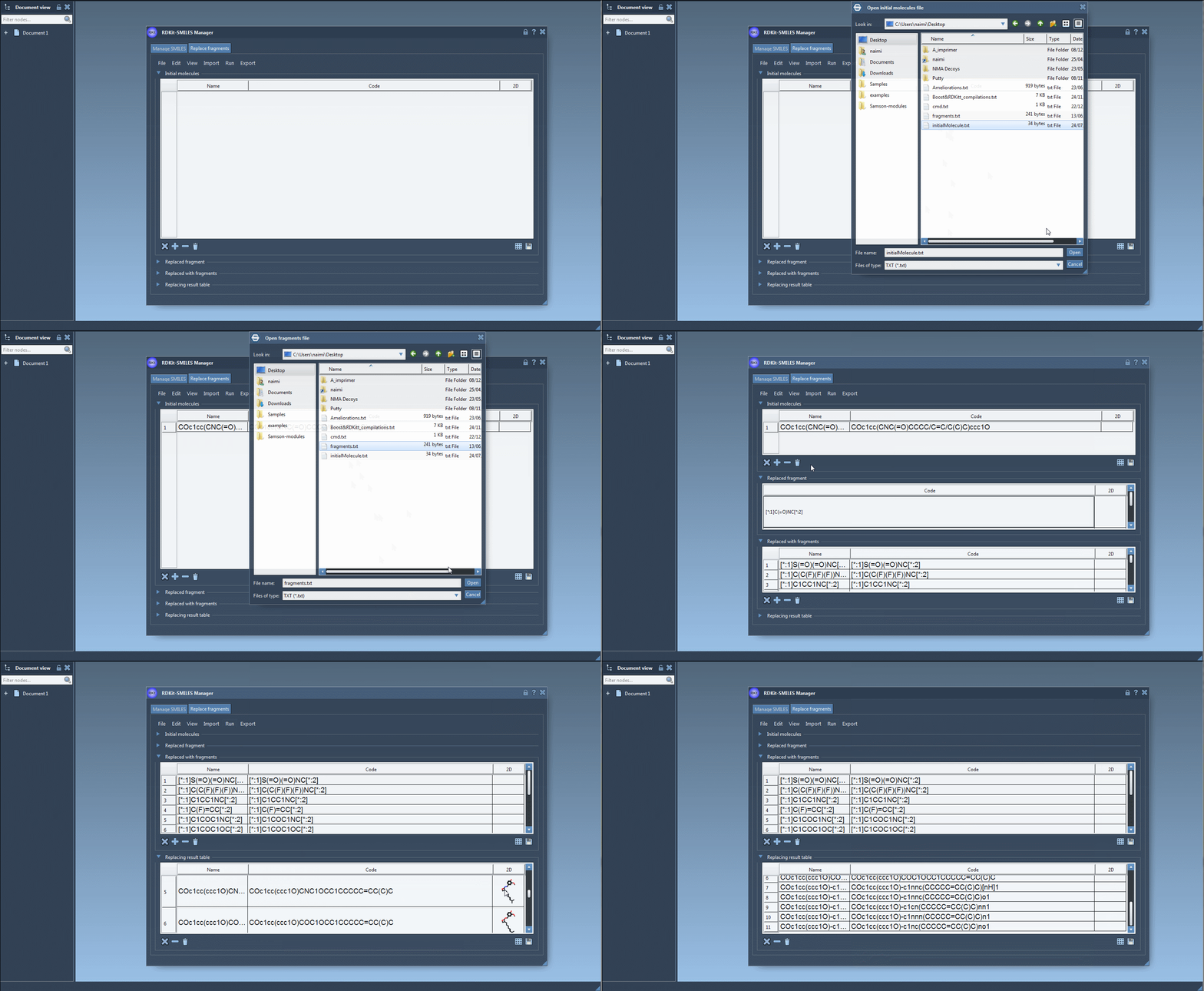
For example, the molecule below can be used as a starting point:
COc1cc(CNC(=O)CCCC/C=C/C(C)C)ccc1O - Select the Fragment to Replace:
Identify the fragment of the initial molecule you wish to replace. Enter its structure manually or import it from your SAMSON document via SAMSON Selection as replaced fragment. For instance, the fragment to be replaced might look like this:
[*:1]C(=O)NC[*:2] - Provide Replacement Fragments:
Define one or more fragments to use as replacements. These can be:
- Imported from a file using Open fragments to replace with…
- Manually added to the interface.
Here is an example of possible replacement fragments:
1234[*:1]S(=O)(=O)NC[*:2][*:1]C(C(F)(F)(F))NC[*:2][*:1]C1CC1NC[*:2][*:1]C(F)=CC[*:2] - Run Fragment Replacement:
With the initial molecule, target fragment, and replacement fragments set up, launch the process by selecting Replace fragments from the Run menu. The results will appear in the interface’s Results table.
Visualizing and Exporting Results
The resulting molecules will be generated and can be exported in various ways:
- Export them into your active SAMSON document for further analysis.
- Convert resulting molecules into 3D structures.
- Save libraries as files or as grid images for visualization and sharing.
The flexibility of the Fragment Replacement feature ensures that molecular modelers can efficiently test ideas, iterate designs, and enhance chemical workflows.
Example in Action
The process is as visual as it is customizable. See an example of the interface in action below:
Conclusion
The Fragment Replacement module within the SMILES Manager conveniently automates the tedious task of creating molecular variants. It empowers molecular scientists to focus on their analysis instead of performing repetitive editing tasks.
To learn more about the SMILES Manager and other features, visit the official documentation page.
Note: SAMSON and all SAMSON Extensions are free for non-commercial use. You can download SAMSON at SAMSON Connect.