



For molecular modelers and nanoscientists, generating accurate and customizable carbon nanotube (CNT) models can often feel like a tedious task. Whether you’re studying CNT properties, designing nanodevices, or creating molecular transport systems, the process can be time-consuming, especially if precision is crucial. This is where the Nanotube Creator Extension offered by SAMSON comes to the rescue.
With the Nanotube Creator, you can efficiently build both single-walled and multi-walled CNT models in two ways: interactively in the viewport or via a graphical interface for more precise control. Let’s explore these methods in detail so you can quickly integrate nanotube modeling into your workflows.
Method 1: Interactive Viewport Modeling
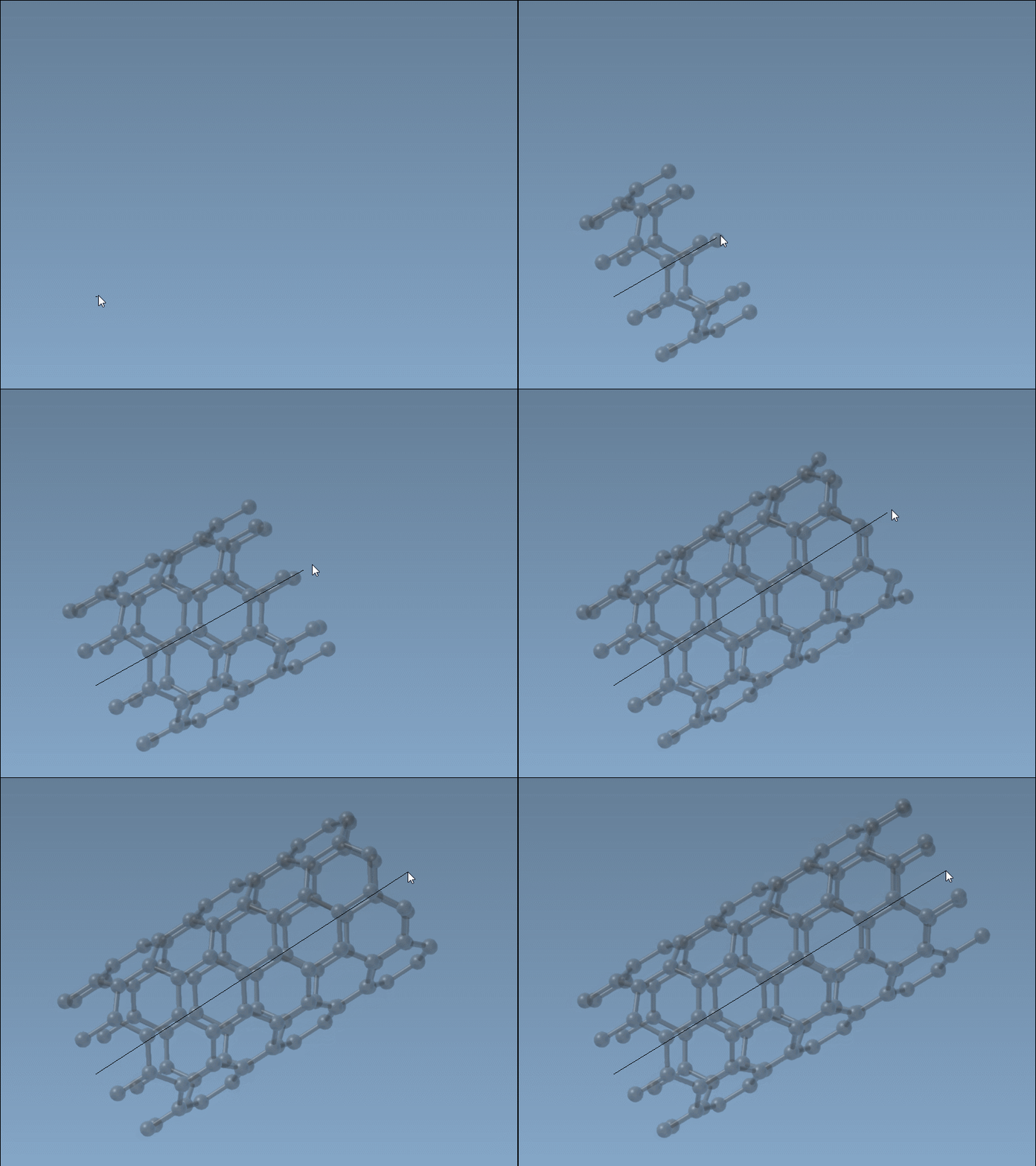
If you’re looking for an intuitive way to create CNTs, the interactive mode allows you to use your mouse to design nanotubes directly in SAMSON’s viewport. Here’s how it works:
- Set the nanotube axis and length: Simply press and drag the left mouse button in the viewport. You’ll see real-time feedback on the orientation and the length of the nanotube in the status bar.
- Define the radius: After releasing the mouse button, move the mouse to adjust the radius of the nanotube. Press the left mouse button again to confirm the final dimensions.
Throughout the process, keep an eye on the status bar for precise updates to the n and m parameters, which define the nanotube’s structure and radius. Here’s a quick visual of what the interactive nanotube creation looks like:
Method 2: Using the Graphical Interface
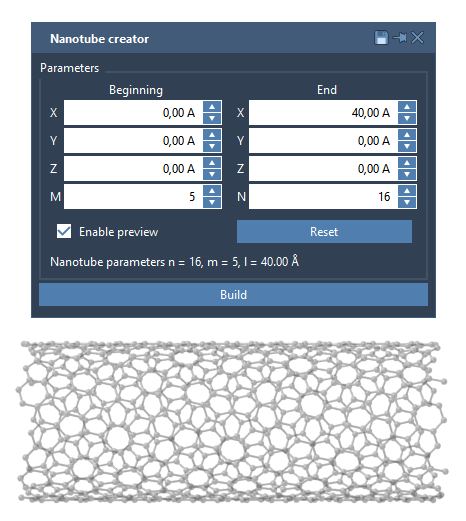
For those who prefer fine-tuned control, the graphical user interface (GUI) of the Nanotube Creator simplifies the process. Activate the GUI by selecting the Nanotube Creator editor through the viewport menu or by searching for “Nanotube Creator.” The interface lets you:
- Define start and end positions of the CNT axis in 3D space.
- Adjust
nandmparameters to control the chiral vector and dimensions.
For instance, you can create multi-walled nanotube structures easily by adjusting these parameters. Below is an example of the GUI in action:
Creating Multi-Walled CNTs
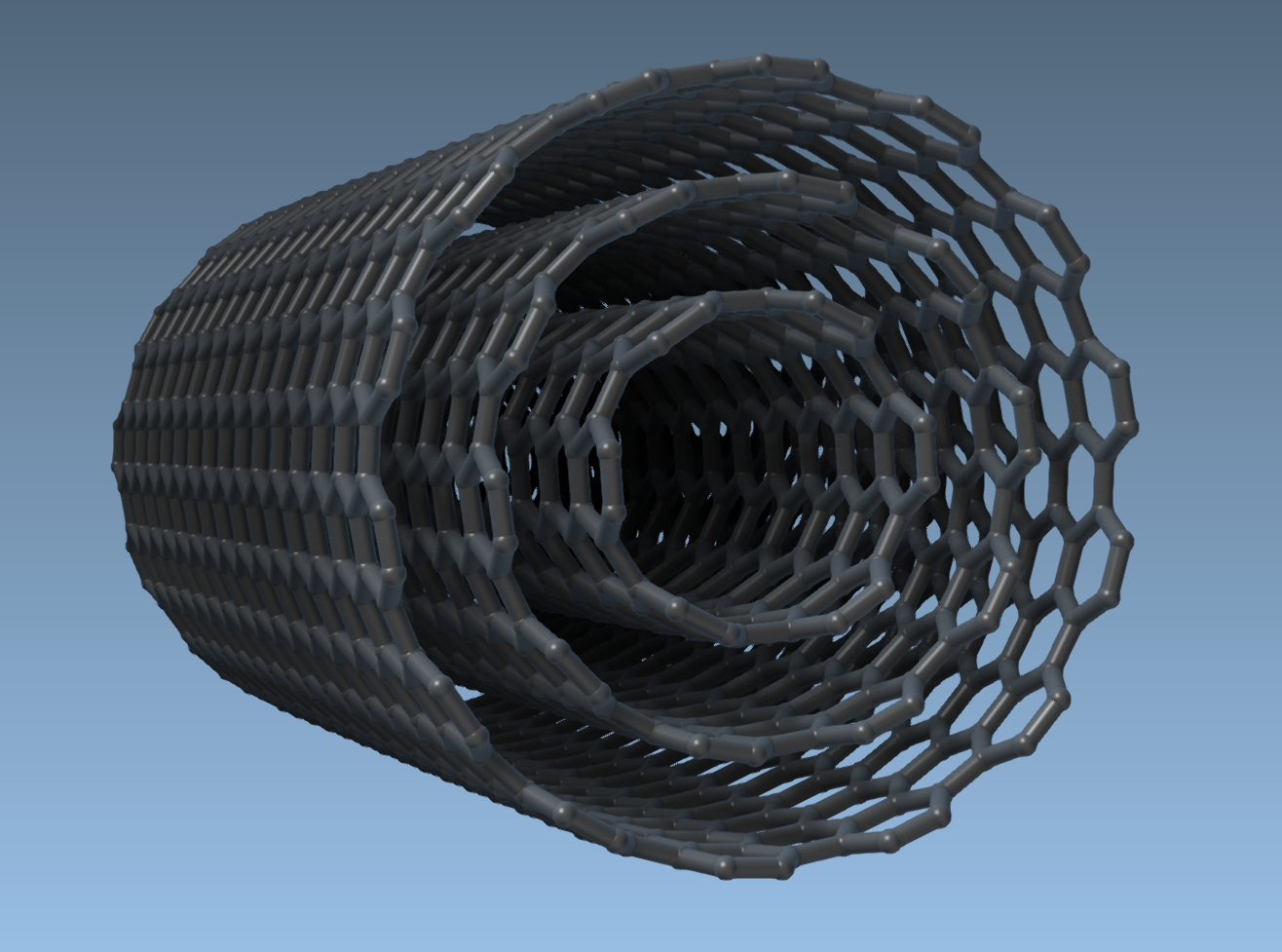
Let’s walk through a quick example. To build a multi-walled CNT:
- Specify the start/end positions. For example,
(0, 0, 0)to(40, 0, 0)produces a CNT 40 Å long along the x-axis. - Create concentric CNTs by iteratively setting parameters and hitting “Build.” For example:
n = 6,m = 6: Build CNT 1.n = 10,m = 10: Build CNT 2.n = 14,m = 14: Build CNT 3.
The final structure will look something like this:
Why Use the Nanotube Creator?
The Nanotube Creator’s versatility goes beyond simply building CNTs. Use it to:
- Design nanostructures for molecular simulations.
- Study electronic, mechanical, or thermal properties of CNTs.
- Develop CNT-based sensors or drug delivery systems.
- Integrate CNTs into hybrid nanostructures for advanced materials modeling.
What’s Next?
Once your CNT models are built, you can visualize them, simulate their behavior, or combine them with other molecules to explore new materials or applications. Check out the official documentation page to learn more about the Nanotube Creator.
SAMSON and all SAMSON Extensions are free for non-commercial use. Download SAMSON today at SAMSON Connect.