



A molecular structure can look plausible and still be a poor starting point for refinement. The force-field choice, the system’s charge and spin, and—in periodic systems—the unit cell all affect how useful an energy or force evaluation will be. When you are exploring a structure interactively, the challenge is not just getting a number: it is knowing what you configured, what the model is evaluating, and when the result needs a more careful check.
SAMSON’s UMA Force Field extension offers a machine-learning-based route to interactive energy and force evaluation. It is suited to fast geometry refinement, exploratory relaxation, and qualitative force analysis. The workflow below focuses on a few practical choices that help avoid common setup confusion and make results easier to interpret.
Start by matching the task to the system
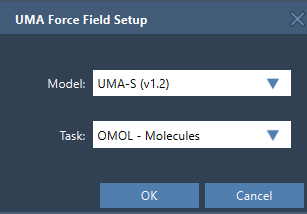
When you add a simulator in SAMSON, choose Edit > Simulate > Add simulator, select UMA Force Field, and choose a state updater, such as FIRE. The UMA setup window then asks you to select a model and a task. Treat the task as a description of the application domain, not as a model-size setting:
- OMOL – Molecules is for molecular systems. It is the only listed task whose user interface uses total charge and spin multiplicity.
- OMAT – Inorganic materials is for bulk inorganic materials workflows.
- ODAC – MOFs is for MOF and direct-air-capture-style adsorption workflows.
- OC20 – Catalysis is for catalytic surfaces and adsorbates.
- OMC – Molecular crystals is for molecular-crystal systems.
If you are unsure where to begin, use the task that corresponds to the system you actually intend to evaluate. A model cannot compensate for choosing an unsuitable application domain.
Choose a model for the first pass
The extension offers UMA-S in two versions and UMA-M: UMA-S v1.2 (2.3 GB), UMA-S v1.1 (1.1 GB), and UMA-M v1.1 (11.7 GB). The documented starting point is UMA-S, which provides the default fast workflow. UMA-M is a larger option when you want more capacity; the lighter UMA-S v1.1 is a legacy option. Starting with UMA-S keeps the first exploration straightforward, while leaving you the option to try another available model when your workflow calls for it.
Expect a first-use setup step
Before creating the simulation, make sure both the UMA Force Field and up-to-date Python Scripting extensions are installed, and that your machine can install Python packages on first use. The first run prepares a dedicated Python environment and may request access to the UMA models. This setup can take some time. Follow the prompts in SAMSON; after setup finishes, you may need to create the interaction model again.
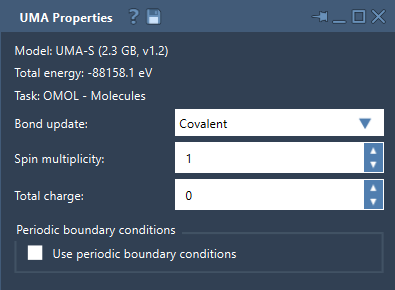
It is also normal for the properties window to show that energy is unavailable briefly at startup. Start the simulation with Edit > Simulate > Start and wait for the first UMA evaluation to complete before expecting the total energy to appear. This distinction helps avoid mistaking initialization time for a failed evaluation.
Check the inputs that change interpretation
For an OMOL molecular system, check the total charge and spin multiplicity in the properties window and use values consistent with the system you want to model. These settings are part of the request sent to UMA, so they are not merely display preferences.
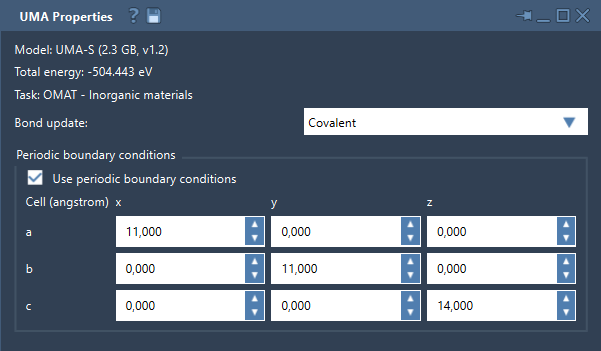
For periodic workflows, inspect the periodic-boundary-conditions setting and the 3 × 3 cell matrix, expressed in angstroms. Verify the cell before interpreting results. A periodic calculation with an unintended cell setting is not a useful basis for conclusions about the intended system.
Use bond updates as an exploration aid
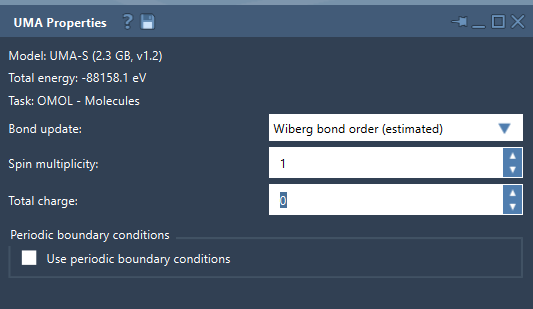
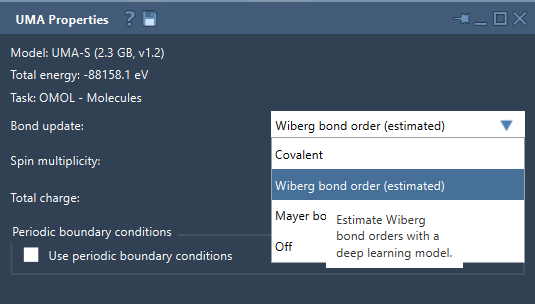
The bond-update control determines how the bond graph is handled while the simulation runs. Covalent recomputes covalent bonds from the current structure; Off leaves the current graph unchanged. The estimated Wiberg and Mayer bond-order modes use a deep-learning model to estimate bond orders. They can help with interactive exploration and visualization, but the documentation cautions that important conclusions should be confirmed with a reference method.
A practical sequence to keep
- Choose the UMA task that matches the system type.
- Begin with UMA-S for rapid feedback.
- For OMOL, verify total charge and spin multiplicity.
- For periodic systems, check the cell matrix and boundary-condition setting.
- Wait for the first evaluation, then use the displayed energies and forces for interactive exploration and refinement.
- Use a higher-accuracy reference method to confirm final results when needed.
This approach keeps the roles of the tools clear: UMA can help you screen, refine, and explore structures, while consequential conclusions may require confirmation with an appropriate reference method. For the complete setup instructions and details, see the UMA Force Field tutorial.
Note: SAMSON and all SAMSON Extensions are free for non-commercial use. Get SAMSON.