



Crystallography plays a vital role in material science, nanotechnology, and structural biology. But even for experienced modelers, visualizing and interacting with crystal structures can feel abstract. A recurring challenge is analyzing how crystals look and behave along specific crystallographic planes — for instance, the dense atomic layering along the [111] direction in diamonds. This direction is key when studying properties like slip systems, catalytic surfaces, or nanoparticle morphology.
Fortunately, the Crystal Creator Extension in SAMSON includes powerful but accessible tools to cut and manipulate crystal models. Whether you’re teaching a crystallography class or designing materials at the nanoscale, understanding how to identify and slice through planes will help you connect theory and practice in an interactive, visual way.
Setting Up: Load Your Structure
If you haven’t already, install the Crystal Creator Extension from the Marketplace. You can then import crystals from standard CIF files sourced from online databases like the American Mineralogist Crystal Structure Database or RRUFF.
Let’s try something tangible. Download a diamond crystal CIF file, and when importing into SAMSON’s Crystal Creator App, make sure to enable the options for unit cell multiplication and symmetry if relevant. You’ll see your model loaded, and it will appear in the data graph.
Cutting Directions and Interfaces
Now comes the key part: cutting crystals.
Right-click on the property model of your loaded crystal and select Properties. In the first tab of the property window, you’ll find a section to cut the crystal along a plane of your choice. This feature uses Miller indices to define direction.
- Specify the cut direction using three integers (e.g.,
1,1,1for[111]). - Adjust the cutting distance (in unit cell repetitions) from the origin.
Click to apply, and you’ll instantly see the effect of the cut — atomic layers aligned along your chosen direction. This is particularly instructive with diamond crystal’s [111] orientation, which reveals its compact hexagonal-like stacking pattern, useful for understanding electronic behavior and surface reconstruction.
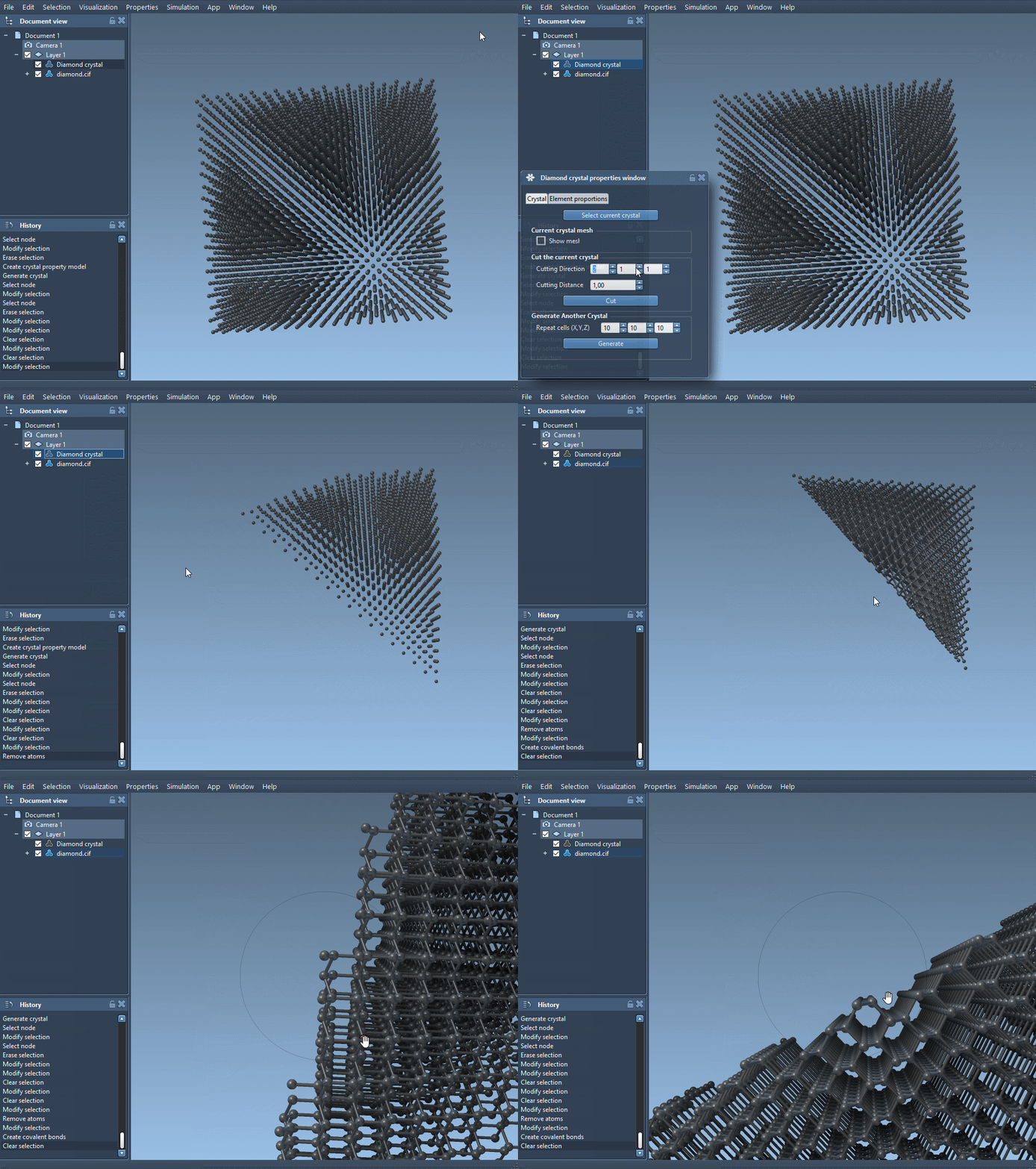
This cutting tool also serves educational goals: instructors can visually explain concepts like lattice planes, stacking faults, or growth faces. For students or researchers, it brings an intuitive understanding of structure-property relationships.
Check and Customize
Need to check if your structure follows proper substitution or defect ratios? In the second tab of the property window, the Check Atoms Ratio button summarizes how well your model matches those constraints as specified in the CIF file.
Bonus Tip
Try importing a different crystal — such as Quartz or Macdonaldite — and cut them along the [010] or [100] directions to observe more complex anisotropic structures. Visual feedback from cuts can inform decisions about slicing direction for simulations, surface studies, or device applications.
Conclusion
Whether you’re creating custom materials or just learning as a student, cutting through crystals interactively can be a practical and visual way to connect theoretical representations with real-world structure. Build confidence handling crystalline solids across directions, and save time diagnosing how atomic arrangements unfold along critical planes.
To learn more, visit the full documentation at https://documentation.samson-connect.net/tutorials/crystal-creator/generating-crystal-models/
SAMSON and all SAMSON Extensions are free for non-commercial use. You can get SAMSON at https://www.samson-connect.net.