



Molecular modeling often involves working with complex systems composed of numerous atoms, residues, and molecules. Repeatedly selecting specific components can be a source of frustration and inefficiency. Wouldn’t it be great to have a way to quickly save and switch between different selections? Enter SAMSON’s Quick Groups—an intuitive feature designed to simplify and accelerate your workflows.
What Are Quick Groups?
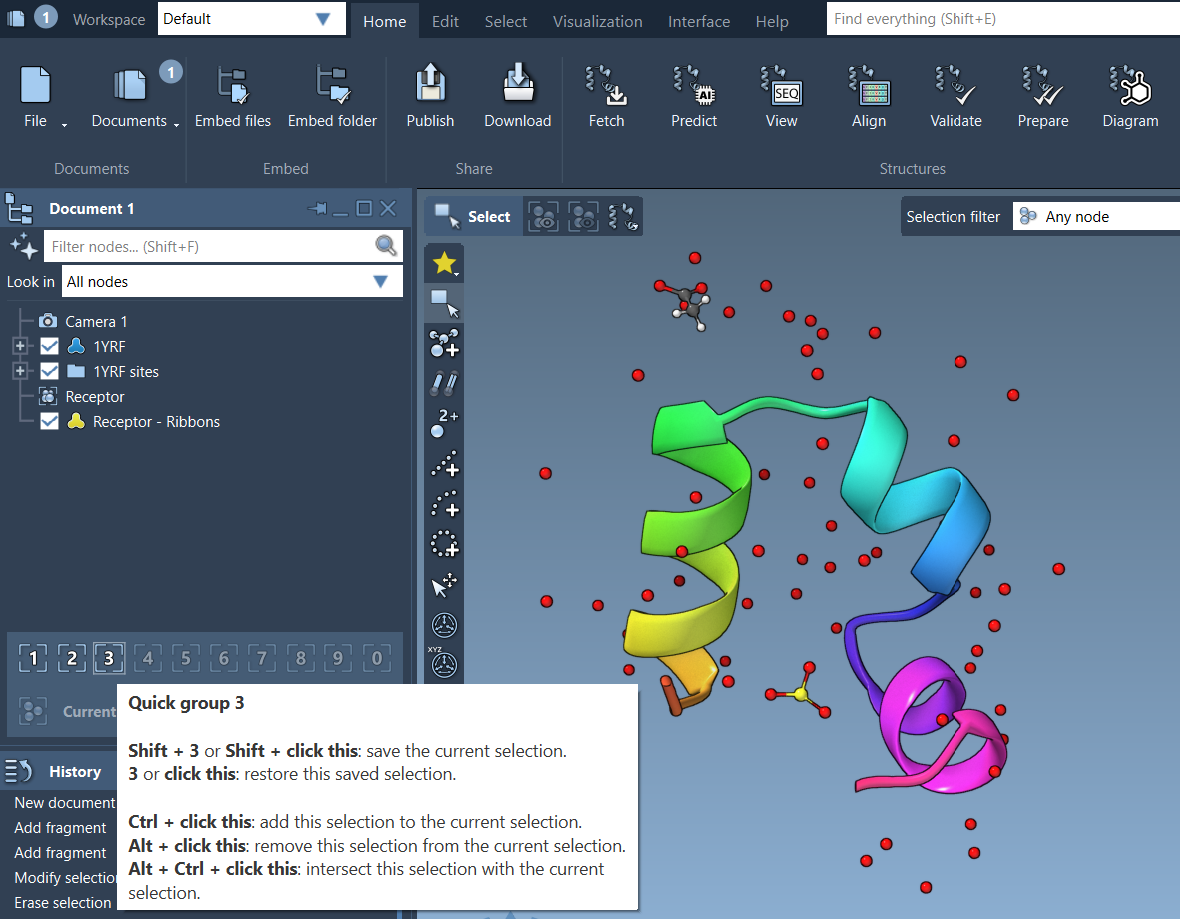
Quick Groups allow you to save and recall multiple molecular selections effortlessly. Whether you’re analyzing structural elements, comparing different parts of a system, or preparing for simulations, Quick Groups provide a convenient way to manage selections with just a few key presses or clicks.
These groups are temporary, unnamed, and can be easily accessed from the Document View or through numeric shortcuts (e.g., 1, 2, etc.). They’re ideal for scenarios requiring rapid toggling between selections, similar to control groups in strategy games.
How to Use Quick Groups
Assigning Quick Groups
- Select the atoms, residues, or molecules you want to group.
- Assign them to a Quick Group using one of the following methods:
- Mouse Method: Hover over a Quick Group slot in the Document View and press Shift + click.
- Keyboard Method: Press Shift + a number key (e.g., Shift + 2) to assign the selection to Quick Group 2.
You can create up to 10 Quick Groups, making it easy to organize even the most complex systems.
Switching Between Quick Groups
Once your Quick Groups are set up, navigating between them is seamless. Simply:
- Press the corresponding number key (e.g., 1, 2, etc.) to activate a Quick Group selection.
- Click directly on the Quick Group icons in the Document View.
- Double-press a number key to zoom in on a Quick Group selection.
This streamlined workflow ensures that you can focus on your design and analysis tasks without being bogged down by repetitive selection processes.
Example Workflow
Here’s an example of how you might use Quick Groups in a typical modeling scenario:
- Select the ligand and assign it to Quick Group 1.
- Choose the receptor and assign it to Quick Group 2.
- Select water molecules and assign them to Quick Group 3.
- Quickly toggle between these groups using the keys 1, 2, and 3.
- Apply distinct visual styles or transformations to each group as needed.
This approach not only saves time but also improves clarity and organization during molecular design tasks.
Why Use Quick Groups?
Quick Groups are perfect for molecular modelers seeking to improve efficiency and reduce click fatigue. By enabling rapid switching and easy navigation between selections, Quick Groups empower you to stay focused on what matters most: your molecular design and analysis.
To learn more about Quick Groups and other selection tools, visit the official SAMSON documentation.
Note: SAMSON and all SAMSON Extensions are free for non-commercial use. You can get SAMSON at https://www.samson-connect.net.