



For molecular modelers, building accurate carbon nanotube (CNT) structures can be a time-consuming and technical process. Whether you are designing nanodevices, studying mechanical properties, or simulating molecular transport, the ability to quickly and precisely create CNTs is crucial. This is where the Nanotube Creator Extension in SAMSON becomes a game-changer. With this tool, carbon nanotube modeling becomes intuitive through its interactive and graphical approaches, tailored to a variety of user preferences and project needs.
Step into Interactive Modeling
One of the most efficient ways to build carbon nanotubes in SAMSON is the interactive viewport mode. This hands-on method allows you to directly manipulate the nanotube’s dimensions and structure with your mouse while receiving real-time feedback. Here’s a quick rundown of the process:
- Set the axis and length: Press and drag the left mouse button in the viewport. As you do this, the status bar provides live feedback, helping you align the orientation and define the desired length of your nanotube. This first step determines the
nparameter, or the tube length. - Adjust the radius: Once the axis and length are set, release the mouse button and move the cursor to define the radius of the nanotube. This process sets the
mparameter. Once you’re satisfied, click the left mouse button to confirm.
Check the status bar throughout to ensure you’ve selected precise values for the n and m parameters. The intuitive design helps even newcomers incorporate accuracy into their models seamlessly.

Prefer Control? Use the Graphical Interface
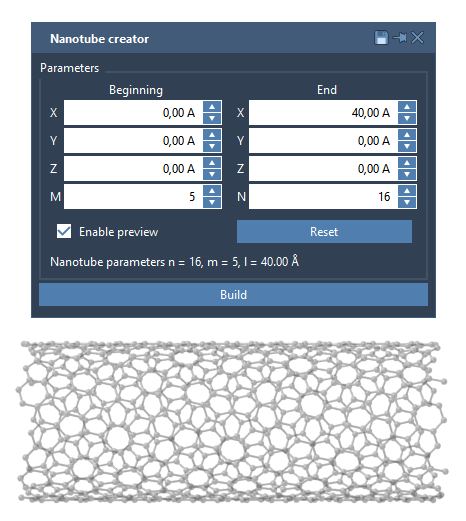
If you require precise control over parameters or need to build more complex structures, the graphical interface (GUI) of the Nanotube Creator Extension might be the right fit. Accessible by activating the editor, the GUI provides a well-organized parameter menu where you can fine-tune the start and end positions, as well as the n and m values for chiral vectors. This setup is especially useful for creating multi-walled carbon nanotubes.
The GUI ensures that molecular modelers can configure every detail to align with their specific research requirements. If the GUI is hidden after activation, simply reselect the editor to toggle its visibility.
Which Method Should You Choose?
The interactive viewport mode is a fantastic tool for exploratory building and iterative adjustments, particularly for quick prototyping or less stringent requirements. On the other hand, the GUI is perfect for those working on high-precision projects or more complex geometries. Whether you’re simulating molecular transport or investigating electronic properties, SAMSON has tailored its tools to cater to your workflow.
Applications and Beyond
Once you’ve built your CNT models, the possibilities are extensive. Use them to design nanodevices, explore mechanical and electronic properties, or integrate them into advanced hybrid structures. Additionally, SAMSON supports exporting visualizations and interactive real-time simulations, enabling you to dive deeper into your projects with minimal effort.
If you’d like to explore all the details of the Nanotube Creator Extension—including examples of multi-walled nanotube setups—visit the original documentation page at this link.
SAMSON and all SAMSON Extensions are free for non-commercial use. You can download SAMSON at https://www.samson-connect.net.