



For molecular modelers seeking a fast and efficient way to explore chemical analogues, positional analogue scanning offers a workflow designed specifically to simplify and accelerate this process. Whether you’re looking to explore substitution patterns, compare analogue properties, or prepare structures for further studies such as docking, SAMSON’s SMILES Manager provides an easy-to-use solution.
Addressing the Challenge of Analogue Generation
Designing and analyzing chemical analogues is a crucial step in molecular modeling and drug discovery. However, generating analogues manually, especially for complex molecules, can be tedious and error-prone. The need for a more streamlined workflow is clear, and this is where positional analogue scanning in SAMSON shines. This feature enables you to automatically generate a series of analogues based on a starting molecule and a specified SMARTS pattern, all within minutes.
How It Works: A Guided Overview
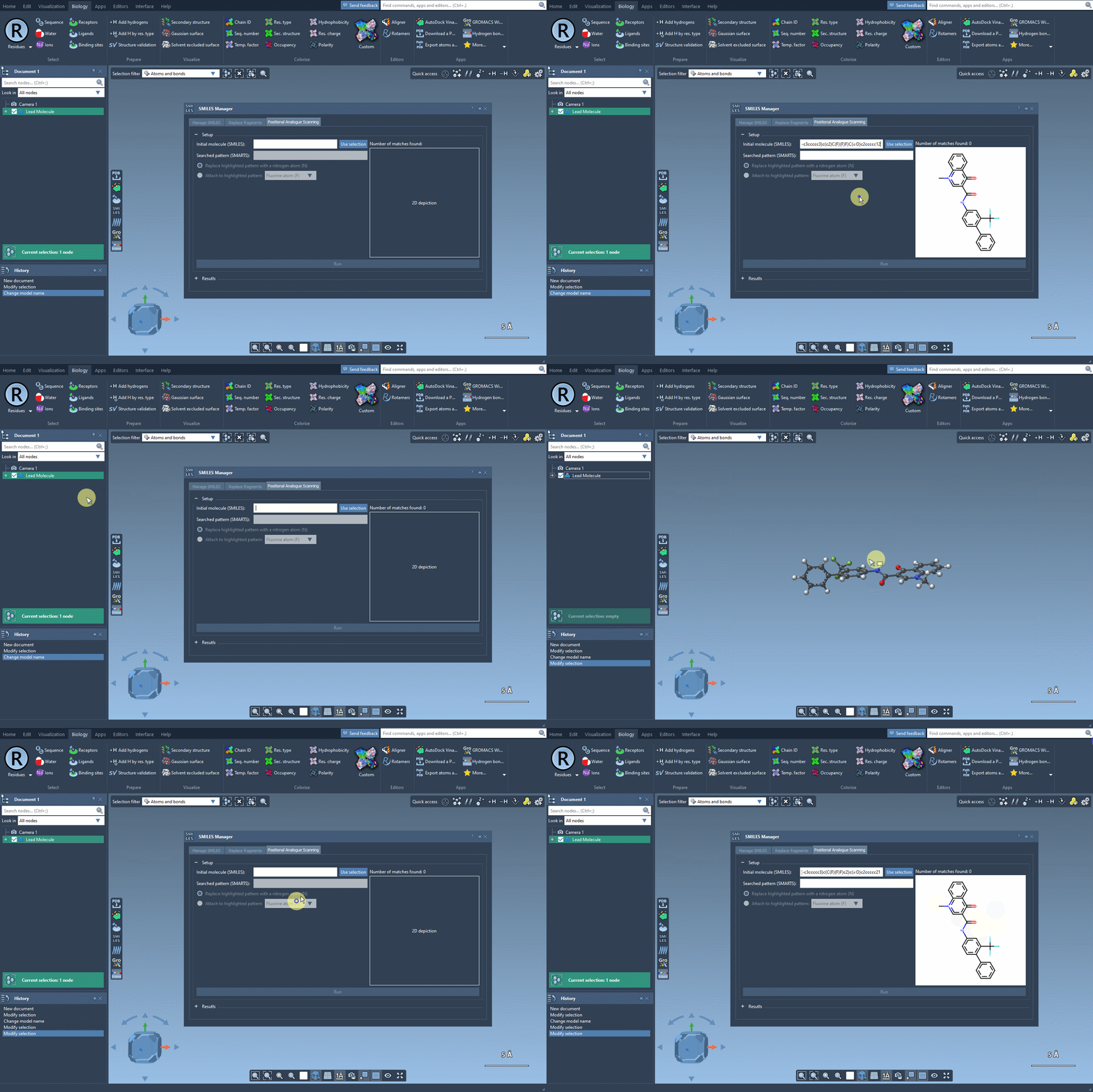
The process begins by choosing a starting molecule. You can either enter the SMILES code directly or select the molecule in your SAMSON workspace and click the Use selection button to initialize the structure. Here’s an example molecule used in the tutorial:
|
1 |
CN1C=C(C(=O)Nc2ccc(-c3ccccc3)c(c2)C(F)(F)F)C(=O)c2ccccc12 |
Searching for and Defining Patterns
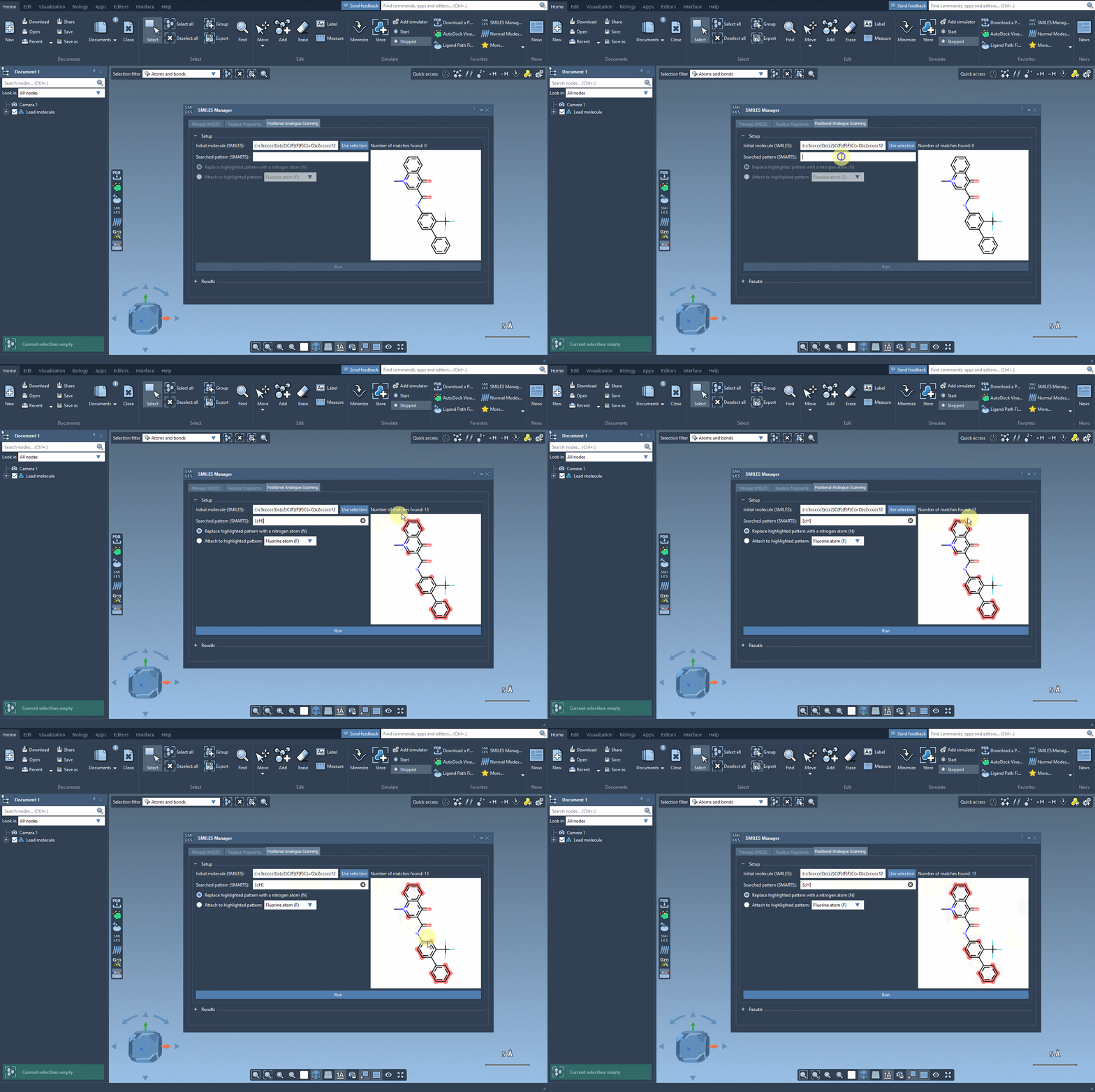
Positional analogue scanning relies on identifying and modifying specific substructures within your molecule. To do this, you define a SMARTS pattern representing the part of the molecule you wish to replace or modify. For instance, aromatic carbons can be targeted with the SMARTS code [cH]. As shown in the example below, SAMSON automatically highlights occurrences of this pattern within the structure:
Replace and Modify Patterns Effortlessly
Once the pattern has been identified, you can choose replacements or modifications directly in the interface. Suppose you want to replace your selected pattern with a nitrogen atom (N), attach a fluorine atom (F), or add a methyl group (CH3)—it’s as simple as choosing your option and clicking the Run button. The result? A series of analogues is generated instantly, complete with SMILES codes and 2D depictions:
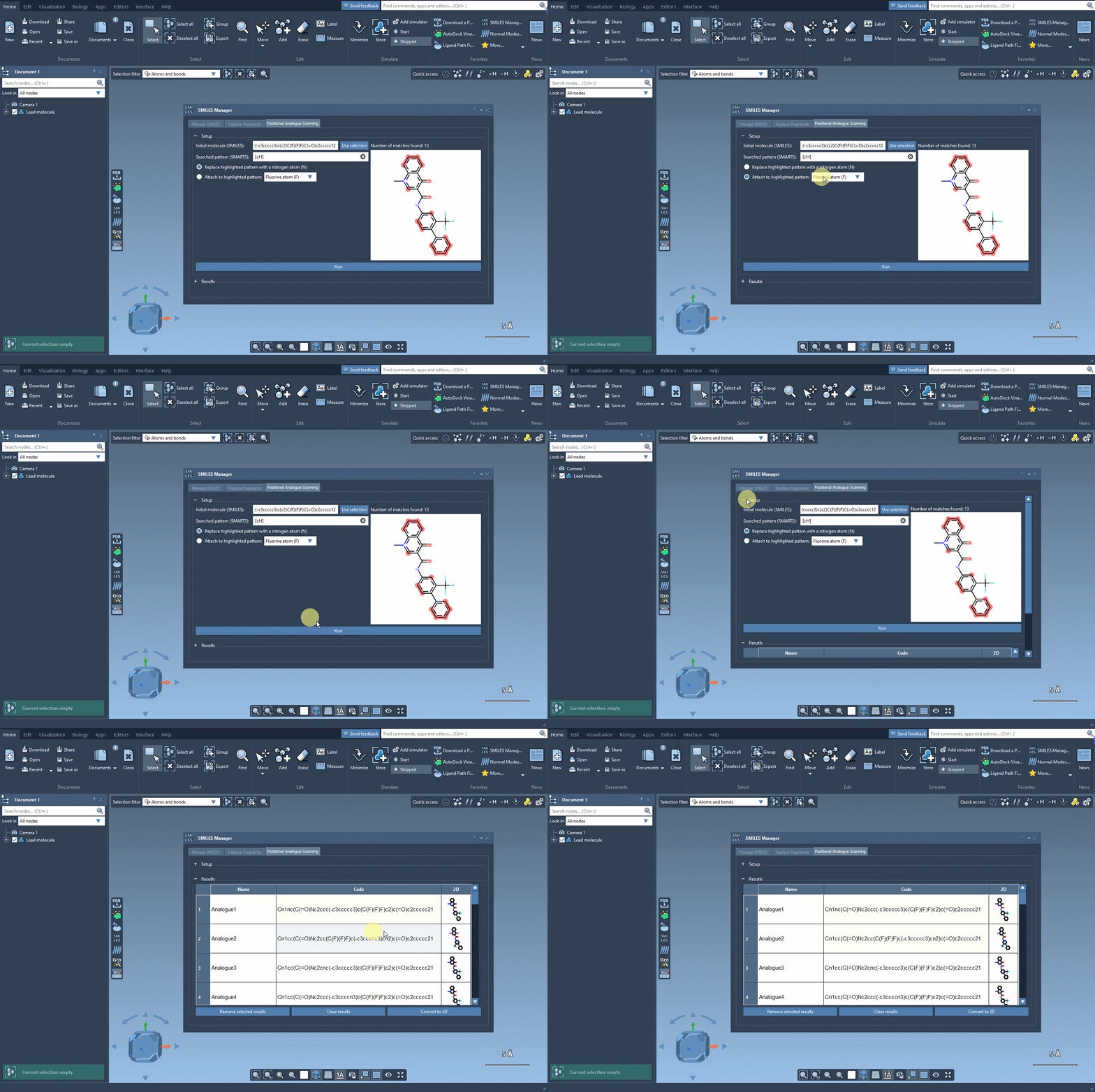
This workflow not only saves time but reduces errors commonly associated with manual analogue generation.
Refine and Study Your Results
SAMSON provides tools to further refine and analyze the analogues you generate:
- Modify analogues: Double-click on cells in the results table to edit the name or SMILES code of individual analogues.
- View images: Examine 2D depictions in a larger view by double-clicking or using the context menu.
- Clean and manage results: Use options like removing selected analogues, clearing the results table, or hiding 2D images for a streamlined experience.
- Generate 3D structures: Right-click on a specific analogue to generate its 3D structure for detailed studies.
These functionalities ensure that your generated analogues can be tailored and prepared for downstream analyses, such as docking or interaction studies.
What Comes Next?
Besides analogue generation, SAMSON allows you to convert promising analogues into 3D structures. You can then use complementary extensions, such as the AutoDock Vina Extended, to perform docking studies. These tools help further analyze how modifications affect molecular interactions with target proteins. By doing so, this unified workflow lets you iterate your molecular designs more efficiently while testing hypotheses in silico.
Where to Learn More
If you’d like to dive deeper into positional analogue scanning or explore related features, refer to the official documentation: Perform Positional Analogue Scanning Using the SMILES Manager Element.
Note: SAMSON and all SAMSON Extensions are free for non-commercial use. Start your journey into molecular design by downloading SAMSON here: https://www.samson-connect.net.