



A candidate molecular transition path can be useful for visualizing a ligand’s motion, yet its intermediate structures may be unevenly spaced or energetically unrealistic. That creates a practical problem: an animation can look like a plausible route while still needing refinement before you use it for further analysis. The Parallel Nudged Elastic Band (P-NEB) app in SAMSON helps optimize an existing path by adjusting its intermediate images, with spring forces encouraging neighboring states to remain evenly distributed.
The important distinction is that P-NEB refines a route you already have; it does not generate the initial pathway for you. If you have two relaxed states but no sequence between them, first create a candidate path—for example, through linear interpolation or a path-generating extension such as Ligand Path Finder. Then use P-NEB to improve that candidate.
Prepare a starting route
You can apply P-NEB to a path or to a set of conformations. A path stores a trajectory for selected atoms, while conformations store saved positions for those atoms. If your starting structures are separate conformations, select them and use Conformation > Create path from conformations to combine them. For the same system and number of steps, the tutorial recommends using a path because optimizing a set of conformations takes longer.
To follow the example, download one of the sample documents through Home > Download: a smaller Zinc ligand unbinding trajectory for testing, or the Lactose permease (1PV7) and Thiodigalactosid (TDG) protein–ligand complex with unbinding paths. These provide starting material; the goal is to refine the supplied routes, not to treat them as guaranteed final pathways.
Choose settings with a purpose
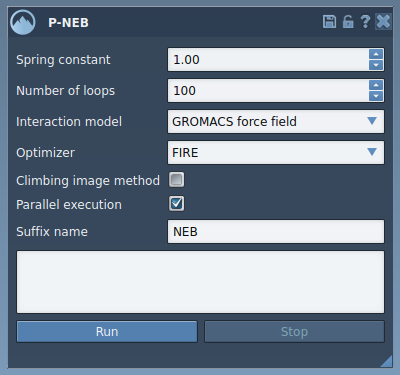
Open P-NEB through Home > Apps > All > P-NEB, or find it using the Find everything… search box. In the tutorial’s example, set the spring constant to 1.00, the number of loops to 100, the interaction model to Universal Force Field, and the optimizer to FIRE. Enable Parallel execution, which runs one thread per conformation. Leave Climbing image method unchecked for the first run; you can try another run with it enabled to use the climbing-image strategy for finding the saddle point. Set a suffix such as NEB to identify the result.
These are the tutorial’s example settings, not a claim that one setup is best for every molecular system. The interaction model determines how energies and forces are computed, so choose it with your system and workflow in mind.
Run the refinement and inspect the output
Select the input path in the Document view and click Run. During setup, Universal Force Field may ask whether to use existing bonds; for the tutorial workflow, choose to use existing bonds and confirm. Initialization and computation then begin. You can monitor progress in SAMSON’s status bar.

When optimization finishes, the resulting path appears in the Document view, and the app provides a computation summary. Select the new path and inspect it with the Inspector. Double-clicking a path starts or stops its animation, which can help you review the sequence of conformations. You can also right-click the path to find options under Path > ….

The practical takeaway: use P-NEB when you have a plausible starting route that needs refinement, and keep the original available for comparison. If you only have endpoint structures, generate intermediate states first. For the complete walkthrough and related details, learn more in the P-NEB tutorial.
Note: SAMSON and all SAMSON Extensions are free for non-commercial use. Get SAMSON.