



A protein structure can look incomplete even when the file has loaded correctly. You may see only one chain—or a small group of chains—while the biological assembly or crystal packing includes many more copies. The missing pieces may be described by symmetry information in the PDB file, rather than listed as separate coordinates.
That gap matters when you want to inspect interfaces, understand how an oligomer is arranged, or prepare the relevant assembly for further analysis. In SAMSON, the Symmetry Mate Editor can use transformations in a structure file to preview and generate symmetry-related replicas. The key is to distinguish the kind of symmetry you need before adding copies.
First, identify what you are reconstructing
The editor supports two types of records:
- CRYST1 describes symmetry associated with the crystal lattice. These transformations help reveal how molecules are arranged in the crystal.
- BIOMT describes transformations associated with biological assembly annotations. These can help reconstruct the annotated biological assembly.
These records answer different questions. Crystal neighbors are not automatically the same thing as the biological assembly, so choose the relevant record type for your task. The editor distinguishes CRYST1 controls in white and BIOMT controls in yellow, and lets you switch between them.
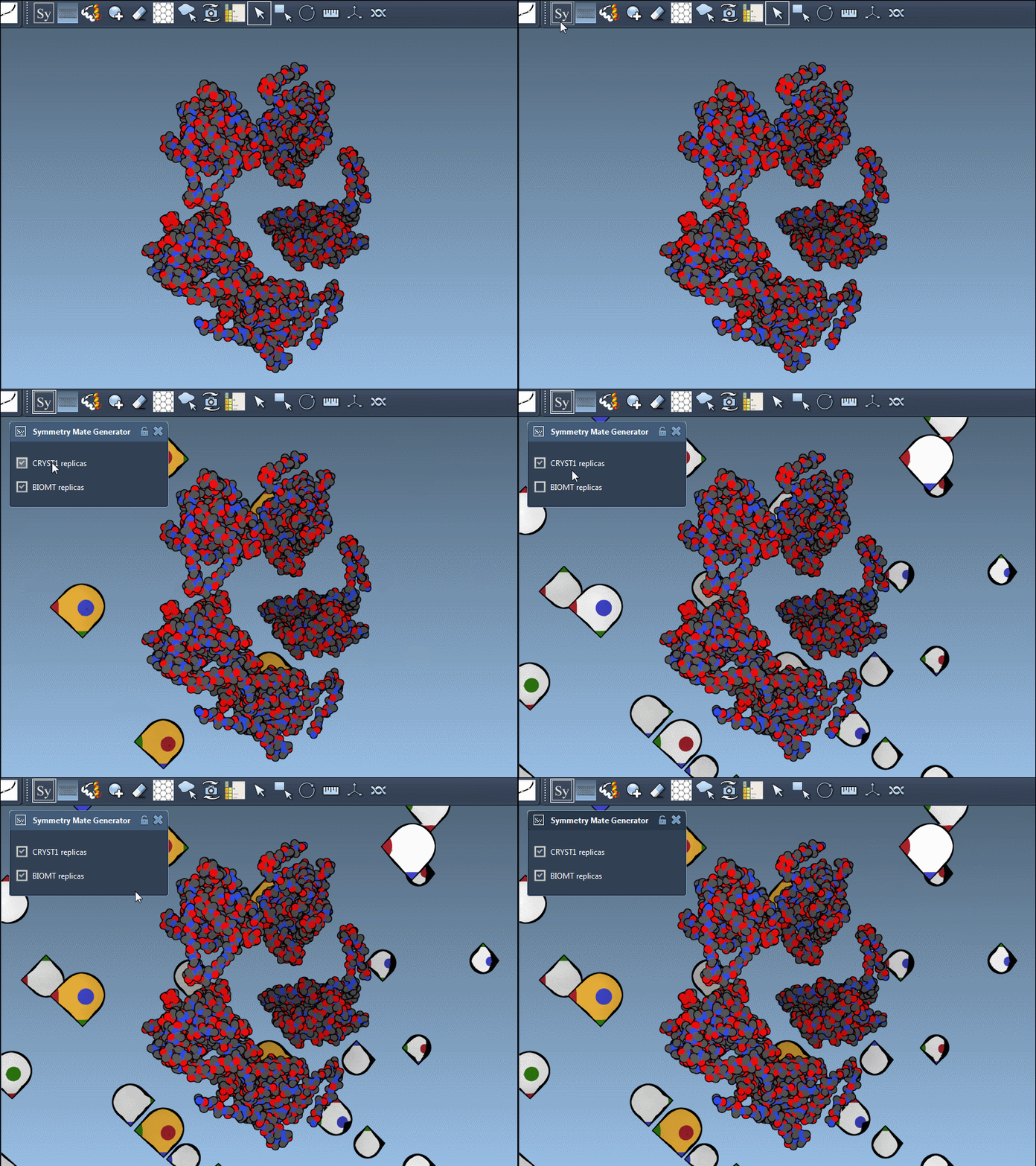
A practical workflow: preview before you commit
- Open a PDB structure that contains symmetry information. Without relevant symmetry data in the file, there may be no transformations for the editor to display.
- Open the Symmetry Mate Editor. Press Shift + E and search for “Symmetry Mate Editor,” or find it under … > General > Symmetry Mate Editor in the viewport menu.
- Adjust the visible controls. Hold Ctrl or Cmd while scrolling the mouse wheel to change how many control nodes are visible.
- Hover to preview. Move over a control node to see the corresponding replica before generating it. This makes it easier to judge whether a transformation adds the neighbor you are looking for.
- Click to generate. Left-click a control node to add that replica to the structure. If you want to preview and generate all symmetry mates in one action, hold Ctrl or Cmd before hovering and left-clicking a node.
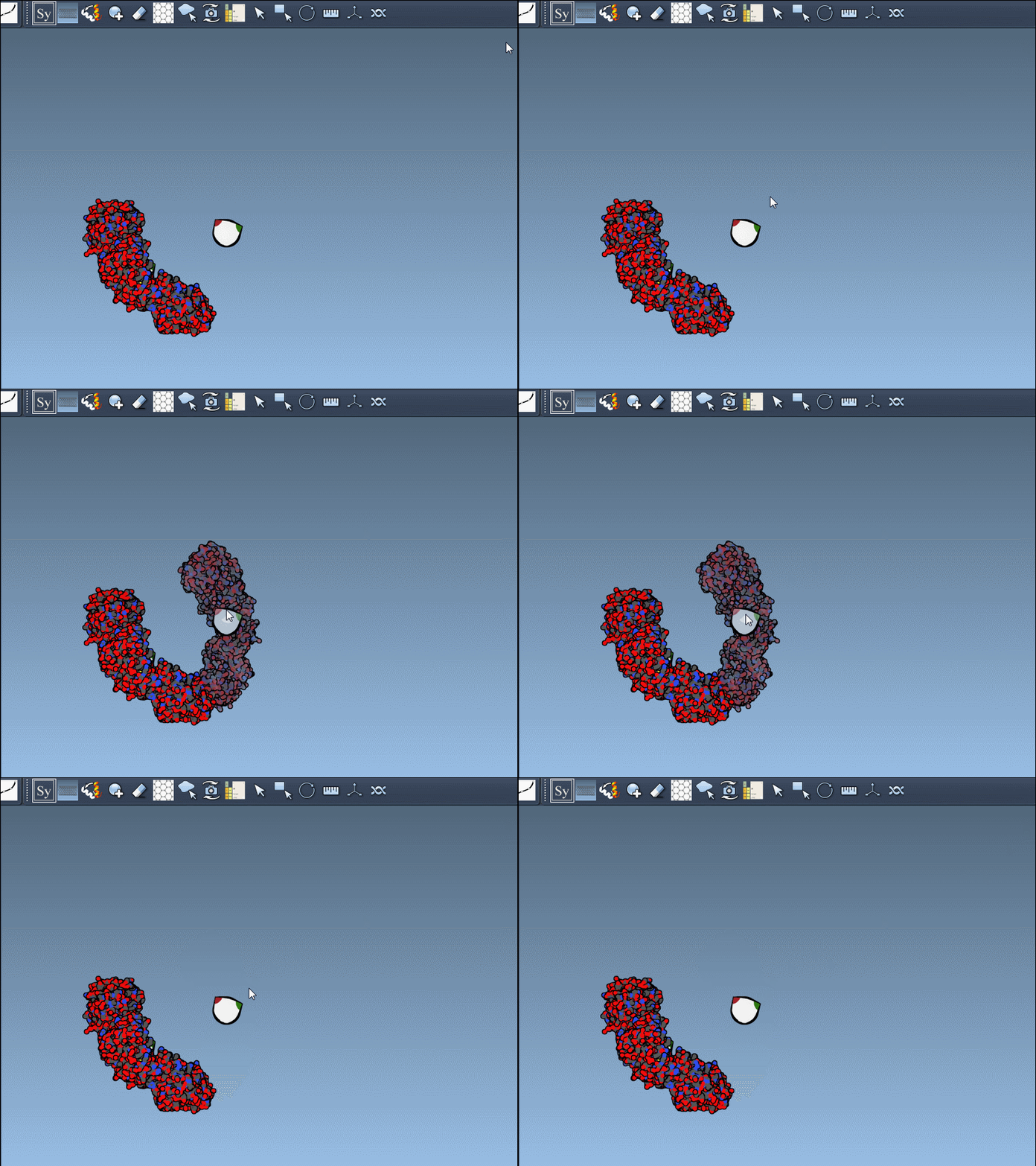
For a structure with many possible neighbors, previewing first is a useful way to avoid turning a focused inspection into a crowded scene. Generate only the copies needed for the question at hand, then inspect the resulting arrangement. If you add an unwanted replica, use Ctrl/Cmd + Z to undo.
Make the assembly easier to read
Once replicas are generated, visual clarity becomes important. The Ribbons visual model can help distinguish protein chains, and coloring by chain can make repeated subunits easier to follow. These choices are especially useful when looking for interfaces or checking how a binding site is repeated across symmetry-related copies.
Remember that generating symmetry mates reconstructs positions from the available transformations; it does not, by itself, establish which contacts are biologically meaningful. Treat the generated arrangement as a structure to inspect, and use the appropriate biological assembly or crystallographic context for your analysis. For follow-up work, SAMSON’s symmetry-detection tutorial can help analyze axes and RMSD, while the GROMACS Wizard tutorials cover preparation for simulation.
The central habit is simple: decide whether you need crystal packing or a biological assembly, preview transformations, and add the copies that answer your modeling question. This helps turn an apparently incomplete coordinate set into a more informative view of its molecular neighborhood.
Read the full Symmetry Mate Editor tutorial for more details.
Note: SAMSON and all SAMSON Extensions are free for non-commercial use. Get SAMSON.