



Building a membrane-like environment around a protein can be surprisingly fiddly. The protein needs a sensible orientation, lipids need to be arranged around it rather than through it, and the box must be large enough to hold the layer. Placing copies one by one makes these steps tedious and harder to reproduce.
SAMSON’s Molecular Box Builder offers a more direct approach: choose a lipid molecule, define a box around the protein, and generate copies in the available space. The workflow below focuses on one lipid layer, with an optional extension to a bilayer. It is a placement workflow—not a substitute for preparing and validating a system for simulation.
Start by orienting the protein
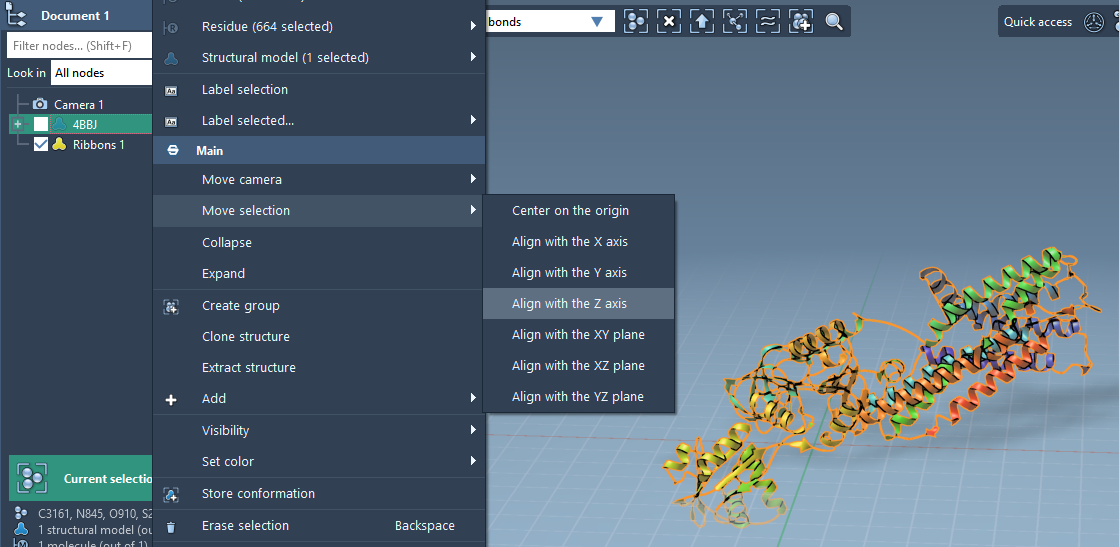
Import or open the protein structure. In the Document view, right-click the protein and choose Move selection > Align with Z axis, then choose Move selection > Center on the origin. A consistent orientation makes it easier to define a box around the protein and place a layer along the intended axis.
Set the lipid and its orientation
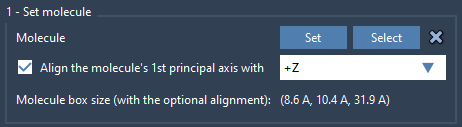
Import the lipid molecule you want to replicate, select it in the Document view or Viewport, and click Set in Molecular Box Builder. Choose Align to +Z so the molecule’s first principal axis—the first eigenvector of its moment of inertia—is oriented along the Z direction. The app calculates the molecule’s bounding box using this alignment, which informs its estimate of how many copies fit.
Orientation matters because it affects how the molecule occupies space in the box. If the default alignment is not appropriate for your setup, the app also offers alignment to the other positive and negative coordinate directions, or no alignment. You can move or rotate the system later using SAMSON’s Move editors.
Define a box around the protein
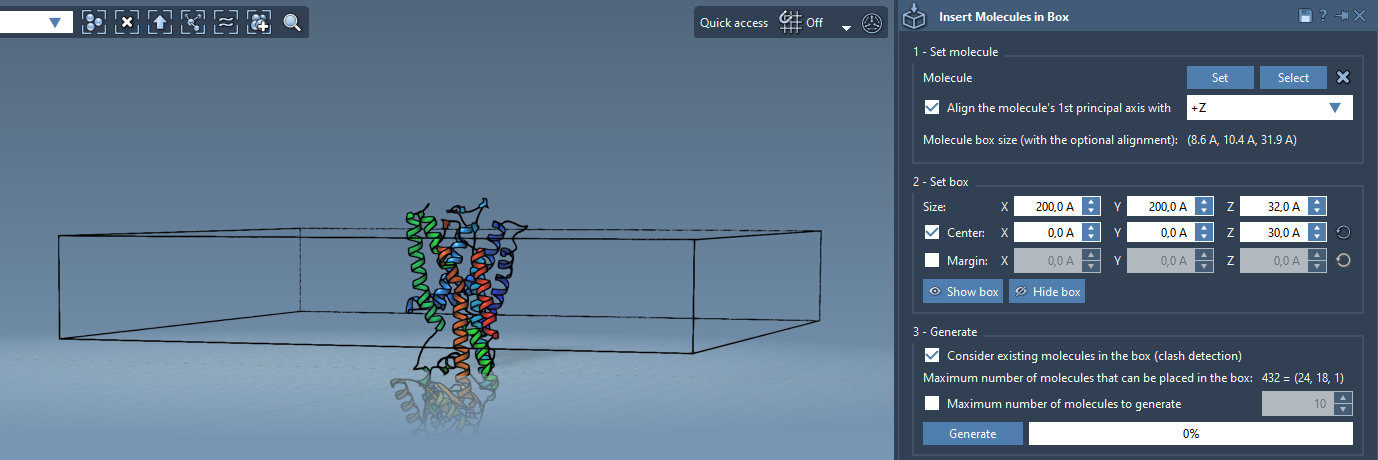
Enter the box dimensions along X, Y, and Z, then center the box around the protein by enabling Center and adjusting the center coordinates if needed. By default, the box corner is aligned with the origin, so centering it is an important step when the protein itself has been centered there.
You can also set a margin between inserted molecules. A positive or negative margin changes their spacing; by default, the builder places molecules so they do not clash with one another. The app updates its estimate of the number of molecules that fit as you change the box dimensions or margin. Treat this number as a useful planning guide: it describes packing in the defined box, not whether the resulting molecular system is ready for a particular simulation.
Keep the protein clear, then generate
Before generating the layer, enable Consider existing molecules in the box. This tells the builder to place lipids only in available space rather than treating the box as empty. Click Generate to create the layer. The result is a set of lipid copies around the protein, placed within the chosen box.
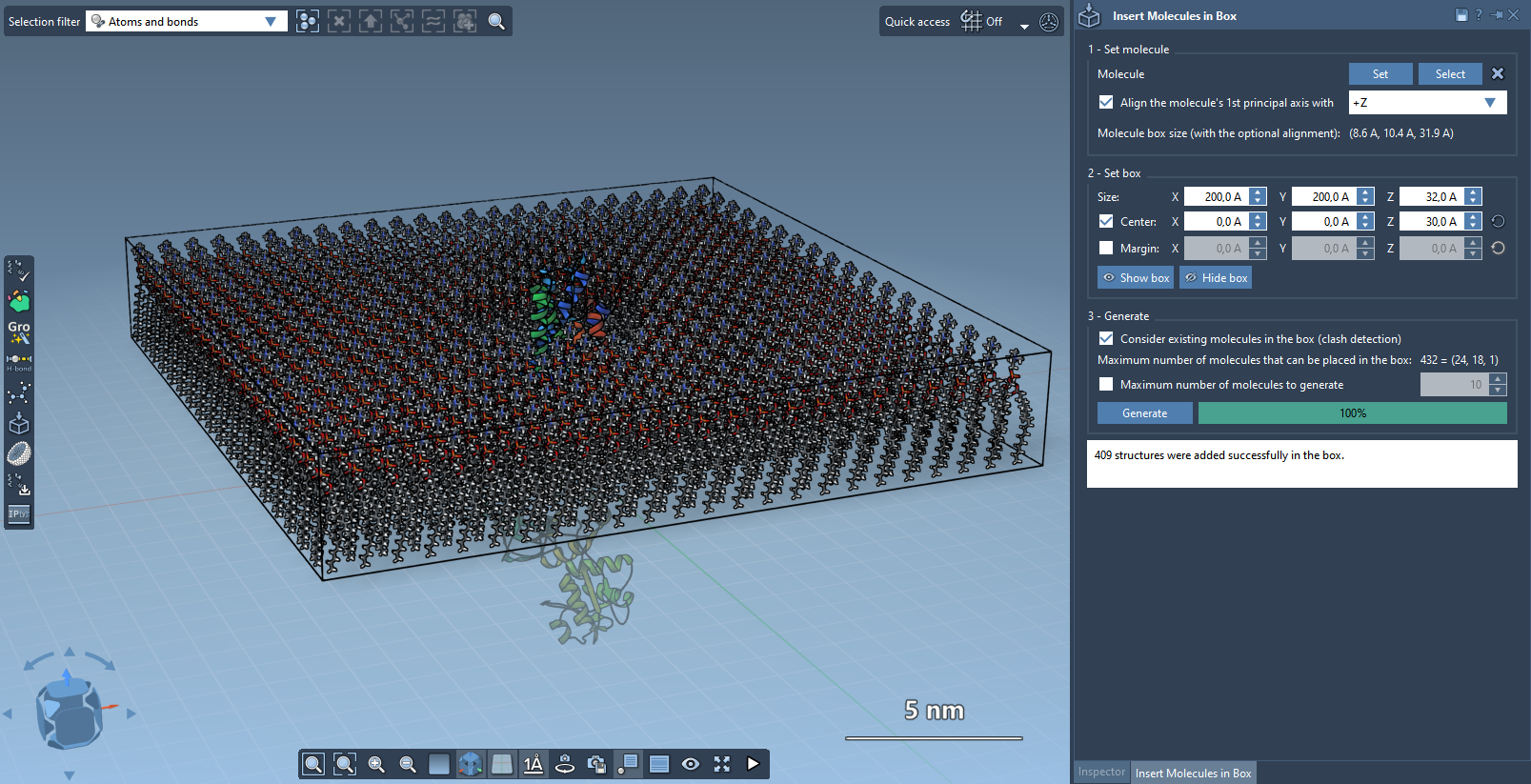
For a bilayer, the documented workflow is to add one layer with +Z alignment, shift the box center in the Z direction, and add a second layer with -Z alignment. After constructing the environment, the system can be prepared for further work—for example, with the GROMACS Wizard for minimization, equilibration, and simulation.
For the complete walkthrough and interface details, see the Molecular Box Builder tutorial.
Note: SAMSON and all SAMSON Extensions are free for non-commercial use. Get SAMSON.