



For molecular modelers, tracking atom movements and analyzing trajectories along defined pathways is a frequent necessity. Whether you’re performing free energy calculations, studying reaction coordinates, or visualizing ligand pathways, having a way to export precise atomic coordinates is invaluable. This is where the Export Along Paths extension in SAMSON shines. Here, we’ll guide you through how to use this tool to streamline your workflow.
Why Export Atom Trajectories?
Atom trajectories along paths provide critical insights into molecular simulations. Exporting these trajectories can help you:
- Generate reaction coordinate files for detailed free energy profiling.
- Export ligand entry or exit trajectories for enhanced sampling studies.
- Create intermediate states for visualization, educational purposes, or dynamic studies.
- Focus on specific areas, such as tracking a ligand, binding site, or backbone atoms.
The Export Along Paths extension in SAMSON enables you to accomplish all of these within just a few steps.
Step-by-Step Guide to Export Atom Trajectories
1. Load the Sample System
Get started with a built-in example:
- Navigate to Home > Download in SAMSON.
- Paste the following URL: https://www.samson-connect.net/documents/046f1acd-c799-40f6-8185-cb4847eff795 and click Download.
- You’ll obtain a model of Lactose permease with the ligand Thiodigalactosid (TDG) and its unbinding paths generated with the Ligand Path Finder.

2. Open the Export Along Paths App
Go to Home > Apps > All > Export Along Paths or use the shortcut (Shift+E) to locate the app. The intuitive interface lets you define trajectories and export settings seamlessly.
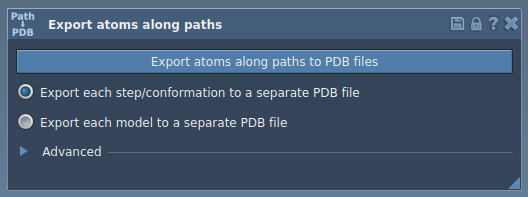
3. Export Atom Trajectories
Choose between two export options based on your needs:
Option 1: Export All Atoms
This is ideal if you want complete information for all atoms in the system. You can:
- Choose to output all frames into a single PDB file or as separate files for each frame.
- Select the paths for export directly in the Document view.
Finally, click Export atoms along paths to PDB files and select your destination folder and file prefix. Advanced users can modify the frame export interval in the settings.
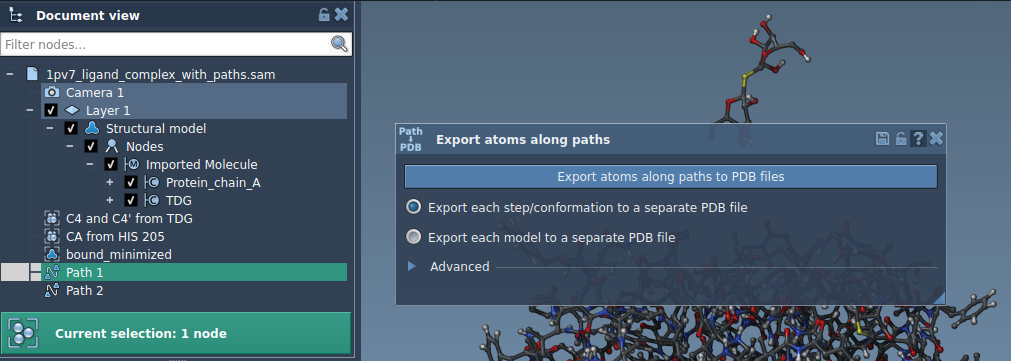
Option 2: Export a Subset of Atoms
If you want to focus on specific atoms, for instance, the ligand:
- Select the subset of atoms in the Document view. For example, you can choose the ligand TDG.
- Add this subset as a model for export by clicking Add.
The app organizes defined models into an editable table, where you can rename, modify, or manage the atoms for export. You can even include multiple models for different groups of atoms.
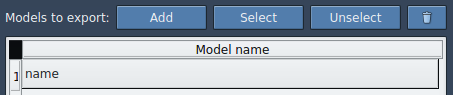
Once your models are ready, select the export format, relevant paths, and click Export atoms along paths to PDB files to save the trajectories.
Enhance Your Molecular Studies
The ability to export atomic trajectories through the Export Along Paths tool opens new possibilities for molecular simulations, providing precise inputs for computational studies or creating dynamic visualizations for analysis. These exports can be directly used for downstream applications and workflows.
To learn more and explore the comprehensive set of features this extension offers, check the detailed documentation: Export Atom Trajectories Along Paths.
Note: SAMSON and all SAMSON Extensions are free for non-commercial use. Download SAMSON today at https://www.samson-connect.net.