



When exploring molecular dynamics simulations, researchers often need to track the motion of a molecule or group of atoms over time. Whether you’re studying ligand unbinding, domain rearrangements in macromolecular complexes, or diffusion in a solvent, visualizing center-of-mass (COM) motion can be extremely helpful. Yet, it’s not always obvious how to do this clearly and efficiently. That’s where the Pathlines visual model in SAMSON can make your life easier.
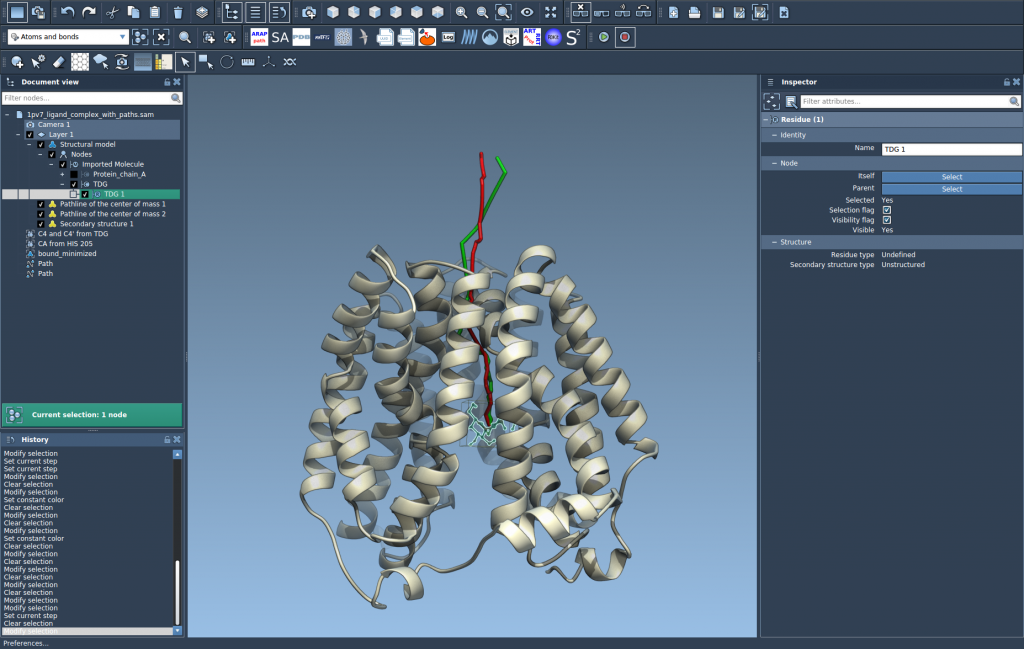
Let’s say you want to follow the path a ligand takes as it exits its binding pocket. Instead of visually inspecting each frame or manually creating animations, SAMSON lets you represent the path of the ligand’s COM directly on screen using a clean, customizable 3D pathline.
What are COM Pathlines?
Pathlines visualize the trajectory of the center of mass of a selected group of atoms along a predefined path. In molecular systems, it’s common to study how compounds move or rearrange, whether during protein conformational changes or during molecular transport events.
How to Create One in SAMSON
You can build a COM pathline in a few steps:
- Select the group of atoms (for instance, a ligand or a protein domain) and choose one or more paths created earlier (such as those generated with the Ligand Path Finder Extension). If you don’t select any atoms, the whole structure is used. If you don’t choose a path, all existing ones are used.
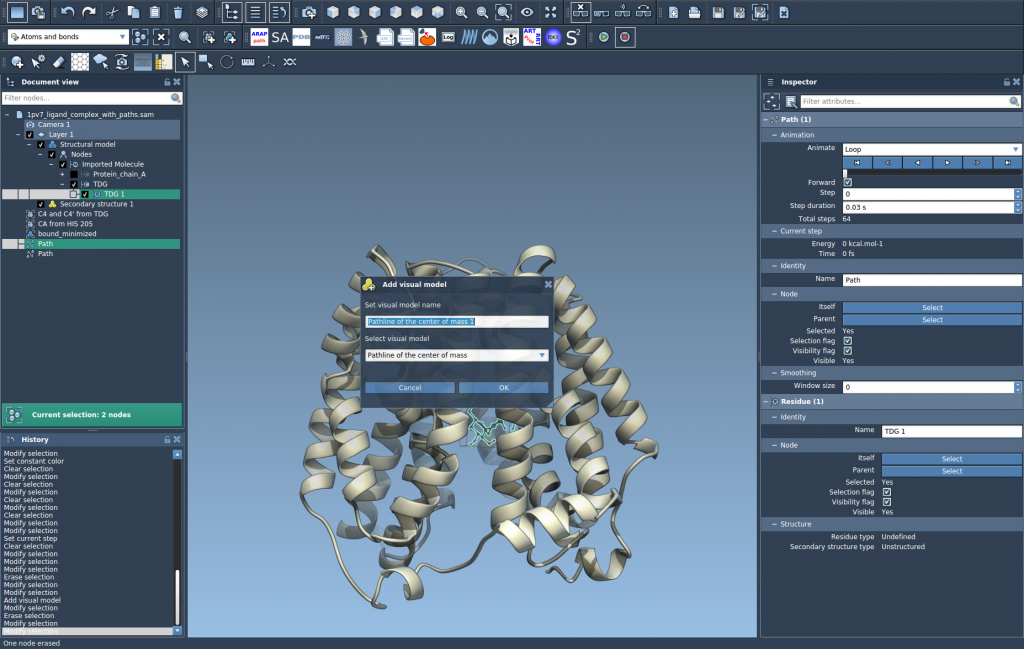
- Navigate to Visualization > Visual model > More… (or use the shortcut Ctrl / Cmd + Shift + V).
- In the dialog, choose Pathline of the center of mass and click OK.
This creates a visual trail showing the COM trajectory. These pathlines help you quickly grasp the overall movement pattern of your molecule. Helpful, especially when working with crowded systems or focusing on specific interactions.
Tips for Exploration
Once created, you can interact with the pathlines like any other object in SAMSON. For example:
- Double-click a path to start or stop playback.
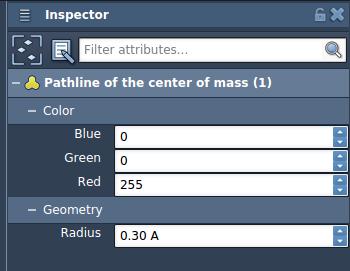
- Use the Inspector (Ctrl / Cmd + 2) to change color and thickness of the pathline for better visibility.
- Right-click on paths in the Document View to access further controls.
Realistic Use Cases
- Ligand unbinding/rebinding routes: Trace the exit pathway of drugs and inhibitors.
- Domain motions: Track how regions of large protein complexes rearrange over time.
- Diffusive behavior: Study transport across membranes or within solvent environments.
By visualizing COM trajectories this way, you not only declutter your visualization but also gain insights into molecular behavior in a more quantitative and interactive fashion.
To learn more, including how to load sample systems and generate unbinding paths with the Ligand Path Finder, visit the full documentation page at https://documentation.samson-connect.net/tutorials/pathlines/pathlines/.
SAMSON and all SAMSON Extensions are free for non-commercial use. You can get SAMSON at https://www.samson-connect.net.