



As a molecular modeler, achieving stable, realistic molecular structures is critical for your simulations and designs. However, optimizing geometries can be a challenging and time-consuming process, particularly when working with dynamic interactions and large systems. This is where the FIRE Minimizer in SAMSON can help.
The FIRE Minimizer is a fast, efficient algorithm designed to accelerate geometry optimization and help you find energy minima more effectively. It is a powerful alternative to traditional methods like the steepest descent algorithm, especially for complex, large-scale molecular movements. Below, we introduce how you can leverage the FIRE Minimizer in SAMSON and some key settings to fine-tune your optimization process.
Fast Geometry Optimization: Why Choose FIRE?
In molecular design workflows, the choice of optimizer can significantly impact performance and results. Here’s why the FIRE Minimizer stands out:
- Speed: FIRE converges more rapidly than the steepest descent method, particularly for collective motions in molecular systems.
- Versatility: It works seamlessly with any SAMSON interaction model, making it a flexible solution for various scenarios.
- Pre-simulation Cleanup: It’s ideal for cleaning up molecular geometries before launching detailed simulations or performing interactive modeling.
The FIRE Minimizer leverages a method developed by Bitzek et al. (2006) to achieve these results. By combining fast inertial relaxation with an adaptive mechanism, it offers a robust solution for diverse molecular modeling challenges. But how do you use it effectively in SAMSON?
Setting Up the FIRE Minimizer
To begin optimizing your geometry with the FIRE Minimizer in SAMSON, follow these steps:
- Add the FIRE Minimizer: First, log into SAMSON Connect. Find the FIRE Minimizer extension here, and click “Add.” Then restart SAMSON to activate the extension.
- Load a Molecular System: Import your structure into SAMSON. Supported formats include PDB, MOL2, and others. If you’re unfamiliar with loading molecules, consult the Loading Molecules Guide.
- Add the Simulator: Navigate to
Edit > Add Simulator, select your desired interaction model, and choose the FIRE Minimizer under State Updaters.
Pro Tip: To clearly observe the FIRE Minimizer’s effects, begin with a smaller test system. This allows you to fine-tune settings like step sizes and steps.
FIRE Minimizer Settings: Fine-Tuning Optimization
Optimization is not a one-size-fits-all process. That’s why the FIRE Minimizer includes settings to adapt to your specific needs:
| Setting | Description |
|---|---|
| Step size | Adjust the initial integration step for minimization. A larger step size increases speed but may require careful monitoring for stability. |
| Steps | Specify how many FIRE steps occur before updating the viewport. Higher values mean fewer updates but provide a clearer visualization of progress. |
| Fixed | Enable this option to keep the step size constant during the minimization process (optional). |
If you manually reposition atoms during optimization, don’t forget to reset the FIRE history by pressing “Reset.”
Performance Comparison: FIRE vs. Steepest Descent
A key strength of the FIRE Minimizer lies in its performance relative to traditional steepest descent optimization. While steepest descent is effective for smaller or simpler systems, it struggles with significant geometric changes where potential energy shifts are minor.
The following animation illustrates the difference:
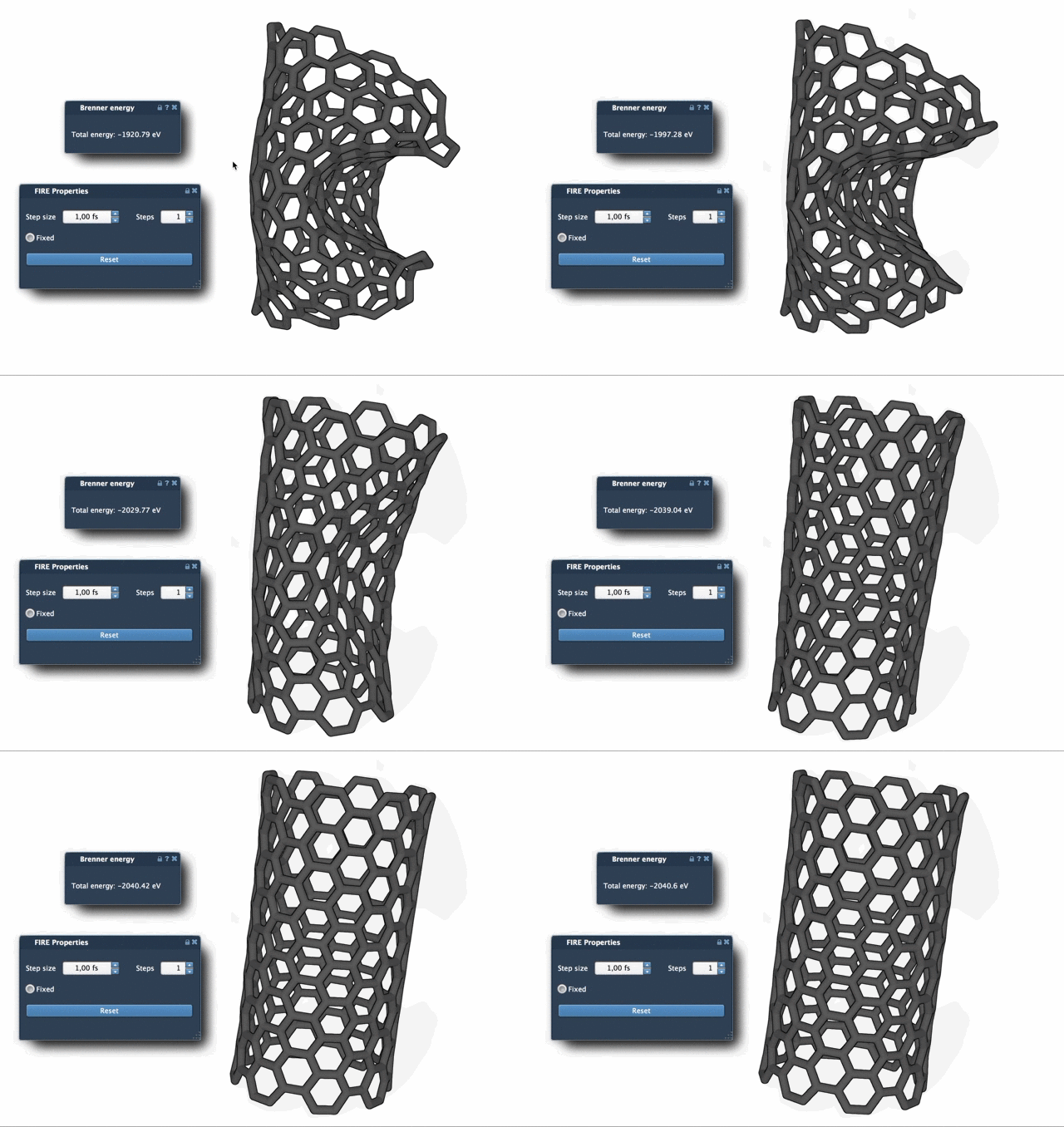
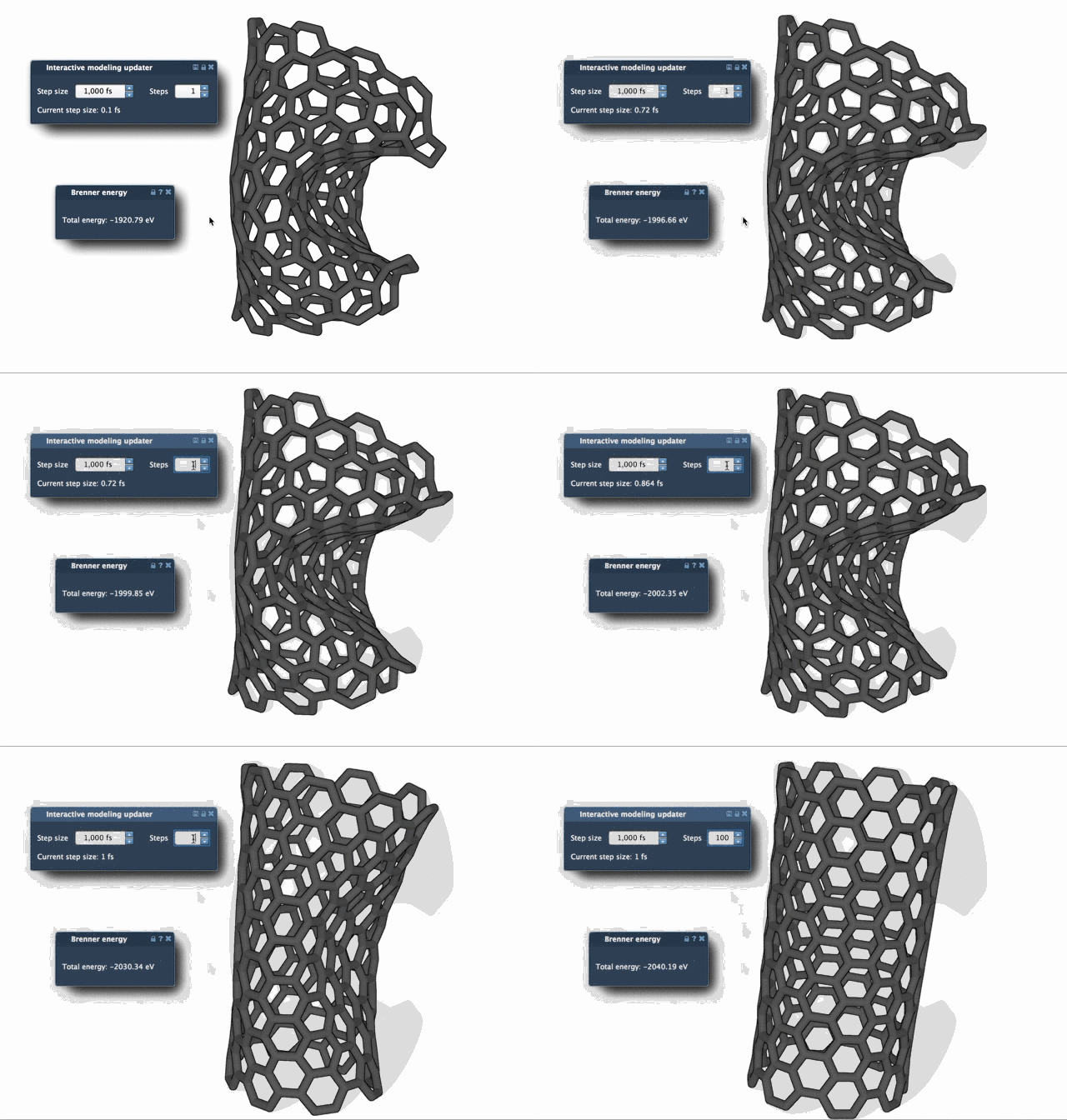
By increasing the Steps value, you can further enhance the visibility of changes as the minimization progresses.
Ready to Optimize?
The FIRE Minimizer is integrated into SAMSON’s workflows, making it accessible for various molecular modeling tasks. Whether you’re preparing structures for simulation, performing structural relaxation, or exploring collective motions, it’s a valuable tool to refine your geometries efficiently.
To learn more about the FIRE Minimizer and its applications, visit the original documentation page: https://documentation.samson-connect.net/tutorials/fire/ready-set-fire/.
Note: SAMSON and all SAMSON Extensions are free for non-commercial use. Download SAMSON at https://www.samson-connect.net.