



For molecular modelers, visualizing and designing interactions between molecules in both 2D and 3D can often feel disjointed. The Interaction Designer in SAMSON changes this by offering an integrated approach for synchronizing 2D molecular interaction diagrams and a 3D viewport, creating smoother workflows for protein-ligand interaction exploration and molecule design.
Why Synchronization Matters
When working with molecular data, managing the transition between 2D and 3D representations can be cumbersome. For instance, editing a protein-ligand interaction in one view often leads to inconsistencies in the other, necessitating repetitive adjustments. Synchronization between 2D and 3D views eliminates this headache, ensuring that changes in one representation automatically reflect in the other. This functionality is not only convenient but also critical for accurate and intuitive molecular modeling.
How the Interaction Designer Simplifies 2D–3D Workflows
The Interaction Designer ensures that 2D diagrams and the 3D viewport remain tightly linked:
- Simultaneous updates: Adding, removing, or selecting atoms and fragments is immediately reflected in both 2D and 3D views, reducing errors and saving time.
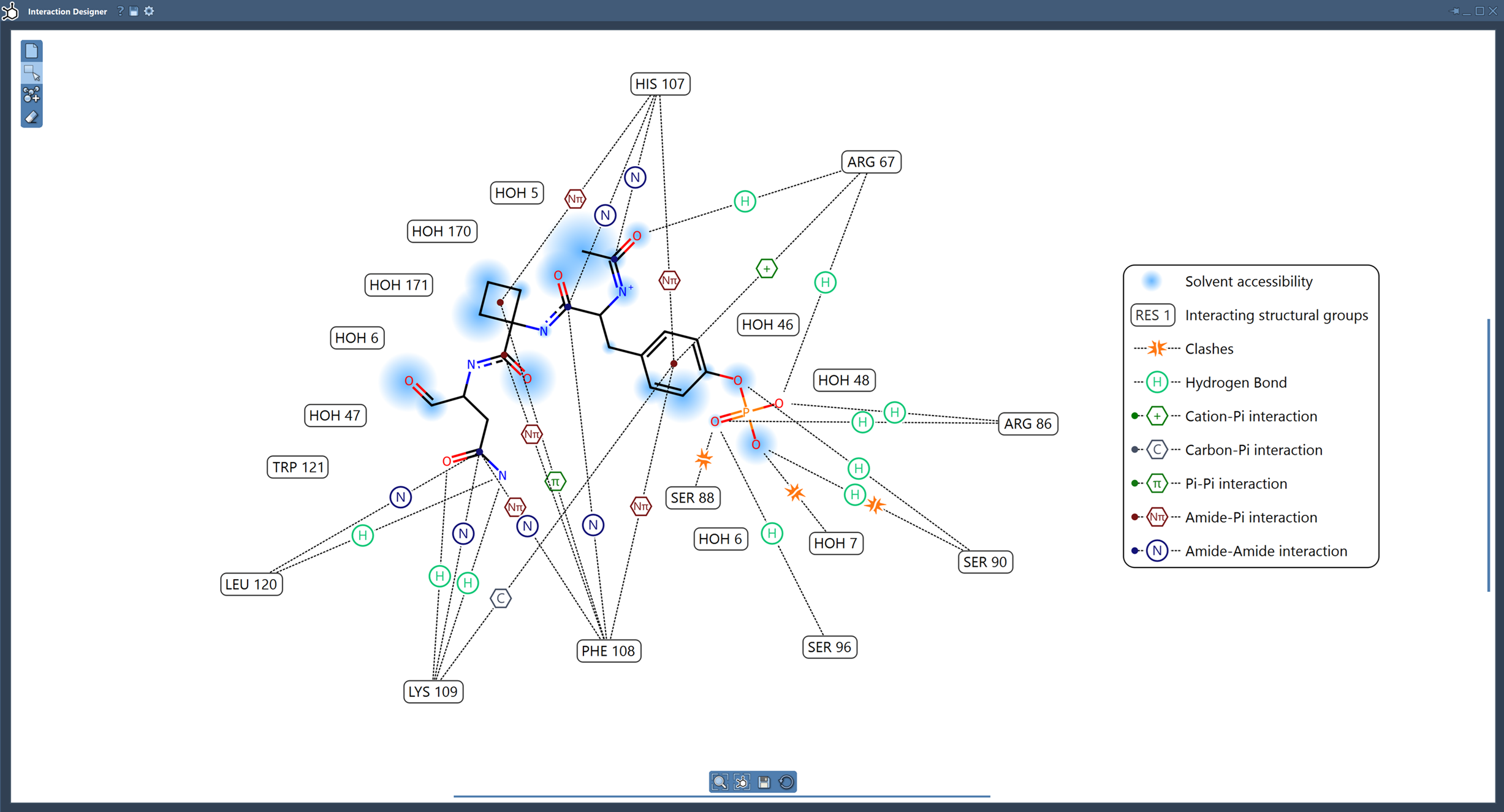
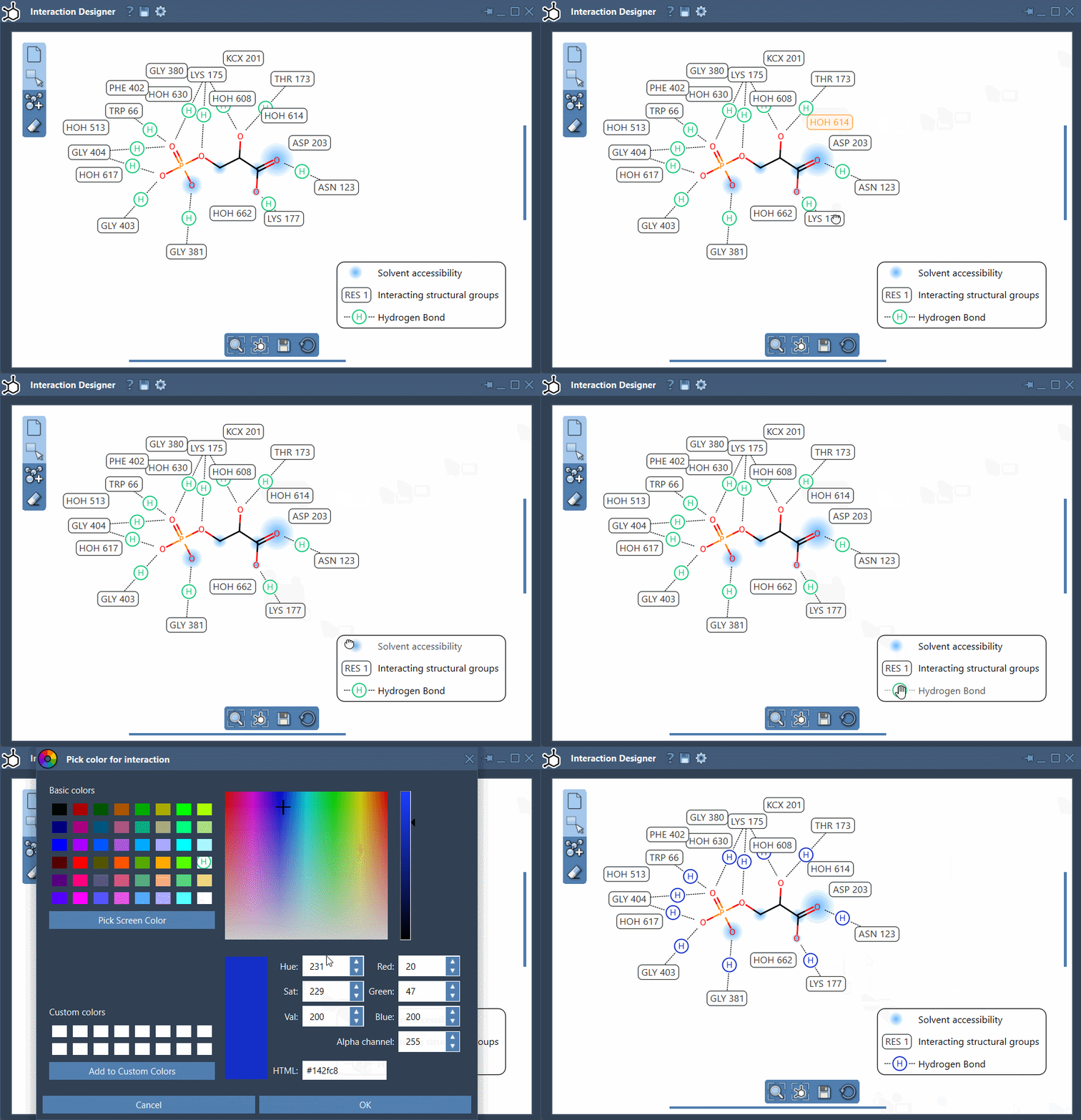
- Intuitive editing: You can easily adjust labels, interaction symbols, or hide/show specific interactions within the 2D diagram. This also impacts the 3D visualization, offering a holistic understanding of molecular interactions.
- Dynamic interaction exploration: Features like selecting, zooming on atoms, and aligning 2D and 3D views make it easy to explore both protein-ligand interactions and solvent accessibility visually.
Quick Tips for Managing Synchronization
The Interaction Designer is packed with helpful tools to make your workflow even more efficient:
- Use the Ctrl (or Cmd on macOS) key combined with the mouse scroll to zoom in and out of the 2D diagram.
- To translate the 2D diagram, hold the middle and right mouse buttons simultaneously while moving the cursor.
- If the views ever become misaligned, use the bottom menu of the Interaction Designer to update and align the 2D and 3D perspectives with a single click.
Unique Features for Interaction Diagrams
When creating or editing interaction diagrams in the Interaction Designer, you gain access to specialized tools:
- Binding pockets: Highlight areas of protein-ligand interactions for a focused analysis of docking sites and molecule positioning.
- Solvent accessibility: Visualize how ligand atoms interact with solvent molecules, aiding in molecular environment understanding.
- Customizable layouts: Move labels, adjust interaction symbols, and modify captions to create publication-ready diagrams.
User-Friendly Export Options
When the diagram is ready, export options allow you to save your 2D representations in formats like PNG, SVG, JPEG, or BMP. This makes it easy to include these visuals in reports, presentations, or articles.
The sync feature significantly reduces the effort required to keep your 2D and 3D molecular models aligned, streamlining your molecular interaction studies.
Learn more about how to use the Interaction Designer in SAMSON by visiting the official documentation page.
SAMSON and all SAMSON Extensions are free for non-commercial use. Get SAMSON at https://www.samson-connect.net.