



Molecular modeling can involve intricate workflows, especially when preparing reaction coordinate files or extracting movement data for simulations. One common challenge is efficiently exporting atomic trajectories along predefined paths. If you’ve ever struggled with this, SAMSON’s Export Along Paths extension has a streamlined solution for you. Here’s a practical guide on how to save time and effort with this feature.
Why Export Atomic Trajectories?
Atomic trajectory export can be important for various applications, such as:
- Generating reaction coordinate files for free energy profiling.
- Exporting ligand entry/exit pathways for enhanced sampling studies.
- Visualizing intermediate states during dynamic processes.
Instead of manually managing these tasks, SAMSON lets you handle them quickly and accurately.
Getting Started with the Export Along Paths App
To begin, ensure you have the Export Along Paths extension added to your SAMSON environment. Next, load a molecular system. SAMSON’s sample system for this tutorial is a structural model of Lactose permease (1PV7) with its ligand Thiodigalactosid (TDG) and pre-computed unbinding paths.
You can open the Export Along Paths app directly via Home > Apps > All > Export Along Paths, or use the search shortcut (Shift + E).
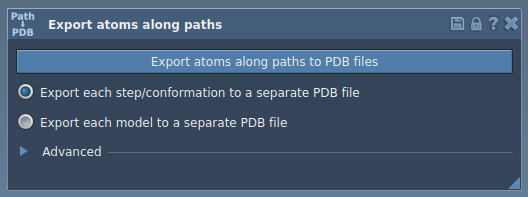
Two Flexible Export Options
The app provides two modes of exporting trajectories:
Option 1: Export All Atoms
In this mode, you can export every atom’s trajectory along selected paths. Here’s how to do it:
- Select one or more paths in the Document view.
- Choose an export format:
- All frames in a single PDB file.
- Each frame as a separate PDB file.
- Click Export atoms along paths to PDB files.
You’ll be asked to specify a destination folder and file prefix. For advanced customization, you can adjust the frame export interval.
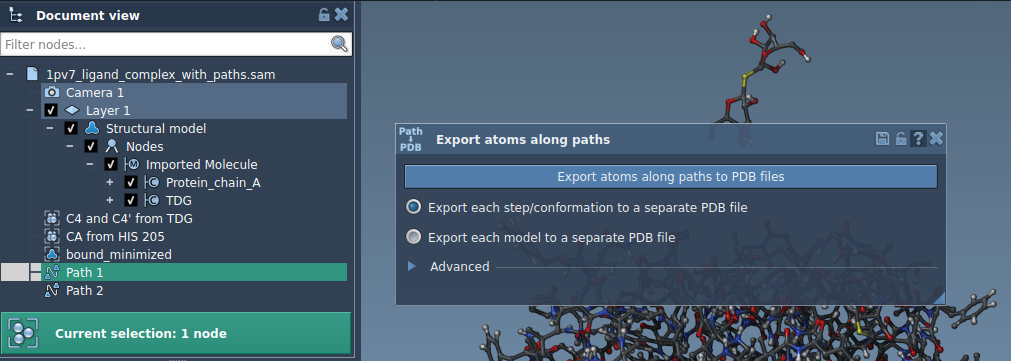
Option 2: Export a Subset of Atoms
Sometimes, you might want to focus on a specific group of atoms, like a ligand or binding site residues. This option allows greater precision:
- Expand the Advanced section in the app’s interface.
- Select a subset of atoms (e.g., the ligand TDG) in the Document view.
- Click Add to define the selection as a model for export.
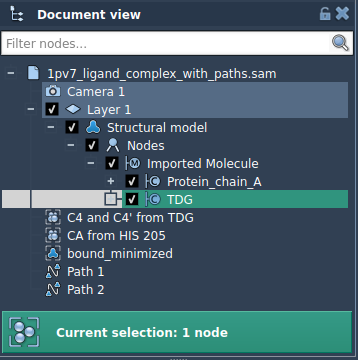
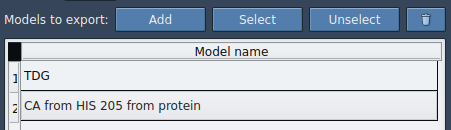
After adding a model, you can:
- Rename it by double-clicking its name in the list.
- Add multiple atom sets for simultaneous export.
- Highlight selected atoms using the Select/Unselect buttons.
Once your selections are final:
- Choose the desired export format.
- Ensure the correct path(s) are selected.
- Click Export atoms along paths to PDB files.
Streamline Your Molecular Modeling
Whether you’re preparing reaction coordinate files or analyzing ligand-binding movements, the Export Along Paths app simplifies the process. To explore its full potential, visit the complete tutorial at this documentation page.
Note: SAMSON and all SAMSON Extensions are free for non-commercial use. Get started with molecular modeling today by downloading the platform here.