



Molecular modelers often face the challenge of accurately simulating molecular systems while navigating through complex setup procedures. If you’re exploring molecular simulations, the Universal Force Field (UFF) in SAMSON offers an approachable and robust way to model atomic interactions across various molecular systems. This blog post will guide you through the steps to set up and run a UFF simulation, providing valuable insights into simplifying your workflow.
What is the UFF in SAMSON?
The Universal Force Field (UFF) implemented in SAMSON allows you to simulate molecular interactions using a reliable force field proposed by Rappe et al. What makes it particularly user-friendly is its ability to automatically detect bonds, bond orders, and atom types based on the molecular structure. This means that even if you are new to molecular modeling, you can quickly get started without manually setting up the intricate details.
Steps to Set Up a UFF Simulation
The process for setting up and running a UFF simulation in SAMSON is straightforward. Start by opening a molecular system file you wish to simulate. From there, follow these steps:
- Add a simulator: Go to
Edit > Simulate > Add simulator. You can also use the shortcut Ctrl+Shift+M (or Cmd+Shift+M on macOS). - Select UFF: In the interaction models list, choose Universal Force Field.
- Choose a state updater: For example, select the FIRE (FIRE) state updater for efficient relaxation of molecular geometries.
- Finalize setup: Press OK. The UFF setup window will now appear, where you can further customize settings:
- Enable Use existing bonds to rely on predefined bonds in your molecular model. Otherwise, UFF will automatically compute them.
- Confirm your choices by clicking OK to initialize the system with UFF.
At this point, the module automatically initializes the molecular system, computing bonds, bond orders, and atom types if necessary. If any inconsistencies are detected during initialization, SAMSON will notify you with an informative message.
Running the UFF Simulation
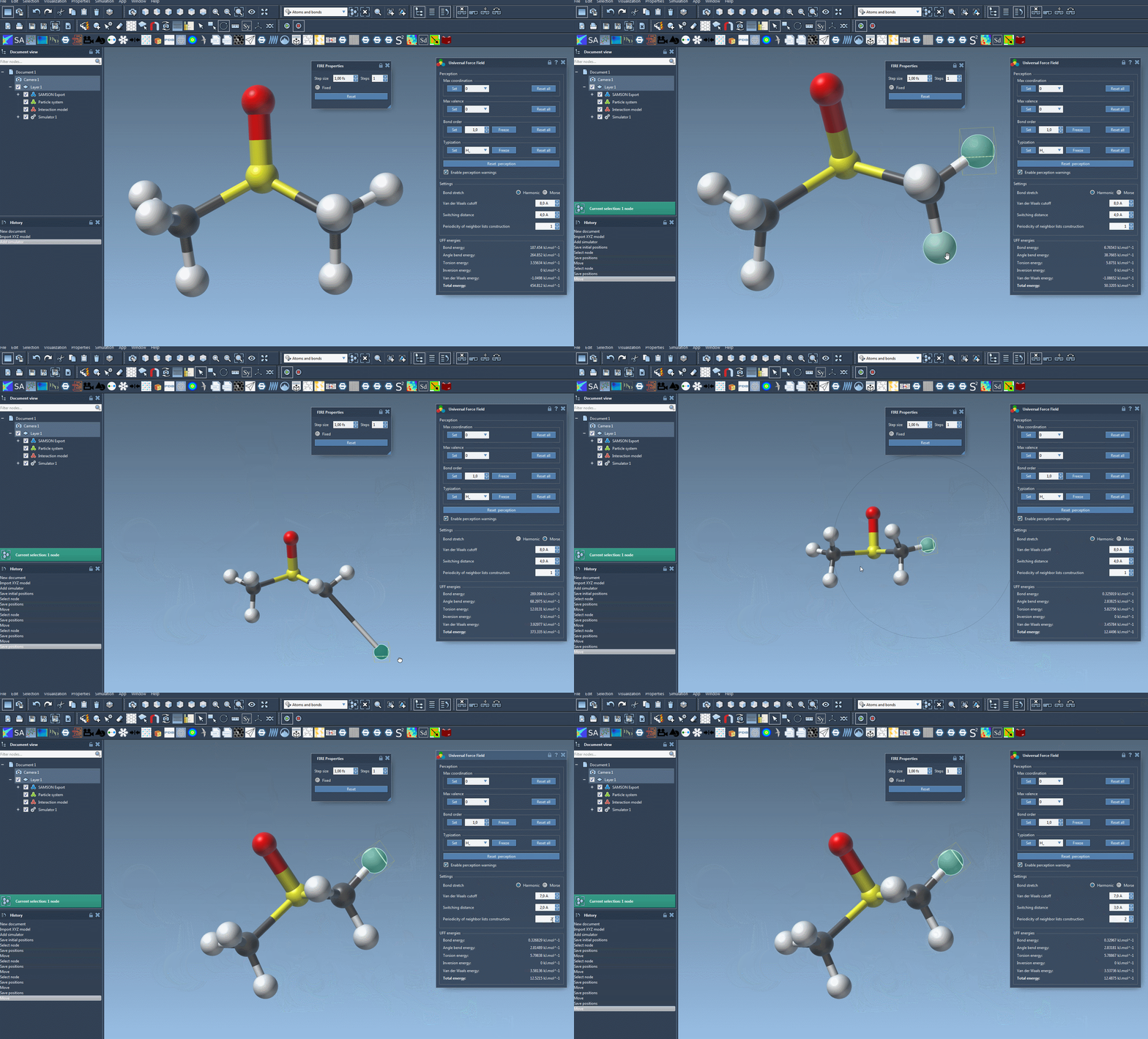
With the simulation model set, you can run the UFF simulation by simply clicking Edit > Simulate > Start. The simulation visualizes how atoms interact in your molecular system. You’ll see both individual energy terms and the total UFF energy displayed at the bottom of the parameter window. Additionally, you can interactively move atoms to observe how the system reacts dynamically.
What can you customize in UFF?
The UFF tool in SAMSON offers options to modify the simulation to fit your needs:
- Bond stretch interactions: Switch between Harmonic or Morse modes for different levels of accuracy and computational demands.
- Van der Waals interactions: Adjust the cutoff distance and switching distance for vdW interactions based on your system’s requirements.
- Neighbor list periodicity: Control how often neighbor lists for vdW interactions are recalculated, optimizing simulation performance.
You can explore these settings in the UFF parameter window during the simulation (see the example below):
Why Choose SAMSON for UFF Simulations?
One key advantage of using UFF in SAMSON is its flexibility: it requires minimal manual setup while accounting for each molecule’s complex interactions. Whether you’re a newcomer or an expert, the user-friendly interface ensures that you can focus on your research goals rather than spending time on tedious setup tasks.
For more detailed guidance, please refer to the official documentation at this link.
*Note: SAMSON and all SAMSON Extensions are free for non-commercial use. Download SAMSON today at www.samson-connect.net.*