



One of the challenges faced by molecular modelers is efficiently computing the Potential of Mean Force (PMF), a valuable metric for understanding molecular interactions. If you are working with the Weighted Histogram Analysis Method (WHAM), organizing simulation results and ensuring accurate post-processing can get overwhelming. But with the GROMACS Wizard in SAMSON, PMF computation becomes much easier and more streamlined.
What Does the GROMACS Wizard Do?
The GROMACS Wizard automates the tedious steps of PMF computation, allowing you to focus on interpreting results rather than preparing inputs. Let’s look at how it can simplify the process:
Preparing Your Project Folder
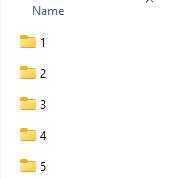
Whether your simulations come from Umbrella Sampling or Batch Computations, the Wizard expects an organized project folder. Ensure your project contains numbered subfolders, with each subfolder storing simulation results for the same system and reaction coordinates. Here’s an example of how the input folder should look:
How to Quickly Set Up and Run WHAM Analysis
Once your folder is ready, here’s how to start your WHAM analysis in GROMACS Wizard:
- Access the WHAM Analysis Tab: Open the WHAM Analysis tab in the GROMACS Wizard.
- Import Your Project Path: You can either specify the project path manually or use the convenient Auto-Fill button. The Auto-Fill option (represented by a button with this icon
 ) extracts the path from your most recent project, such as an Umbrella Sampling simulation!
 - Load System Data: Let the Wizard automatically retrieve key details from your project, including reaction coordinates, time, and temperature. This ensures all parameters are consistent with your setup.
Configuring and Running the Computation
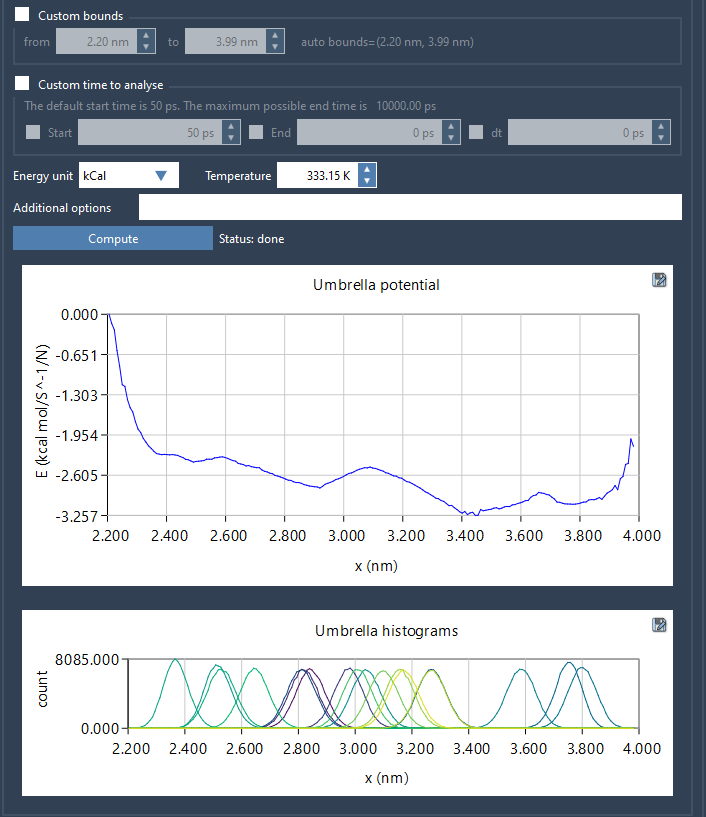
Select your desired reaction coordinate from the list. Adjust options such as custom bounds, time, or energy units if applicable, and then hit the Compute button. From this point, GROMACS Wizard takes over, processes your data, and generates two visual outputs:
- PMF Graph: Displays the computed Potential of Mean Force for your chosen parameters.
- Histogram: Shows how well the reaction coordinate space is covered, informing whether additional simulations might be necessary.
Automatic Saving of Results
One of the time-saving features of the GROMACS Wizard is its smart results management. Once computations are complete, the profiles, histograms, and plots are automatically saved in a newly created wham_results subfolder within your project folder. Even better, if you switch between reaction coordinates, the Wizard uses pre-computed data for faster results, avoiding redundant calculations.
Fine-Tuning and Effortless Analysis
The histogram generated by the GROMACS Wizard helps identify areas where reaction coordinate space may be unevenly covered, directing you to regions that might need additional simulation. This ensures your analysis is both comprehensive and focused, helping you gather meaningful insights into molecular behavior.
The GROMACS Wizard eliminates much of the manual effort and guesswork in PMF computation, providing you with an efficient and reliable workflow. To learn more about PMF computation and step-by-step instructions, check out the original documentation here.
Note: SAMSON and all SAMSON Extensions are free for non-commercial use. You can download SAMSON from here.