



Molecular modelers and nanoscientists often face the challenge of constructing accurate carbon nanotube (CNT) models for simulations or experimental hypotheses. Whether you are modeling electronic properties, designing nanodevices, or exploring CNT-based sensors, the Nanotube Creator Extension in SAMSON simplifies this process significantly. This blog post provides an overview of how you can create carbon nanotube models with ease using interactive or graphical modes, tailored to your preferences.
Why Use the Nanotube Creator?
Carbon nanotubes are integral to numerous applications, including molecular transport, drug delivery systems, and nanoelectromechanical systems. Traditional methods of building carbon nanotubes can be tedious and prone to error. SAMSON’s Nanotube Creator allows researchers to focus more on analysis and less on setup by providing two intuitive modeling approaches: an interactive mode and a graphical user interface (GUI).
Method 1: Create Nanotubes Interactively
The interactive mode lets you create nanotubes directly in the viewport using a simple mouse-based workflow:
-
Set the nanotube axis and length: Press and drag the left mouse button in the viewport to define the CNT axis and its length. The status bar provides real-time feedback to ensure precision, showing details like axis orientation and tube length.

-
Adjust the nanotube radius: Release the mouse button after setting the length. Move the mouse to modify the radius and click the left button again to confirm. This determines the nanotube’s properties.
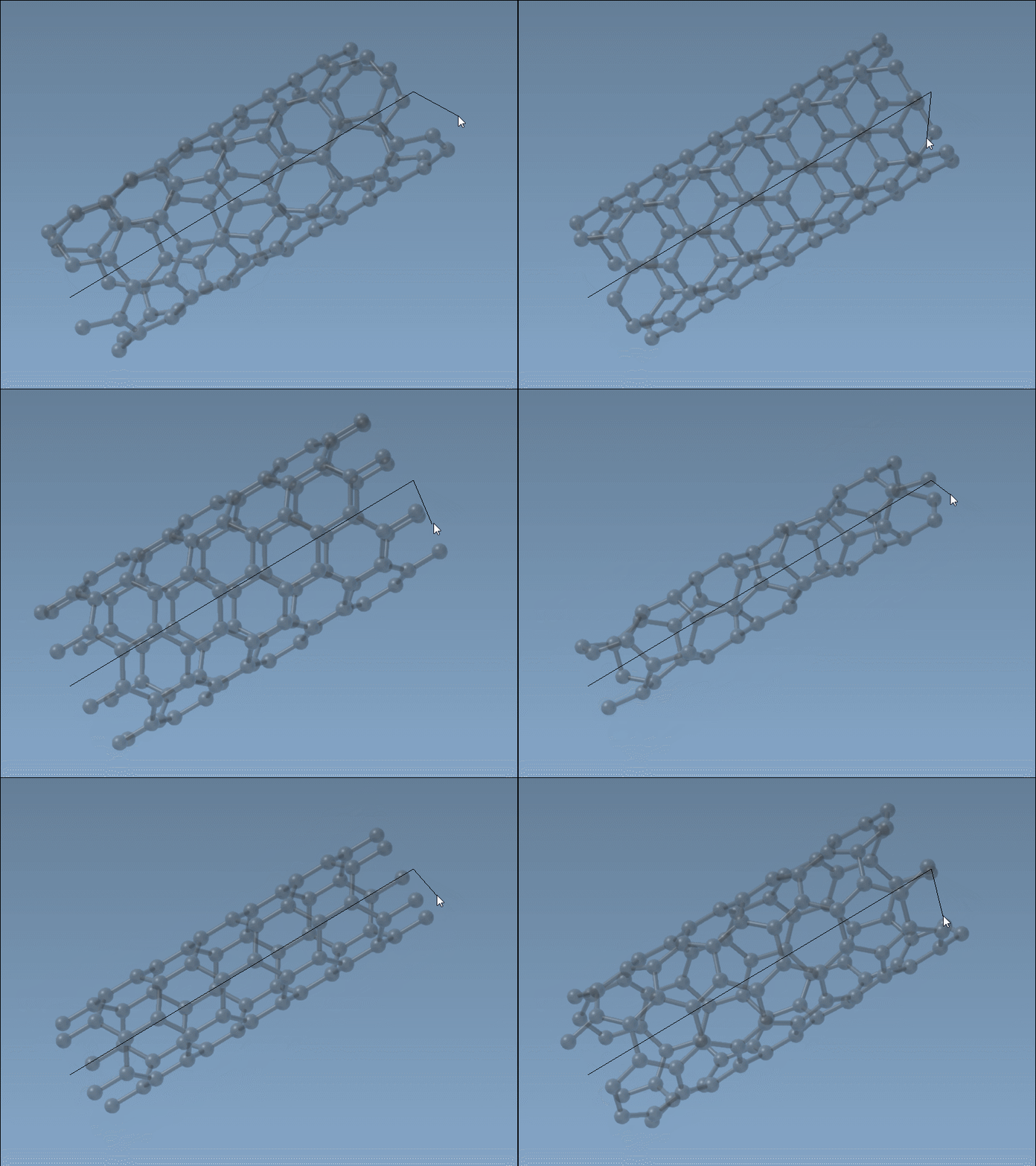
This method offers an intuitive way of defining a CNT’s parameters (n and m), while the live status bar ensures accuracy during the process.
Method 2: Use the Graphical Interface
If you prefer a more precise approach involving fine-tuned control, the Nanotube Creator also comes with a user-friendly graphical interface (GUI). Simply activate the editor from the viewport’s left-side menu (… > Materials > Nanotube Creator) or with Find everything… (use Shift + E to search for “Nanotube Creator”).
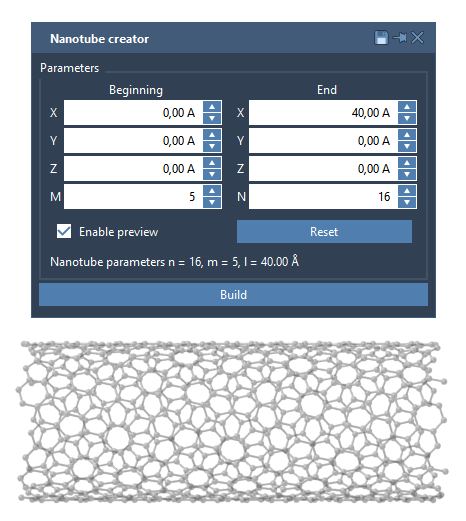
Using the GUI, you can set precise parameters such as:
- Start and End Positions: Define the axis in 3D space.
- n and m Values: Control the chiral vector for fine adjustments to the nanotube’s structure and radius.
Once parameters are set, click Build to generate your nanotube seamlessly. The GUI is particularly helpful when creating more complex structures like multi-walled CNTs, as it allows layer-by-layer construction with minimal effort.
Example: Build a Multi-Walled Nanotube
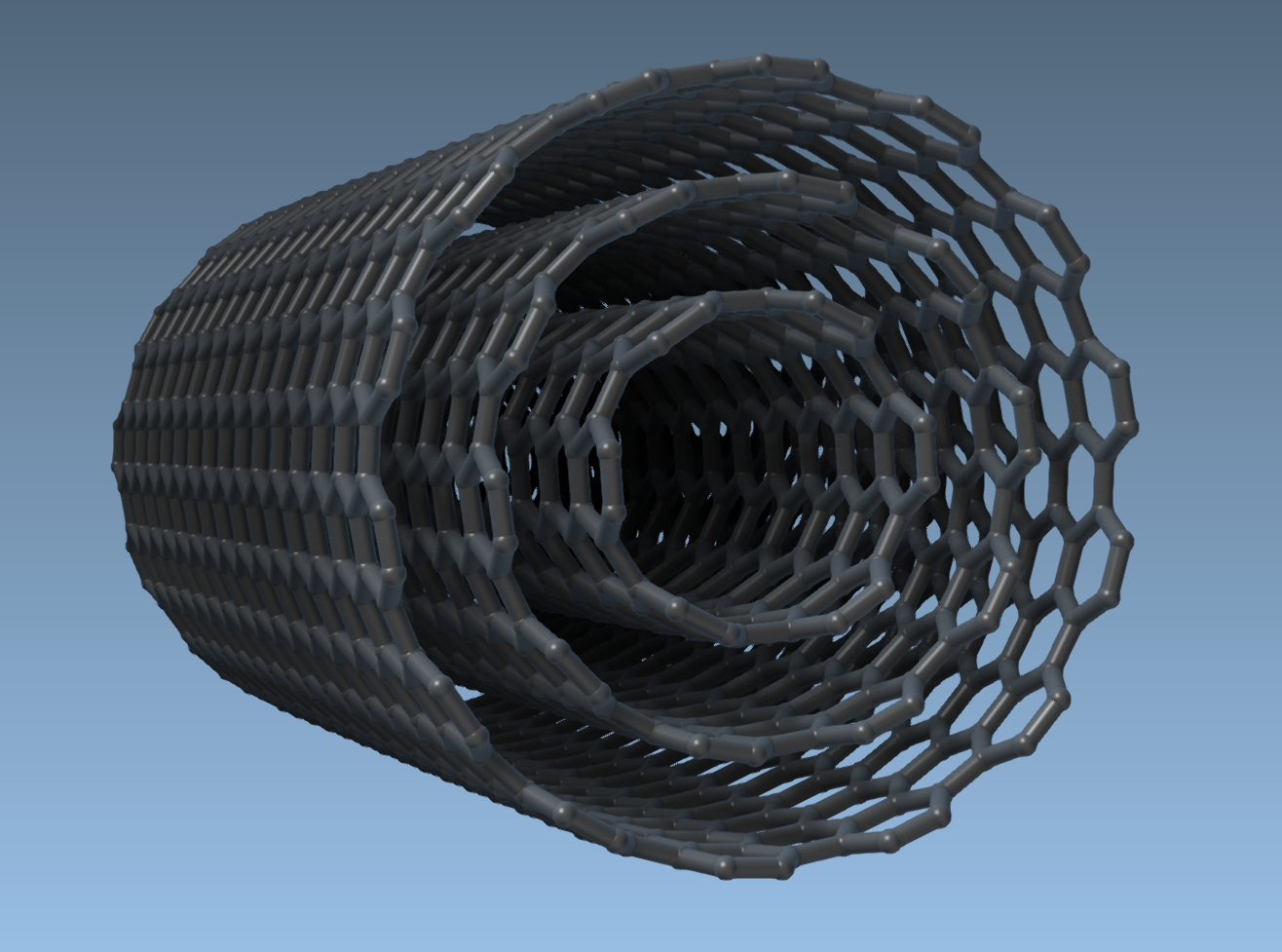
To demonstrate the power of the Nanotube Creator, here’s a simple step-by-step process for building a multi-walled CNT:
- Start and end positions:
(0, 0, 0)and(40, 0, 0), creating a 40 Å tube along the x-axis. - CNT 1: Set
n = 6,m = 6and build the inner wall. - CNT 2: Set
n = 10,m = 10for the second layer and build. - CNT 3: Set
n = 14,m = 14for the outer wall and build.
The result is a multi-walled nanotube, as shown below:
Conclusion
Whether you are building a simple CNT for basic simulations or a multi-walled structure for nanotechnological applications, SAMSON’s Nanotube Creator makes the process fast, interactive, and precise. To explore more details and advanced options, visit the full documentation page at https://documentation.samson-connect.net/tutorials/nanotubes/building-nanotubes-models/.
Note: SAMSON and all SAMSON Extensions are free for non-commercial use. Get started today by downloading SAMSON at https://www.samson-connect.net.