



A molecular trajectory can produce a long list of measurements: distances, energies, RMSD, radius of gyration, solvent-accessible surface area, and more. Looking at each quantity separately may show how it changes, but it can leave a key question unanswered: do two observables change together, and what does that relationship look like?
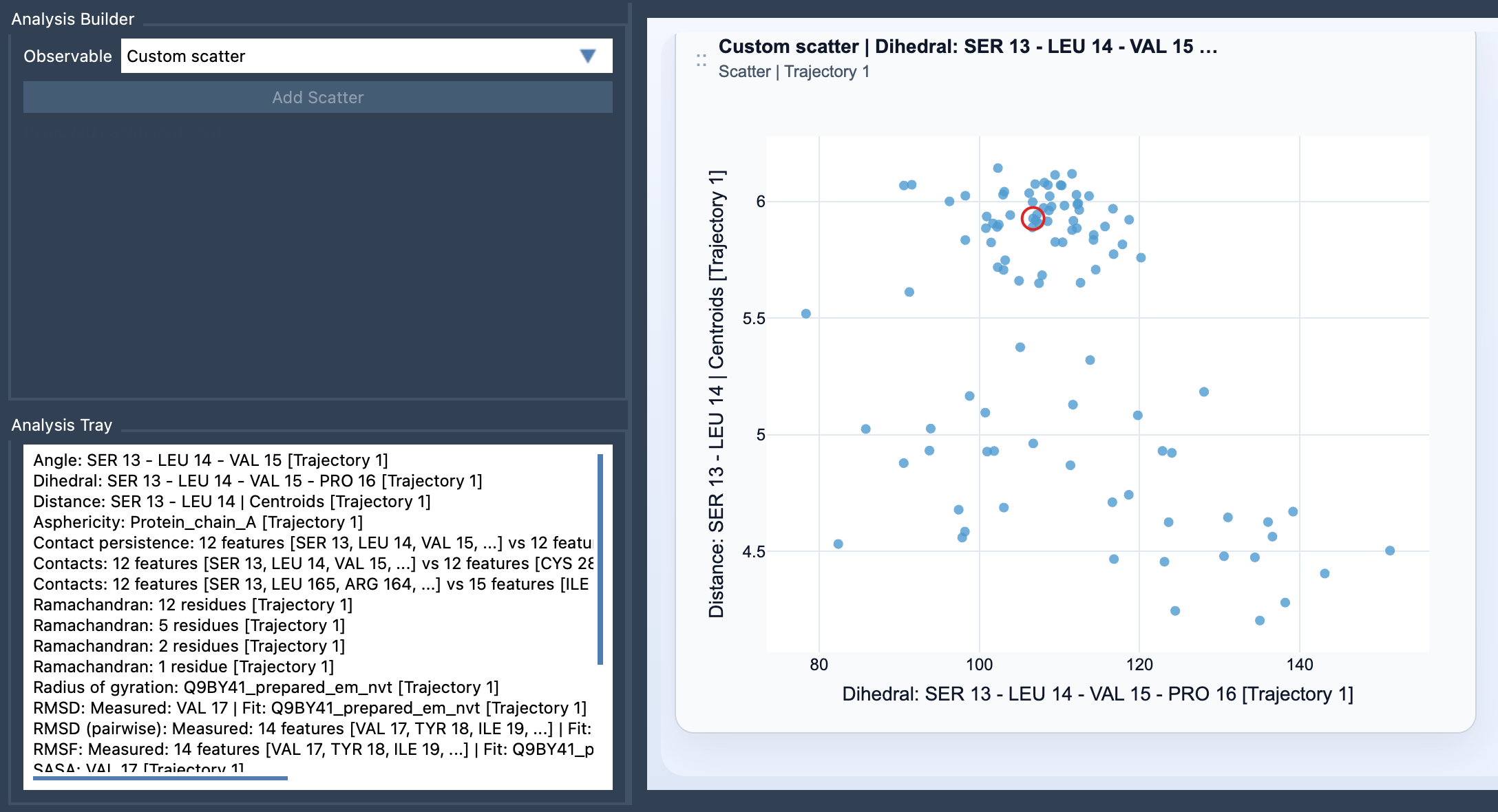
A Custom scatter plot in SAMSON’s Path Analyzer compares two saved scalar analyses directly. Each point represents one sampled pair of scalar values. Instead of scanning two separate results, you can inspect their relationship in one view—useful when you are trying to spot a trend, a cluster, an apparent inverse relationship, or a region that may deserve closer investigation.
Start with a question, not just two variables
A scatter plot is most useful when its axes correspond to a scientific question. For example, Distance vs Energy asks whether changes in a chosen distance accompany changes in energy. RMSD vs Radius of gyration compares structural deviation with a measure of overall size. SASA vs Distance can help you inspect how solvent-accessible surface area varies alongside a distance observable.
These comparisons do not, by themselves, establish that one quantity causes another. They help you see patterns in the values and decide what to examine next. A visible trend can guide follow-up analysis; a scattered cloud or multiple clusters may suggest that the relationship is not simple across the sampled data.
Build the comparison
- Open Path Analyzer.
- Create or reuse two scalar analyses and make sure they are saved in the Analysis Tray.
- Choose Custom scatter in Observable.
- Select exactly two saved scalar analyses in the tray, then click Add Scatter.
Custom scatter is a derived analysis: its inputs come from the Analysis Tray rather than from selecting atoms directly for the plot. Both source analyses need to be scalar analyses. If the plot cannot be created, check first that the tray contains two saved scalar analyses—not zero, one, or more than two.
Read the pattern carefully
Each plotted point is a pair of values, one from each source analysis. A rising arrangement of points may indicate that the observables tend to increase together over the sampled data; a falling arrangement may indicate that one tends to decrease as the other increases. Distinct groups of points can prompt questions about whether different regions of the data behave differently. These are visual clues, not conclusions on their own: consider the definitions of the observables and the context of the underlying path before interpreting them.
Frame linkage can make the plot more useful for exploration. When both source analyses come from the same path and remain frame-linked, the scatter plot can stay connected to the current frame. In that situation, clicking a point can move the path to its corresponding frame. This gives you a way to connect a point in observable space back to a molecular structure and inspect what is happening there. If the analyses are not frame-linked, do not assume that clicking a point will navigate the path.
Use the scatter plot as a starting point
When a scatter plot reveals a region or pattern worth exploring, it can help you decide what analysis to try next. The Path Analyzer documentation suggests using scatter plots as a starting point before creating a 2D density map or an Energy landscape. The practical benefit is simple: first see how two chosen observables relate, then use that view to guide a more focused analysis.
For the complete instructions and details, see the Custom Scatter documentation.
Note: SAMSON and all SAMSON Extensions are free for non-commercial use. Get SAMSON.