



A molecular trajectory can produce a long list of useful measurements: distances, energy values, RMSD, radius of gyration, solvent-accessible surface area, and more. But reading each measurement separately can leave an important question unanswered: How do these observables relate to one another?
For example, does a distance tend to increase as energy changes? Do similar RMSD values appear across a range of compactness values? Are there groups of samples that look distinct when two measurements are considered together? A Custom scatter plot in SAMSON’s Path Analyzer offers a direct way to explore questions like these by comparing two saved scalar analyses.
Why compare two observables?
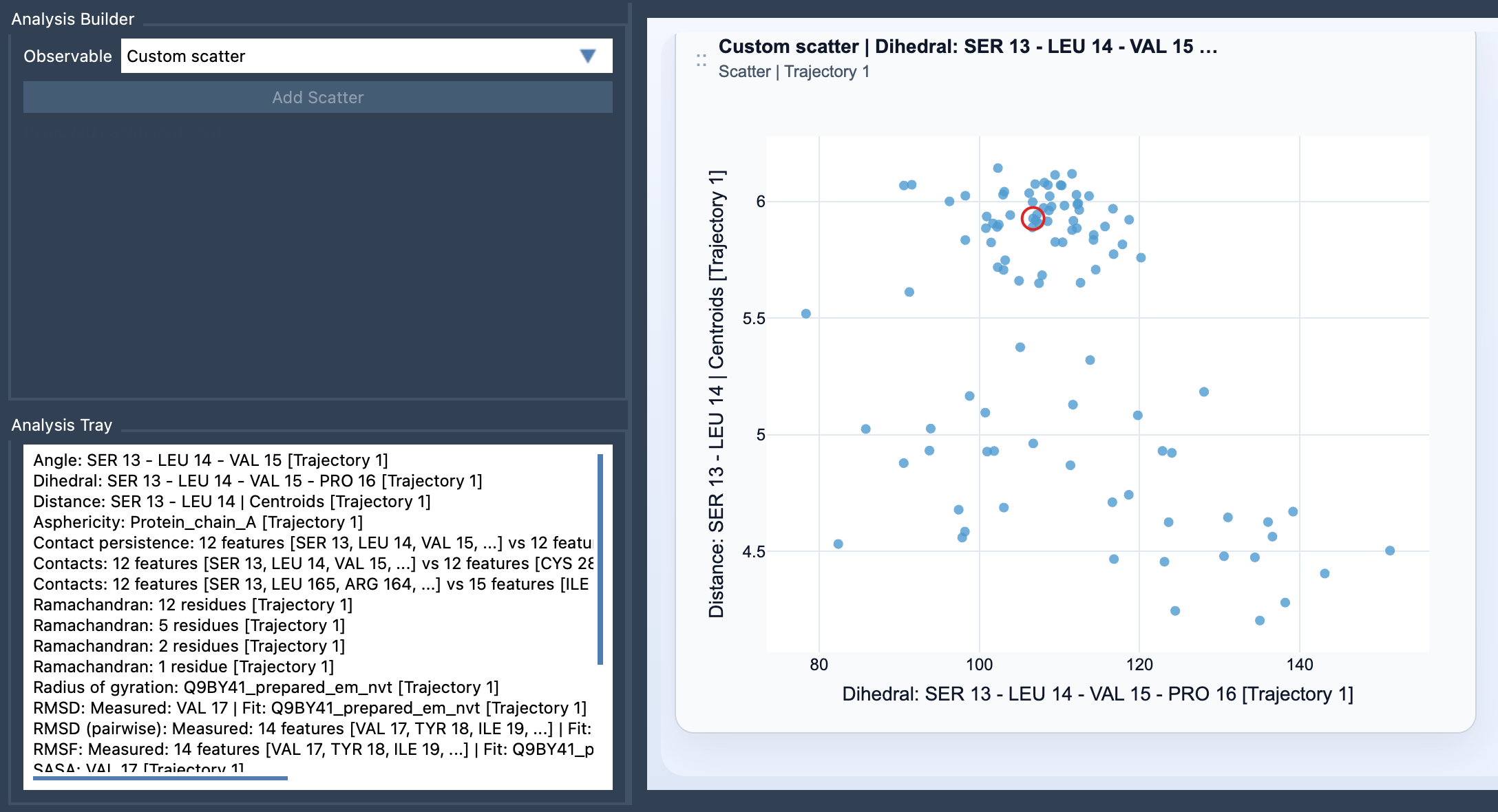
Separate plots show how each value changes, but they may not make the relationship between the values easy to see. A scatter plot puts one scalar analysis on one axis and the other on the second axis. Each point represents one sampled pair of values. The arrangement of points can help you spot patterns worth investigating: a general trend, an opposing trend, groups of points, or a path through the observable space.
This is useful when you have a specific modeling question rather than just a collection of measurements. Consider Distance vs Energy: the plot can help you inspect whether sampled distance and energy values vary together. RMSD vs Radius of gyration can help you compare structural deviation with overall compactness. SASA vs Distance can help you examine how solvent exposure relates to a chosen distance. These pairings are examples for exploration, not a guarantee that one measurement explains or causes changes in the other.
Build the plot from saved analyses
- Open Path Analyzer.
- Create or reuse two saved scalar analyses in the Analysis Tray.
- Choose Custom scatter under Observable.
- Select exactly two saved scalar analyses in the tray.
- Click Add Scatter.
Custom scatter is a derived analysis: it takes its inputs from the Analysis Tray rather than from direct atom selections. Both inputs must be scalar analyses. In practical terms, decide what scientific comparison you want to make first, then select the two saved results that represent those observables.
Read the pattern as a question, not a conclusion
Once the plot appears, each point is a paired observation. A visible pattern can suggest a relationship to investigate, while a spread of points may show that the relationship is less straightforward than a single trend would imply. Clusters or pathways can also be useful prompts for further analysis. The scatter plot helps you see how two observables are distributed together; interpreting why they are related requires scientific context and, often, additional checks.
Keep the sampling context in mind. If both source analyses come from the same path and remain frame-linked, the scatter plot can stay connected to the current frame. When the sources are frame-linked, clicking a point can move the path to the corresponding frame. That makes it possible to connect a point in observable space back to the path frame it represents and inspect the associated molecular state.
Use the scatter plot as a starting point
A two-variable view is often a helpful first step before moving to a more specialized visualization. If you want to examine how values are distributed across a two-dimensional space, consider following up with a 2D density map. If your question concerns energy across a landscape, explore the Energy landscape analysis. These tools address different questions, so the best next step depends on what the scatter plot reveals and what you want to understand.
For the complete Custom scatter instructions, see the Path Analyzer documentation.
Note: SAMSON and all SAMSON Extensions are free for non-commercial use. Get SAMSON at www.samson-connect.net.