



For molecular modelers and protein designers, understanding how proteins are structurally organized is a crucial foundation for any workflow. When dealing with protein structures stored in PDB files, you’ve likely encountered references to their crystal structures and biological assemblies. But how do you visualize these assemblies, explore protein-protein interfaces, or reconstruct quaternary structures for simulations? This is where the Symmetry Mate Editor extension in the SAMSON platform becomes massively useful.
The Typical Bottleneck
Protein structures in PDB files often provide symmetry information. However, reconstructing full assemblies or exploring how subunits interact typically requires specialized tools or scripts. The process of generating symmetric replicas manually from metadata in PDB files can quickly become tedious and error-prone, especially if you’re unfamiliar with crystallographic data.
The Symmetry Mate Editor in SAMSON eliminates this bottleneck. It enables you to effortlessly recreate symmetric replicas of proteins with just a few clicks, using transformation data found in PDB files. The extension transforms how you inspect, analyze, and design molecular systems.
Where the Symmetry Mate Editor Helps
The Symmetry Mate Editor is designed to address several key use cases in molecular design:
- Reconstructing biological assemblies from unit cells or crystallographic units.
- Exploring protein-protein interfaces and identifying potential binding sites.
- Building complete multi-subunit assemblies for molecular dynamics simulations.
- Designing symmetric complexes, protein cages, or nanostructures.
How it Works
Activating the Symmetry Mate Editor in SAMSON is simple:
- Open the editor with the shortcut
Shift+Eand searching for “Symmetry Mate Editor,” or via the left-side viewport menu: … → General → Symmetry Mate Editor. - Once activated, you’ll see control nodes in the viewport indicating symmetry transformations extracted from your PDB file.
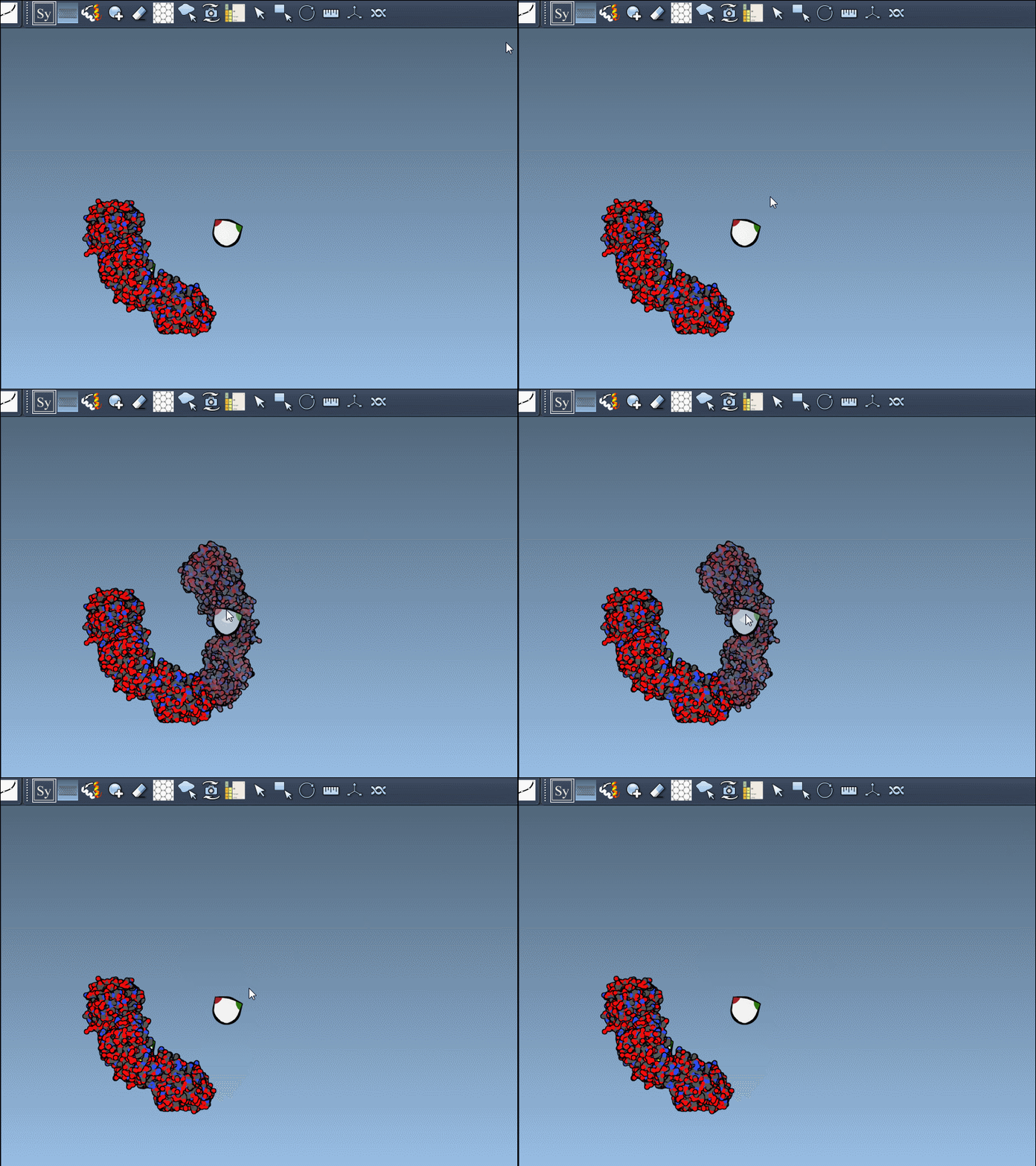
- You can easily hover over a control node to preview symmetry mates in real-time.
- Left-click on a control node to permanently generate that replica.
Do you need to generate multiple replicas at once? Hold Ctrl/Cmd while hovering and clicking a control node to preview and create all mates simultaneously. This feature is especially useful for assembling large, symmetric complexes or exploring extensive repeating binding sites in one step.
Here’s an example of how you can interact with symmetry mates in SAMSON:
CRYST1 vs. BIOMT Records
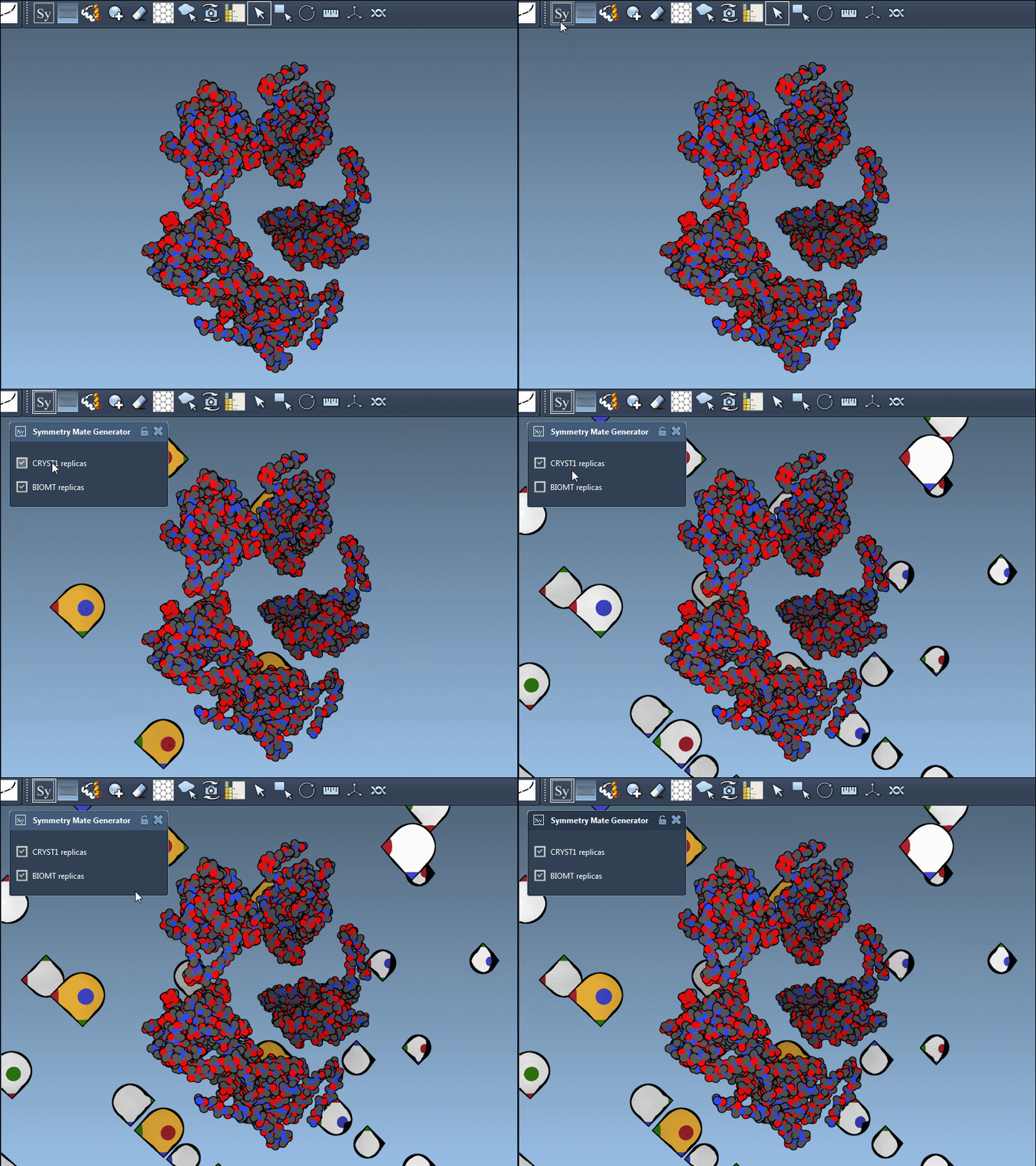
In PDB files, symmetry metadata can originate from either CRYST1 records (crystal lattice symmetries) or BIOMT records (biological assembly annotations). The Symmetry Mate Editor supports both types. This distinction is visually represented in the editor, where nodes for CRYST1 records appear white and nodes for BIOMT records appear yellow. You can toggle between the two within the editor’s interface, ensuring precise control over the type of symmetry you wish to analyze or utilize.
Here’s a visual example demonstrating how these two record types are represented:
Beyond Symmetry
The applications of symmetry mates go far beyond visualization:
- Build oligomeric assemblies by reconstructing all symmetry-related units.
- Design symmetric scaffolds for nanotechnology or biomedical applications.
- Prepare high-quality inputs for molecular dynamics by simulating interactions between individual and symmetric chains.
Learn More
Ready to start generating symmetry mates in SAMSON? This extension simplifies your workflow and improves the accuracy of your structural assemblies. To learn more about the Symmetry Mate Editor and its features, visit the official documentation at https://documentation.samson-connect.net/tutorials/symmetry/generating-symmetry-mates/.
SAMSON and all SAMSON Extensions are free for non-commercial use. Get started today by downloading SAMSON at https://www.samson-connect.net.