



In molecular modeling, pinpointing the exact structural element you need can often feel like searching for a needle in a haystack. Whether you are working with complex protein-ligand interactions or overseeing the many details of atomic structures, the ability to filter and select relevant nodes efficiently can save hours of tedious effort. Enter the Node Specification Language (NSL) in SAMSON—a precision tool designed to simplify and power up your selection workflow.
The NSL lets you filter atoms, residues, and larger structural elements based on properties such as node type, proximity, topology, attributes, and more. This post will guide you on how to use NSL to filter nodes in the Document View effectively, ensuring you can home in on the necessary details of your project with ease.
Effortless Filtering with the Document View
SAMSON’s Document View offers an intuitive interface for interacting with your molecular models. But did you know you can turbocharge your filtering actions by entering NSL expressions directly into the filter box? Here’s how it works:
- Locate the filter box: Open the Document View in SAMSON (accessible through the interface). At the top, you’ll see an input box for filtering.
- Enter an NSL expression: Input your desired NSL expression (e.g.,
n.t residueto filter all residue nodes). - Apply and interact: Once filtered, press Enter to select the displayed nodes for further actions.
The above steps give you precise control over what parts of your structure you wish to isolate visually and interact with.
Example: Selecting Specific Structural Groups
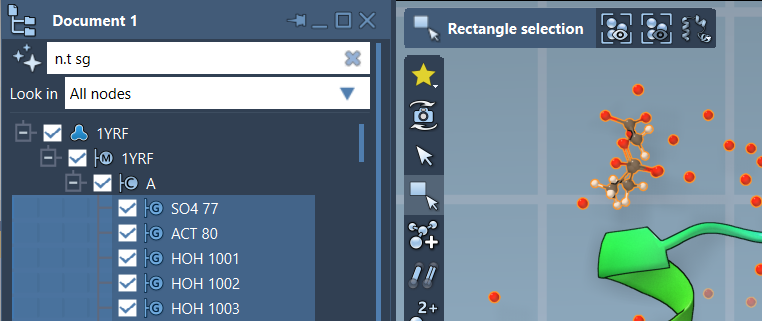
Let’s go through a practical example. Suppose you’re interested in selecting structural groups, such as backbone groups, from your molecular model. The NSL expression:
n.t sg (or the long form node.type structuralGroup)
can be entered in the filter box. Upon pressing Enter, only structural groups—like backbones or side chains—will remain visible and selectable in the Document View.
To refine your selection further, you might want to work only with backbones that contain a sulfur atom. For that, you can use:
node.type backbone having S
Simply type (or paste) the desired query into the filter box, and SAMSON will do the rest, narrowing down your focus to the elements you care about most.
Proximity-Based Filtering
Suppose you need to filter nodes based on their distances to other elements—a frequent requirement in molecular modeling. NSL supports proximity operators like within and beyond. For instance, the following NSL query can filter residues:
node.type residue beyond 5A of node.selected
This selects residues beyond 5 angstrom from the currently selected nodes. Such functionality is invaluable when identifying, for example, residues distant from a ligand binding site.
Using AI for Node Selection
If formulating NSL expressions sounds intimidating, don’t fret—SAMSON has an integrated AI Assistant to help. Click the  Ask AI button in the Document View filter box to generate NSL queries tailored to the loaded molecular model. The AI leverages the active document’s hierarchy to provide contextually relevant expressions, making advanced filtering accessible for users of all expertise levels.
Conclusion
With NSL in SAMSON, filtering and selecting molecular structures is no longer a chore. Whether you’re combing through residues, isolating atoms by specific bonds, or working within proximity constraints, NSL offers an approachable yet powerful command language that integrates seamlessly with the Document View. Mastering these features will not only transform your workflow—it’ll make you more efficient and precise in your molecular design projects.
To learn more about how NSL can enhance your molecular modeling, visit the official documentation.
SAMSON and all SAMSON Extensions are free for non-commercial use. You can download it at SAMSON Connect.